User record: SIP Credentials
The four values a third-party SIP software or device needs to connect as this extension. This tab is not edited, it is read.
At a glance
| Where | Users and phones, Users, open an extension, SIP Credentials tab |
| Content | four read-only values. Nothing to enter, nothing to save |
| Available | on an extension already saved. The tab does not exist during creation |
| What it is for | third-party phone software, or a device we do not provision |
| The trap | the Domain and the Proxy server address are not the same value, and do not go in the same field on the phone |
How it works
Two of the four values look alike and play opposite roles.
The Domain, yourcompany.axivox.com, is where your extension authenticates. It is the equivalent of your company's name: that is where your account exists.
The Proxy server address is the machine the phone actually talks to.
The subtlety is that the domain does not resolve to an IP address. It does not carry a direct address, but a service record that points to the proxy server. A phone that can only look up a direct address will therefore find nothing, and a phone given the proxy as its domain will authenticate in the wrong place. That is why both fields must be filled in, each in its own place.
What to enter
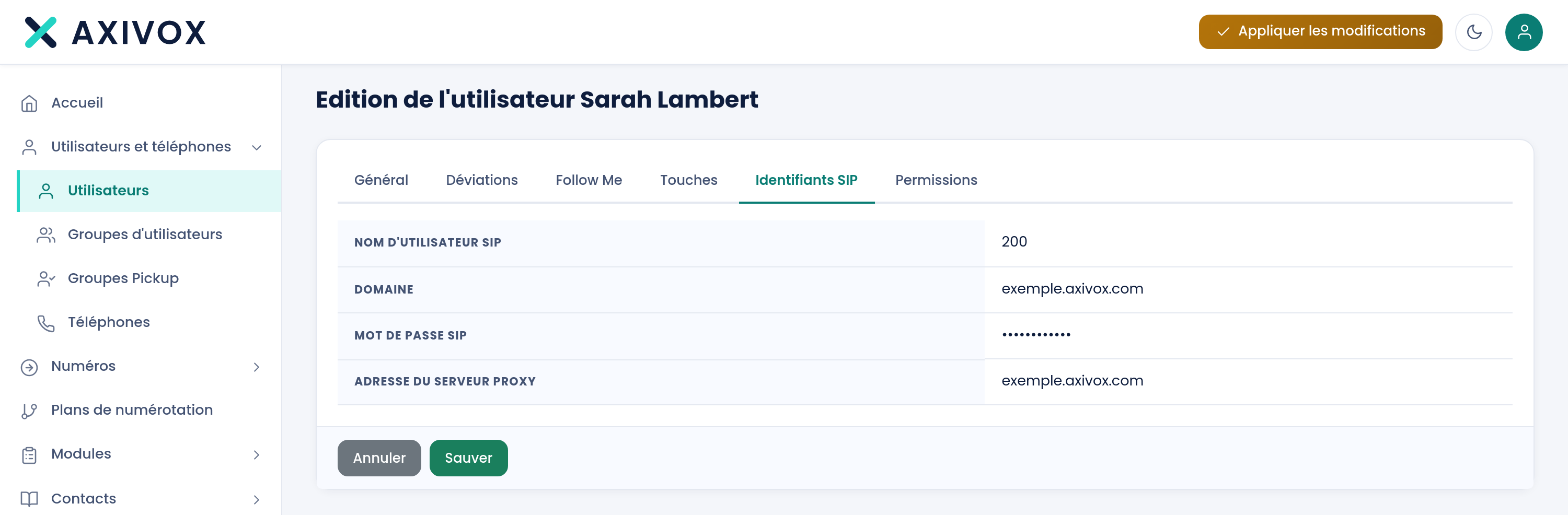
The tab is a read-only table. Here is where to enter each value in your device or software. Labels vary from one manufacturer to another, the roles do not.
| Tab value | What it is | Where to enter it |
|---|---|---|
| SIP username | the extension's number | the identifier field, often User Name or Phone Number, and the Authentication Name field |
| Domain | yourcompany.axivox.com | the SIP domain field, often Registrar or SIP Server, port 5060 |
| SIP password | generated when the extension was created | the Password field |
| Proxy server address | pabx.axivox.com, or pabx-sg.axivox.com depending on which installation hosts you | the Outbound Proxy field, port 5060. Do not leave it empty |
The transport to use is UDP.
A Copy button sits next to the password. Use it: a generated secret copied by hand can pick up a stray space or an extra character without it showing.
Step by step
- Open Users and phones, Users, then the extension in question.
- Go to the SIP Credentials tab.
- In your device, fill in the Registrar or SIP domain field with the Domain value, port 5060.
- Fill in the Outbound Proxy with the Proxy server address, port 5060.
- Put the extension's number in both the identifier and the authentication name.
- Click Copy next to the password, and paste it into the field provided.
- Set the transport to UDP, save, then restart the device.
- Check with an internal call to another extension, then with an incoming call.
If it does not work
The phone keeps asking for the password, or loops on an authentication error. This is the most common symptom, and the password is almost never the cause. You put the proxy server address in the Registrar field. The extension then tries to authenticate in a domain where your account does not exist, and no value will ever work. Put the Domain back in the Registrar and the proxy address in the Outbound Proxy.
The phone shows "No Service" or cannot find the server. The domain is in the right place, but the Outbound Proxy field is empty. The domain does not carry a direct address: a device that only looks that up finds nothing and gives up. Fill in the proxy.
The password looks correct and still does not work. It was copied by hand. A trailing space is enough to break it. Start over using the tab's Copy button.
My phone is not provisioned automatically. Automatic provisioning covers the Snom and Yealink devices registered in the Phones screen. There is no provisioning via TFTP. Any other device is configured by hand, with the four values from this tab.
The SIP Credentials tab does not appear. You are on the extension creation screen. Save the extension first, then reopen its record: the tab only exists once it has been edited, since the password is generated at creation time.
Everything you can set from your interface
See the features