Two-factor authentication
Add a one-time code to your login. Activation is done by scanning a QR code with an authenticator app, then confirming with a code.
In brief
| Where | user menu, top right, Multi-factor authentication entry; the page itself is titled Two-factor authentication |
| What the screen lets you do | turn the one-time code on or off for your account |
| The control | a toggle, Enable two-factor authentication |
| Apps mentioned | Google Authenticator and Microsoft Authenticator, with Android and iOS links on the page |
| What is shown on activation | a QR code, then the field Enter the code shown in the app to confirm activation |
| Confirmation | "MFA settings saved." |
| Deactivation | flip the toggle back: it takes effect immediately, with no confirmation to validate |
| Scope | your account only, not your colleagues' |
How it works
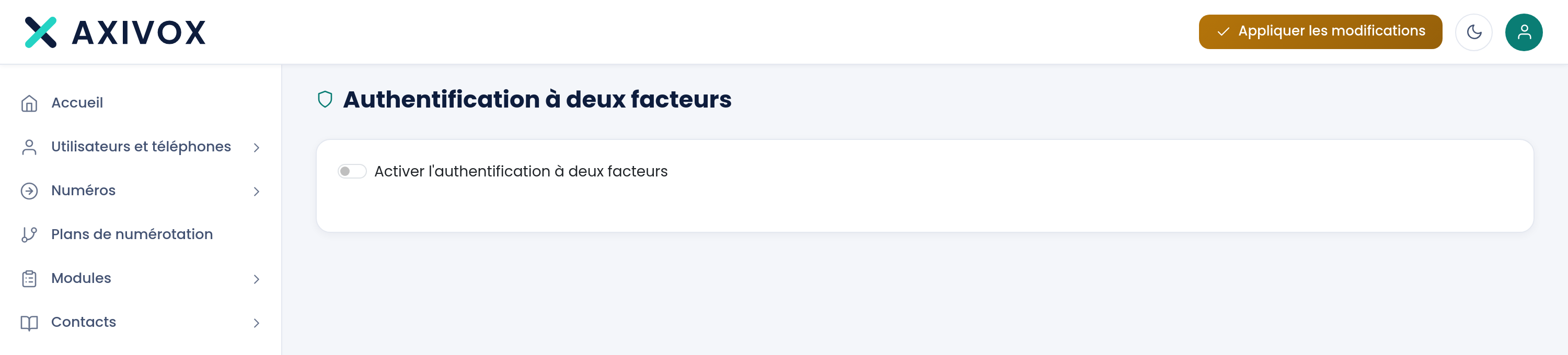
The page has only one control, a toggle labeled Enable two-factor authentication. As long as it is off, the page shows nothing else.
Flipping it reveals the setup: links to the two apps, a QR code, and an input field. Scan the QR code with your authenticator app, then copy the six-digit code it displays into the field, and click Save. The message "MFA settings saved." confirms that it has been recorded.
From then on, your login asks for this code after your password. The code changes every thirty seconds and is calculated from the time: a phone whose clock has drifted produces codes that get rejected.
To deactivate, flip the same toggle back. There is no confirmation window: the setting is removed immediately.
What to enter
| Field | What is expected | If you leave it blank |
|---|---|---|
| Enable two-factor authentication | the toggle switched on | the QR code and the input field do not appear |
| Enter the code shown in the app to confirm activation | the six digits shown by the app at the moment you click | the Save button stays inactive |
Step by step
- Install an authenticator app on your phone first if you don't have one. The page offers links to Google Authenticator and Microsoft Authenticator, for Android and for iOS.
- Click the person icon, top right, then Multi-factor authentication.
- Flip the Enable two-factor authentication toggle. The QR code appears.
- In the app, add an account and scan the QR code shown on screen.
- Copy the six-digit code the app gives you, then click Save. The message "MFA settings saved." should appear.
- Sign out and sign back in right away. This step, and only this step, proves that your app is correctly paired.
If it doesn't work
No QR code appears. The setup only unfolds the moment you flip the toggle on. If protection is already active, the page does not show it again: the QR code is presented only once, at activation.
I want to pair a new phone. Disable, then re-enable. A new QR code is generated, and the old pairing stops being valid. Remember to remove the now-useless entry in the app on your old phone.
The app gives a code, and the login rejects it. The code is calculated from the time. Check that the phone is set to automatic date and time; a drift of a few dozen seconds is enough to get all codes rejected. Also wait for the code to refresh and enter the next one, without delay.
I lost the phone that generates the codes. Ask someone with administrator access to open your user record and click Disable. If no one in the company has that access, contact us.
I no longer know whether protection is active. Open the page: the toggle reflects the saved state. If in doubt, sign out and sign back in; if you're asked for the code after your password, protection is in place.