Profile
Your company's contact details, as we have them on record. This screen is read-only: no field can be edited from the portal.
In brief
| Where | user menu, top right, Company details entry |
| What the screen lets you do | review your contact details, nothing else |
| Editing | not possible from the portal: "If you would like to change any of this information, please contact your reseller." |
| Fields shown | 8: Name, Email address, Company name, VAT number, Address, Postal code, City, Country |
| Who has access | any signed-in account |
| Not to be confused with | the Registration details of a number order |
How it works
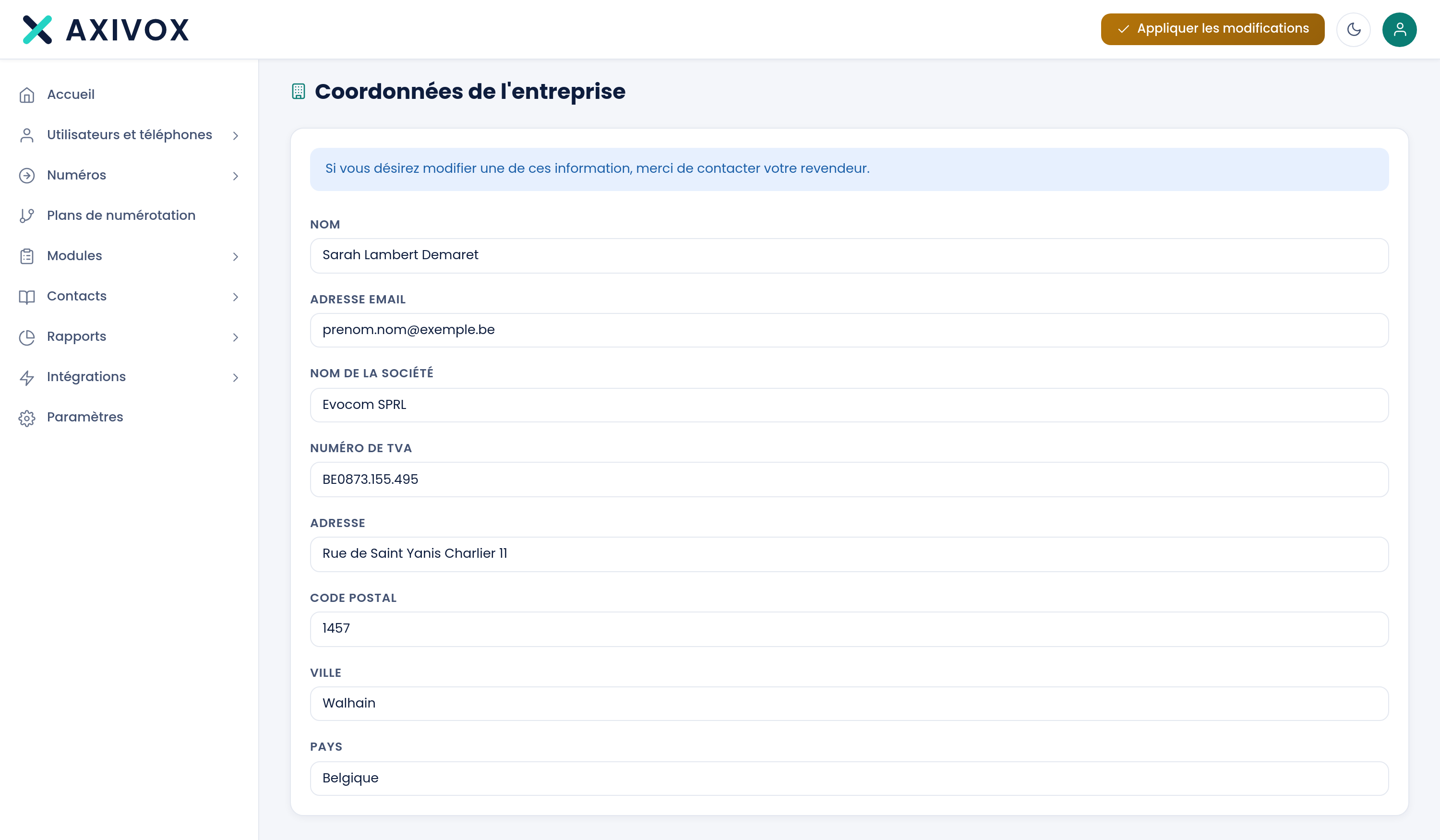
A blue banner opens the page and states the rule: "If you would like to change any of this information, please contact your reseller." This wording is built into the product.
The eight fields follow, one below the other. They are shown in input boxes, but none of them accept typing: the screen is read-only from top to bottom. There is no save button and no cancel button.
This information serves two purposes: it appears on your invoices, and it lets us identify you when you write to us.
What the screen shows
| Field | What it contains |
|---|---|
| Name | the contact person's name for the account |
| Email address | the account's contact address |
| Company name | the legal name, as it appears on invoices |
| VAT number | the value-added tax number used for billing |
| Address | the street and number of the registered office |
| Postal code | the postal code of the registered office |
| City | the city of the registered office |
| Country | the country of the registered office, spelled out in full |
Step by step
- Click the person icon, top right of the screen.
- Click Company details.
- Review the eight fields, especially Company name and VAT number: these are the ones that go on your invoices.
- Write down what needs to change, field by field.
- Send the correction to your reseller. Nothing can be edited here.
- Come back to this screen after the correction to check that it has been applied.
If it doesn't work
The fields don't react when I type in them. This is expected behavior. The screen only displays information. There is no save button anywhere on this page.
Some information is wrong or outdated. Contact your reseller, as stated in the banner at the top of the page. They hold your account record.
I can't find this entry in the left-hand menu. It isn't there. It's in the user menu, behind the person icon at the top right of the screen, alongside Invoices, Change my password, Multi-factor authentication, and Connected devices.
I moved, and a number order was rejected. Check the correct address: the one sent to the carrier is the Registration details of the order, not the one on this screen. Open My orders, expand the order, and create new details with the New address button. Details that have already been sent can no longer be edited.