My orders
Track the progress of each number order, status by status, and complete on the spot the files the carrier requires before delivering.
At a glance
| Where | Numbers menu, My orders entry |
| What the screen lets you do | track an order's status, attach registration details and documents, cancel an order that has not shipped yet |
| Who has access | the account administrator only |
| Possible statuses | 8, from Draft to Active |
| Statuses that require action | File to complete and File rejected |
| Statuses still editable | Draft, File to complete, File submitted, File rejected |
| Statuses still cancellable | Draft, File to complete, File submitted |
| Automatic progress | File to complete moves on its own to File submitted as soon as nothing is missing |
How it works
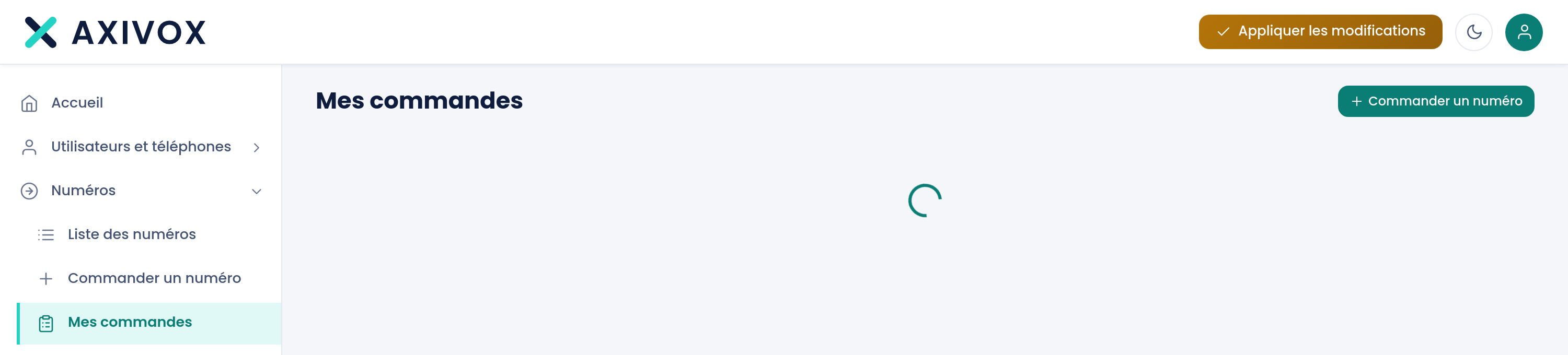
The screen opens with a sentence summarizing its purpose: "Track the progress of your number orders here and complete pending files."
Each order is a collapsed card. The header shows the first number and the count of the others, the country, area, and area code, the monthly rate, the request date, and the status badge. Clicking the header expands the details.
The detail starts with the status's help sentence, framed in orange when it calls for action on your part, in blue otherwise. Next come two panels side by side: Registration details on the left, Supporting documents on the right. That is where everything happens.
The status does not wait for you to click a submit button. After each document attached and each field completed, the portal recalculates the file. As soon as nothing is missing, the order moves on its own to File submitted and goes out to the carrier.
When at least one order needs action, an orange banner is shown at the top of the list, above the cards.
The eight order statuses
The right-hand column is what matters: it tells you whether there is something to do, or whether you just need to wait.
| Status | The sentence shown | What you need to do |
|---|---|---|
| Draft | "This order has not been sent yet." | Nothing has gone out. The order stays editable and cancellable. |
| File to complete | "Your file is missing some elements. Complete them below so the request can go to the carrier." | Your turn. Expand the card, attach the registration details and the requested documents. The status moves on its own once everything is there. |
| File submitted | "Your file is complete and submitted. The carrier will get back to us within a few business days." | Nothing to do. The order stays editable and cancellable as long as it has not moved further. |
| Under review | "The carrier is reviewing your file." | Nothing to do, and nothing to edit anymore: the order is no longer editable or cancellable from the screen. |
| Provisioning | "The number is being provisioned." | Nothing to do. Wait for it to move to Active. |
| Active | "The number is active and usable in your dial plans." | The number has been delivered, but it does not lead anywhere yet. Give it a destination in Numbers, Number list, apply changes, then call it yourself. |
| File rejected | "The carrier rejected the file. Correct the flagged elements and resend it." | Your turn. The reason is shown under the sentence, and each rejected document carries the note "document rejected, to replace" along with its reason. Remove it, upload another one, attach it. The order is still editable, but no longer cancellable from the screen. |
| Cancelled | "This order has been cancelled. Contact us if you would like to restart it." | Nothing to do. A cancelled order cannot be reopened: place a new one, or contact us. |
Each number in the order also carries its own state, shown next to it in the Numbers in this order block: Active, Ordered, Requested, Reserved, or Failed. As long as no number has been assigned yet, the header shows "assigned upon activation" instead of the number.
What needs to be completed
| Block | What is expected | If you leave it empty |
|---|---|---|
| Registration details | a declared identity and address, chosen from the list or created on the spot | "No details are yet attached to this order." and the order stays at File to complete |
| Missing detail fields | whatever the destination requires: first name, last name, company name, VAT number, company registration number, contact phone, street, number, postal code, city, country | the red list "These details are incomplete for this destination:" stays shown |
| Supporting documents | the number requested per family, shown by the counter "x of y provided" | the family stays incomplete and the file does not go out |
| Rejected document | a replacement document, of the same type | the carrier will not pick the file back up |
Documents are attached in two ways: From my documents, which reuses what you have already uploaded, or Upload a new file. When a destination requires nothing, the panel shows "No document is required for this destination."
Step by step
- Open the Numbers menu, then My orders.
- Spot the orders with an orange or red badge: these are the only ones waiting on you.
- Click the card's header to expand it.
- Read the status's help sentence, and the reason if there is one.
- In the left panel, attach Registration details: choose existing ones from the list, or click Add details. Fix whatever the red list flags as missing.
- In the right panel, for each family whose counter is not complete, click Attach a document.
- Check the badge: it should have moved from File to complete to File submitted. If it has not moved, something is still missing in one of the two panels.
- Come back to the screen a few days later. As soon as the order is Active, configure the number in Numbers, Number list.
If it does not work
My order stays on "File to complete" even though I uploaded my documents. Uploading a document to My documents does not attach it. It must be attached to the order, from the Supporting documents panel, family by family. Also check the left panel: a file stays incomplete as long as a details field is missing, even if every document has been provided.
The "Cancel order" button has disappeared. An order can only be cancelled while Draft, File to complete, or File submitted. Once the carrier has taken it in hand, it can no longer be cancelled from the screen. Contact us.
"These details have already been submitted to the carrier and can no longer be edited. Create new ones." This is intentional: details are used by several orders, and editing them would rewrite a file that has already shipped. Use the New address button. The rule is repeated on the screen: "Your details are used by several orders: for a number in another country, add new ones rather than editing these. The address must be located in the number's country."
A document carries the note "document rejected, to replace." Read the reason shown just below. Click Remove, upload a compliant document, then attach it. Resubmitting the same file is pointless: it will be rejected a second time.
The order shows "assigned upon activation" instead of a number. The carrier has not yet designated the number that will be yours. This is the normal case for areas where numbers are not self-service. The number will appear on the card once provisioning happens.
The countries covered and how a number is ordered
See the Coverage page