Conferences
Open permanent conference rooms, reachable by an internal number and protected by a code, then track and control participants from the list.
At a glance
| Where | Modules, Conferences |
| What it is | a permanent room, always reachable, that doesn't wait to be scheduled |
| Internal extension | a number from 100 to 99999, unique on your installation |
| Access code | required, from 100 to 99999, so 3 to 5 digits |
| Administrator extension | required, chosen from your extensions |
| During the conference | the Connected users list, the Invite and Disconnect buttons |
| Rights required | Conference management to create, Conference management - participants to control |
How it works
A room has no schedule and no date. It exists permanently, and anyone who dials its Internal extension then its Access code enters it. From a dial plan, the Conference module sends an external call there: that's how you open the room to outside participants, without giving them access to your installation.
The Administrator extension designates the extension that acts as host. It serves two purposes: the Wait for the administrator to start the conference setting, and the room's visibility for anyone who only has the right to control participants.
The list shows, room by room, the participants present with their number and name, or "No user connected". This reading is taken when the page loads: the Refresh button updates it. Disconnect removes a participant from the room. Invite calls a number you enter and brings it into the room as soon as it answers.
The internal extension is drawn from the same numbering plan as your extensions, your dial plans and your queues: the same number can't be used twice.
What to fill in
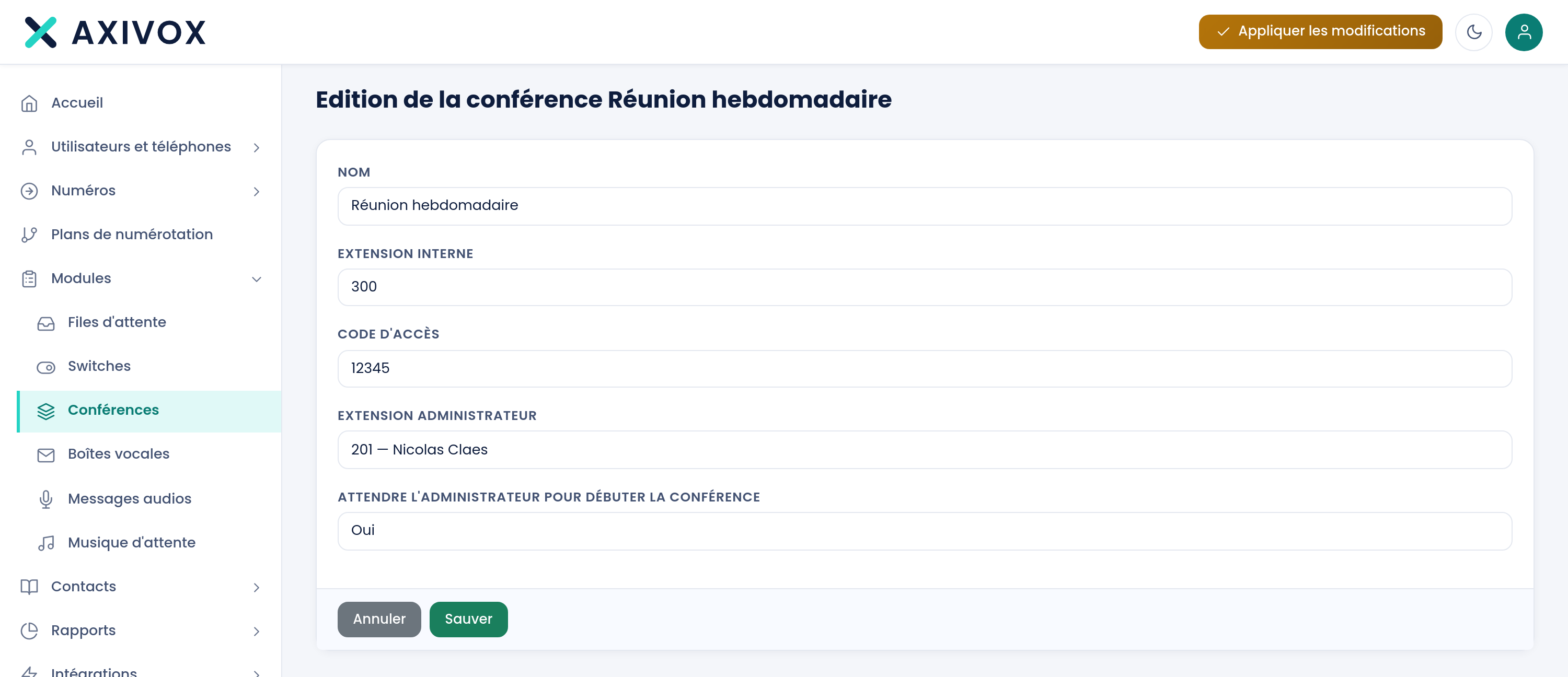
| Field | What's expected | If you leave it blank |
|---|---|---|
| Name | the room's name, the one you'll read back in the list | the save is refused, with "'Name' cannot be empty" |
| Internal extension | the number to dial to enter, from 100 to 99999 | the save is refused, with "'Extension' must contain between 3 and 6 digits" |
| Access code | the code requested on entry, from 100 to 99999 | the form refuses to save: this field is required |
| Administrator extension | the host extension, chosen from your list of extensions | the form refuses to save: this field is required |
| Wait for the administrator to start the conference | Yes or No | the setting defaults to No |
Steps
- Open Modules, then Conferences.
- Click Add a conference.
- Enter the Name, then the Internal extension your colleagues will dial.
- Enter the Access code. It's required: a permanent room with no code eventually gets uninvited visitors.
- Choose the Administrator extension from your list of extensions.
- Set Wait for the administrator to start the conference to Yes for a hosted meeting, to No for a permanent working room.
- Click Save, then Apply changes.
- To open the room to the outside, place a Conference module in a dial plan, select this room, and apply again.
- Check: dial the internal extension from an extension, enter the code, and verify your call appears in the Connected users column of the list, after clicking Refresh.
If it doesn't work
The save is refused: "This number is already used by a conference". The internal extension is taken. The message names what's using it: an extension, a dial plan, a queue or another conference. Choose a different number.
I dial the extension and I don't enter the room. A conference only becomes reachable once created and after Apply changes. Then check the code you're dialing: it's required and is 3 to 5 digits long.
Participants can hear each other but the conference doesn't start. The opposite setting is in effect: with Wait for the administrator to start the conference set to Yes, as long as the extension set as Administrator extension hasn't joined the room, the others wait without hearing each other. Bring in the host, or switch the setting to No.
The Connected users column stays empty while people are talking. The reading dates from when the page loaded. Click Refresh.
I only see some of my rooms, and I can't edit them. With only the Conference management - participants right, the list only shows rooms where you're the Administrator extension, and only offers Invite and Disconnect. Creating and editing a room requires the Conference management right.