Order a number
Choose a country, an area, then the number itself. Price, formalities, and available numbers are shown before any confirmation.
At a glance
| Where | Numbers menu, Order a number entry |
| What the screen lets you do | browse the catalog, compare prices by area, see the formalities, then place an order |
| Who has access | the account administrator only |
| The three steps | 1. Country, 2. Area, 3. Number |
| Quantity | from 1 to 50 numbers per order; a larger value is capped at 50 |
| Numbers offered for choice | 20 maximum per area, and only where the carrier allows a choice |
| Number of orders | 5 per 24-hour window, on a rolling basis, cancelled orders included |
| Beyond the cost cap | the screen switches to the This order is handled with us panel |
| After confirming | you land on My orders |
How it works
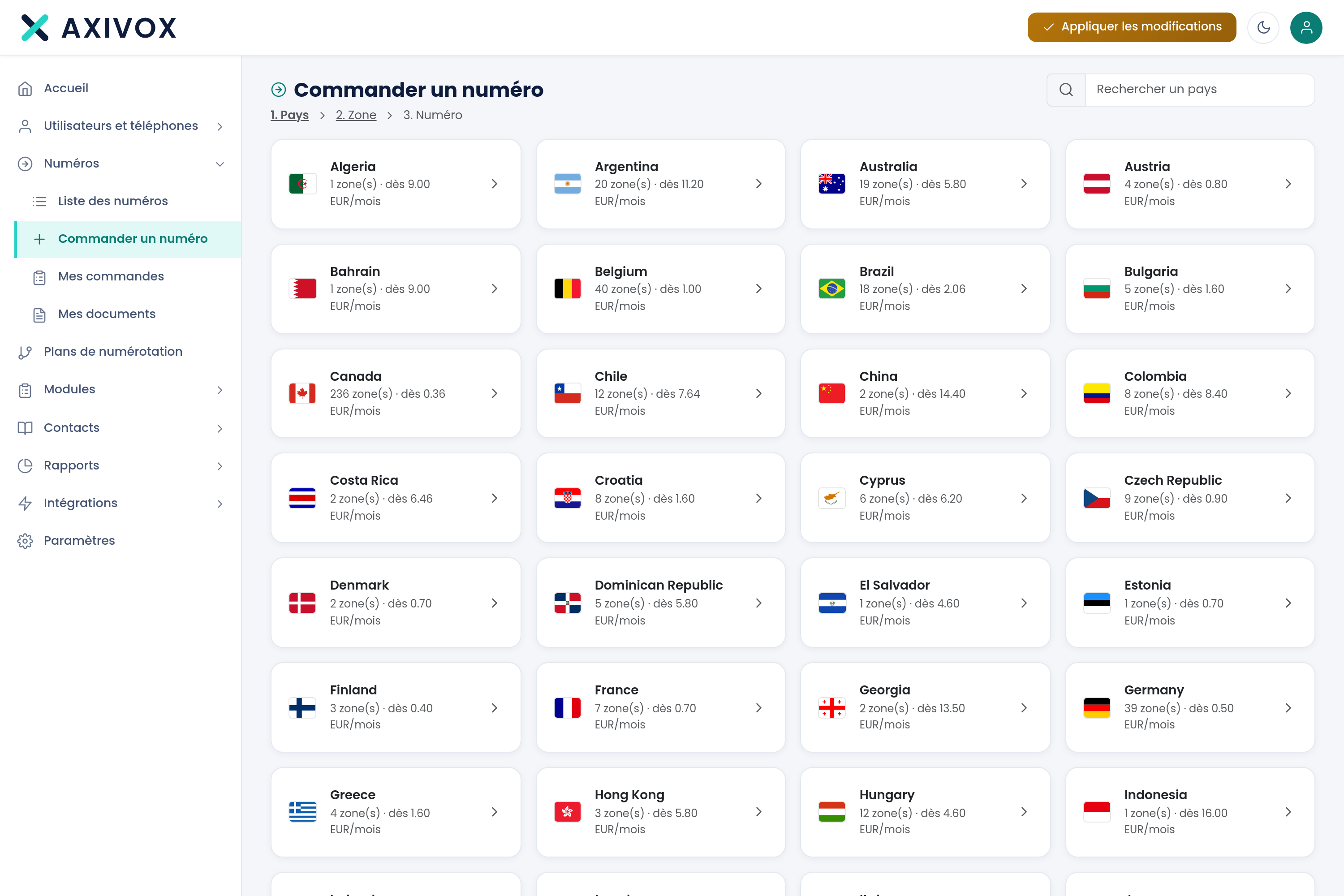
The flow reads in the step trail at the top of the screen, and each step stays clickable so you can go back.
1. Country. One card per country, with the number of areas and the starting rate, for example "20 area(s) · from EUR 11.20/month." The search field at the top filters the list.
2. Area. A table of the country's areas: Area code, Area, Type, Price/month, Provisioning. The type is Landline, Mobile, National, Shared cost, or Toll-free. An area requiring a file carries the orange formalities tag. The same search field now filters by city or by area code.
3. Number. The screen first shows, where applicable, the Regulatory formalities box: the number of documents expected per family, the accepted types, and how closely the address must match the number (no geographic constraint, within the number's country, within the area code's area, within the number's city). You then choose the quantity, and the summary recalculates the monthly total and the provisioning time.
Depending on the area, the end of the flow takes one of two forms. When the carrier publishes its availability, you check your numbers in the Choose your number list. Otherwise the screen shows Number request and an optional Preference field: "Numbers in this area are not self-service: your request is recorded and then processed by our team, who will confirm the number you are assigned."
Nothing is uploaded on this screen. Documents are submitted afterward, from My orders.
What to fill in
| Field | What is expected | If you leave it empty |
|---|---|---|
| Search a country | all or part of the country's name | the full country list stays shown |
| Filter by city or area code | a city or an area code | every area in the country stays shown |
| Quantity | a number from 1 to 50 | the quantity reverts to 1 |
| Choose your number | as many numbers checked as the quantity ordered | the Order button stays inactive and shows "Select as many numbers as the quantity ordered." |
| Preference (optional) | "e.g.: easy-to-remember number, sequential digits…" | no preference is passed on to the carrier |
| Your need | the deadline, the constraints, the numbers wanted | the request goes out with no detail, and we will have less to work with in preparing it |
Step by step
- Open the Numbers menu, then Order a number.
- Choose the country. Use the search field rather than scrolling the list.
- Compare areas on the Price/month and Provisioning columns, then click the chosen row.
- Read the Regulatory formalities box if it appears. It states exactly which documents will be requested afterward.
- Set the Quantity and check the total shown under the field.
- Check your numbers in Choose your number, or fill in your Preference if the area does not offer a list.
- Click Order. The portal takes you to My orders and shows "Order recorded. It has been submitted to the carrier." When a file still needs to be provided, the message is different: it sends you back to My orders to complete it, otherwise the request will not go out to the carrier.
- Check the order's status in the list, and complete the file right away if it is requested.
If it does not work
"No number is immediately available in this area. Try again later or choose a nearby area." The availability list comes from the carrier and it changes. Come back later, or take the neighboring area code: in most countries it serves the same urban area.
The Order button stays inactive. You have checked fewer numbers than the quantity requested. The button's tooltip says so: "Select as many numbers as the quantity ordered." Check the exact count, or lower the quantity.
The screen switches to "This order is handled with us." The total exceeds what can be committed to online. The message states how many you could take on your own. Two options: reduce the quantity, which brings you back to the normal flow, or describe your need in Your need and click Send the request. In this second case nothing is purchased, the request reaches us.
"You have reached the limit of 5 orders in 24 hours." The window is rolling and counts every order, including ones you have cancelled. Wait, or group your numbers into a single order: one order can carry fifty.
"The catalog is temporarily unavailable. Try again in a few moments." The catalog is read live from the carrier. Reload the page a little later. The same message appears if availability or formalities could not be retrieved.
The countries covered and how a number is ordered
See the Coverage page