The dashboard
The first page displayed after you log in. It answers three questions at a glance: how many extensions and numbers you have, how your queues are performing, and how much you have consumed.
What you see when it opens
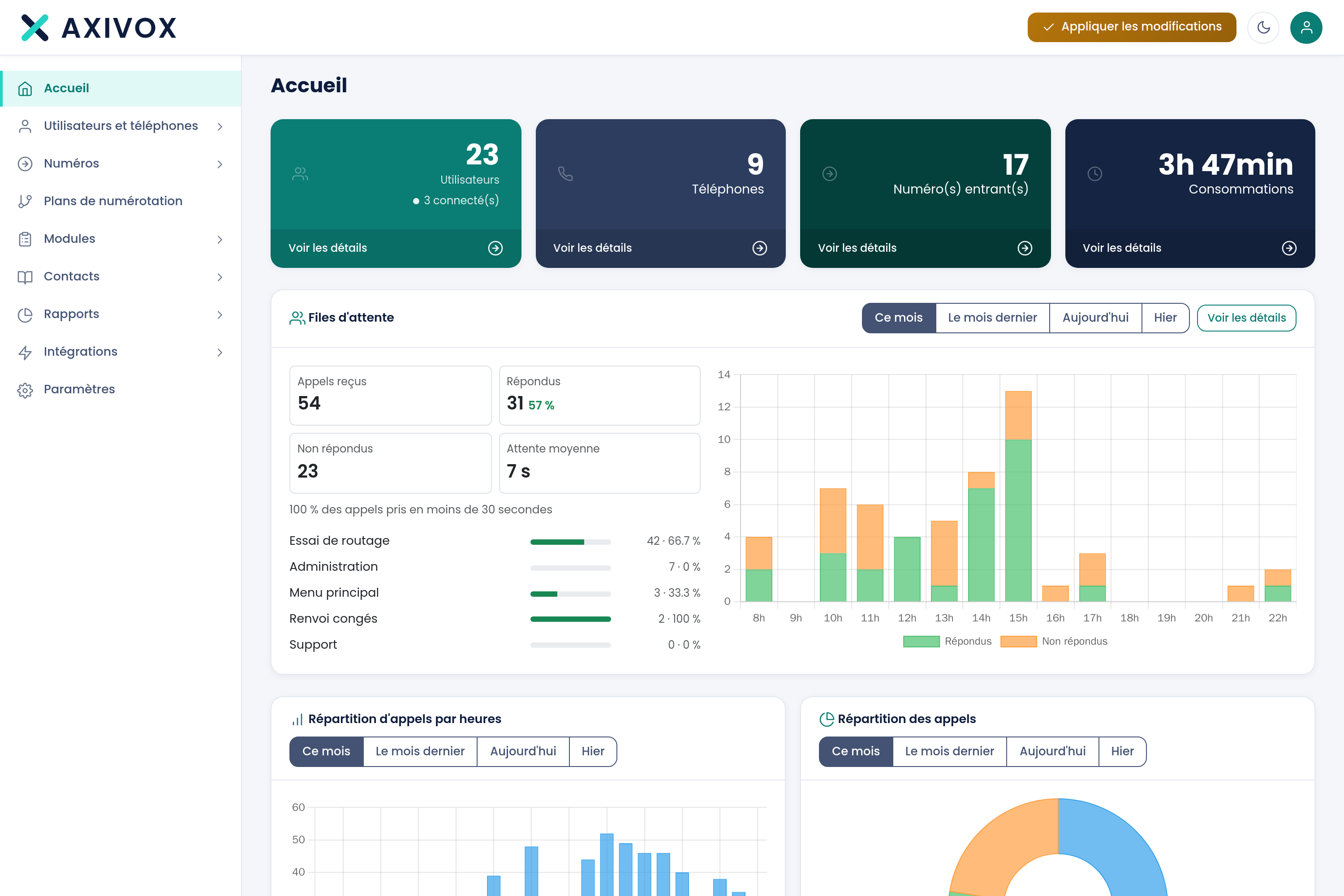
The page reads from top to bottom, from the most general to the most detailed.
The four counters
At the top, four tiles show the state of your setup. Each one is clickable and takes you to the corresponding screen.
| Counter | What it counts | Associated screen |
|---|---|---|
| Users | The configured extensions, and the number of users currently connected | Users |
| Phones | The physical devices registered | Phones |
| Incoming numbers | The numbers you receive calls on | My numbers |
| Usage | The minutes used over the period | Call list |
If the number of connected users does not appear, it does not mean it is zero: it means the information could not be retrieved. A missing counter is more honest than a misleading zero.
Queue statistics
The next block summarizes your queue activity: calls received, answered, unanswered, and average wait time. The percentage shown under "Answered" is the answer rate.
Each block has its own period selector: Today, Yesterday, This month, Last month. The selectors are independent, so you can compare two different periods on two neighboring blocks.
Calls by hour
The bar chart shows what time your calls come in. It is the most direct tool for deciding your opening hours and sizing your queues.
If you see a spike at a time when nobody is picking up, you have found your first thing to fix.
The top bar
Three elements are always present there, whatever screen you are on.
Apply changes
This is the single most important button in the whole interface.
This can feel restrictive, but it is a safeguard: you can prepare a full reorganization in several steps, review it, then put it into service in a single action, at the time you choose.
Light or dark theme
The moon or sun icon switches the interface between light and dark theme. Your choice is remembered on this computer and this browser, it does not follow your account.
The account menu
The round icon on the right opens your personal menu: profile, password change, two-factor authentication, open sessions, and logout.
The left-hand menu
The menu follows the order in which you set up a phone system, from the most concrete to the most fine-grained.
Three entries sit flat: Home at the top, Dial plans in the middle, Settings at the bottom. The other six are groups that expand:
| Group | What you find there |
|---|---|
| Users and phones | extensions, user groups, pickup groups, phones |
| Numbers | your numbers, ordering a number, order tracking, your documents |
| Modules | queues, switches, conferences, voicemail boxes, audio messages, hold music |
| Contacts | directories and blacklist |
| Reports | the call list and the four queue reports |
| Integrations | Odoo and AI trunks |