The softphone window
One window, four tabs, and a command bar that never moves. Enough to find your way before picking anything up.
At a glance
| At the top | the window bar: your extension number, the state of the line, the microphone, the display, the menu |
| Right below | the command bar, always in the same place: you dial and you search there |
| In the middle | whatever the chosen tab shows, and the calls in progress when there are any |
| At the bottom | four tabs: Home, History, Directory, Voicemail |
| Two displays | Normal and Receptionist |
| The menu | three-dot button, top right |
How it works
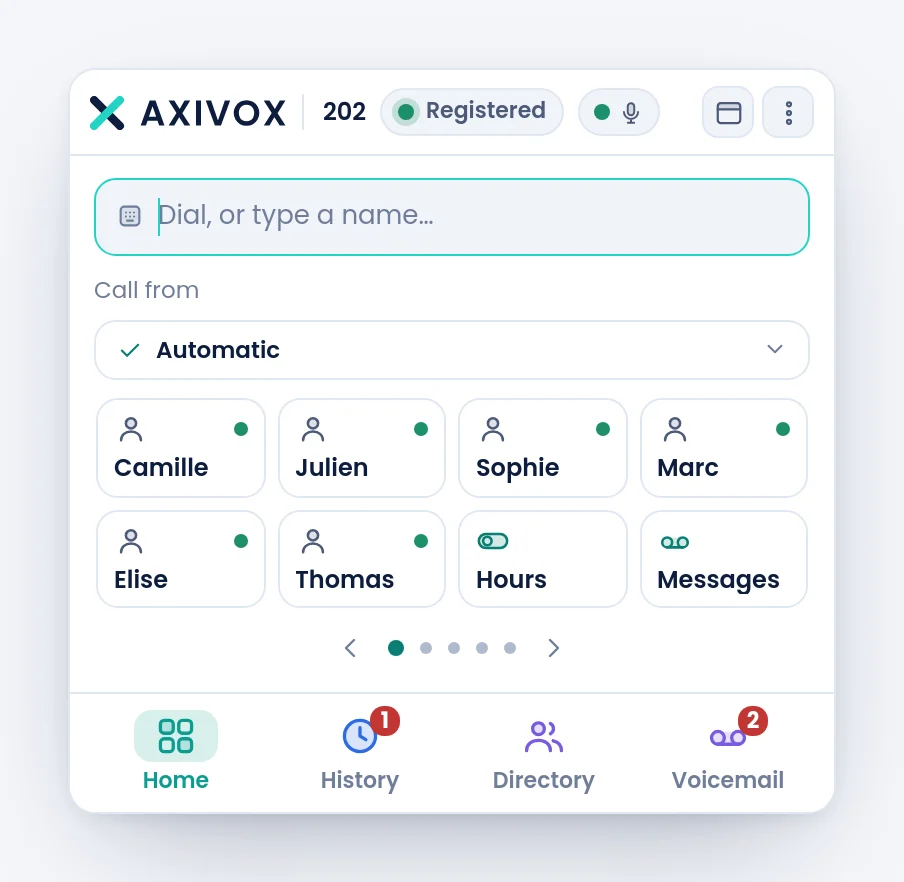
The window follows a simple rule: nothing disappears. The command bar stays the first element whatever happens, the keys stay visible even during a conversation, and a call does not take over the screen, it is added as a card.
The window bar carries, from left to right, the logo, your extension number, the state pill of the line, the microphone dot, the display choice and the menu.
| What the pill shows | What it means |
|---|---|
| Registered | the line is up, you receive calls |
| Connecting… | the line is not up yet |
| Reconnecting… | it was lost, the softphone is taking it back |
| Other tab | another tab carries the line. You can still call and hang up |
| Do not disturb | you set that status yourself |
Your status
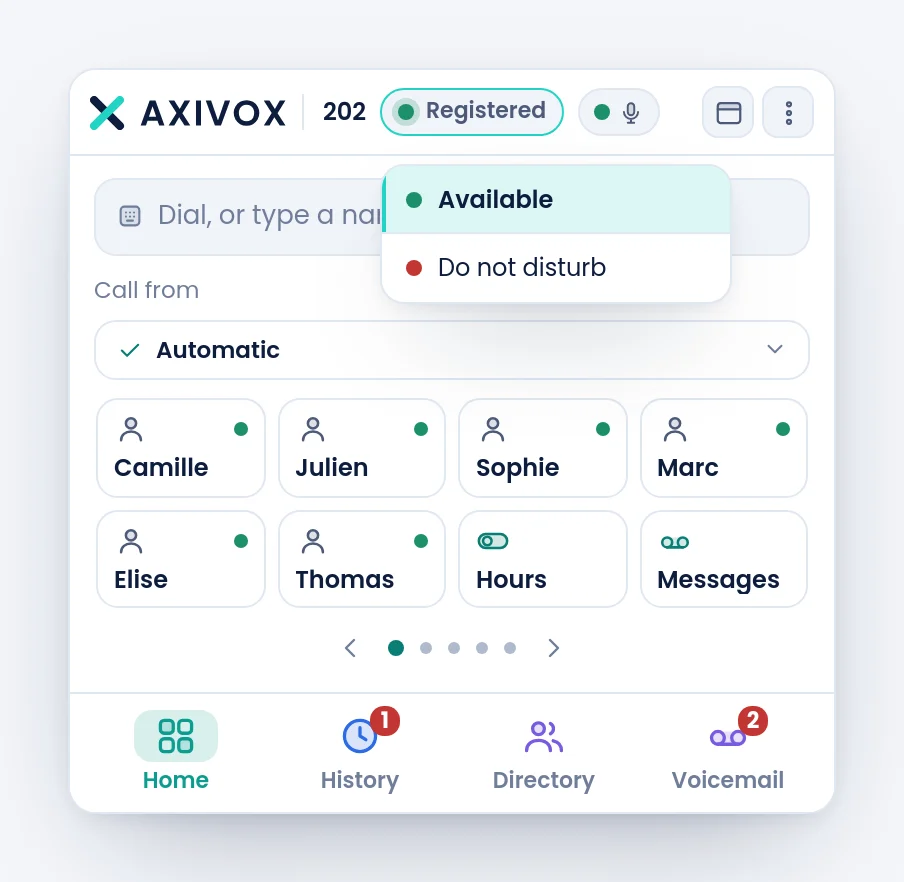
The pill does not only show the state, it sets it. A click offers Available and Do not disturb. On Do not disturb, your extension stops ringing; what becomes of the calls depends on your forwarding rules, described later in this chapter.
The menu
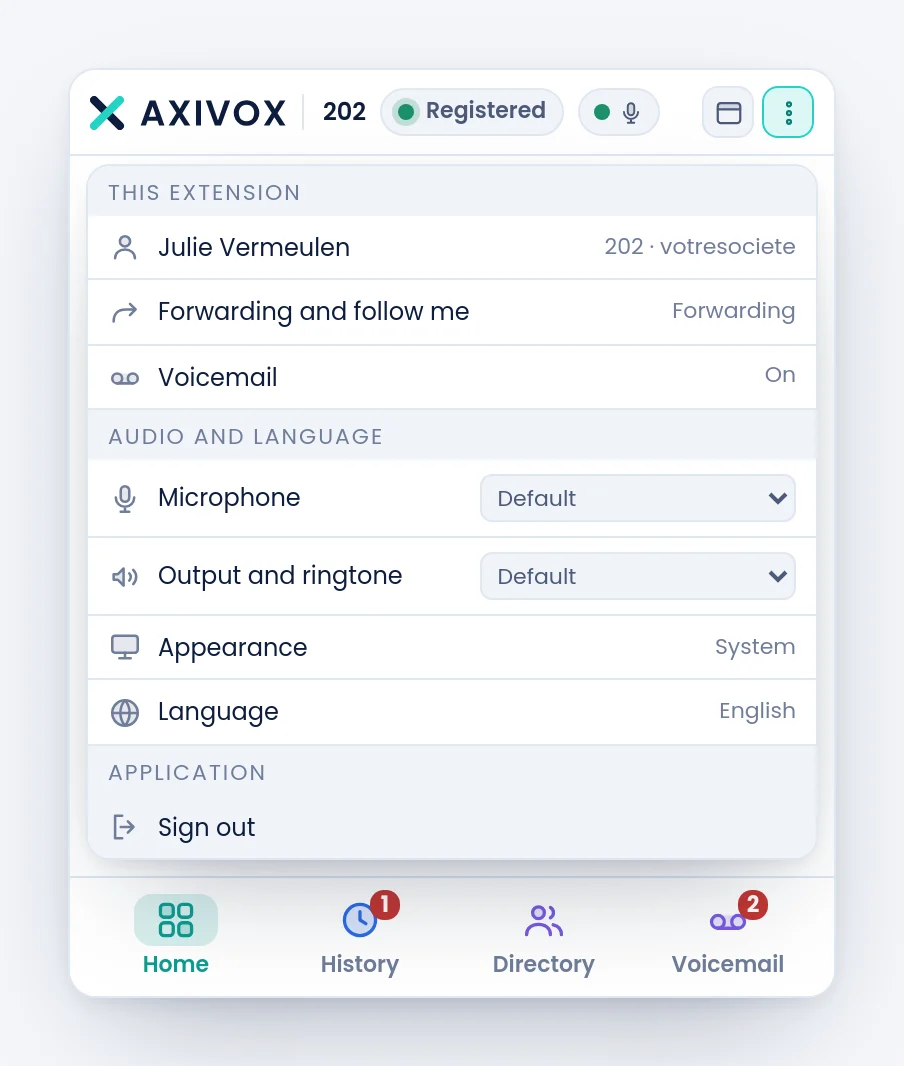
The menu gathers everything that is not a call, in groups.
| Group | What you find there |
|---|---|
| this extension | your name and extension, Forwarding and follow me, Voicemail |
| My devices | the desk phones registered on the same extension as you |
| audio and language | Microphone, Output and ringtone, Appearance, Language |
| application | Sign out, and on the desktop application Start with system and Quit |
The two displays
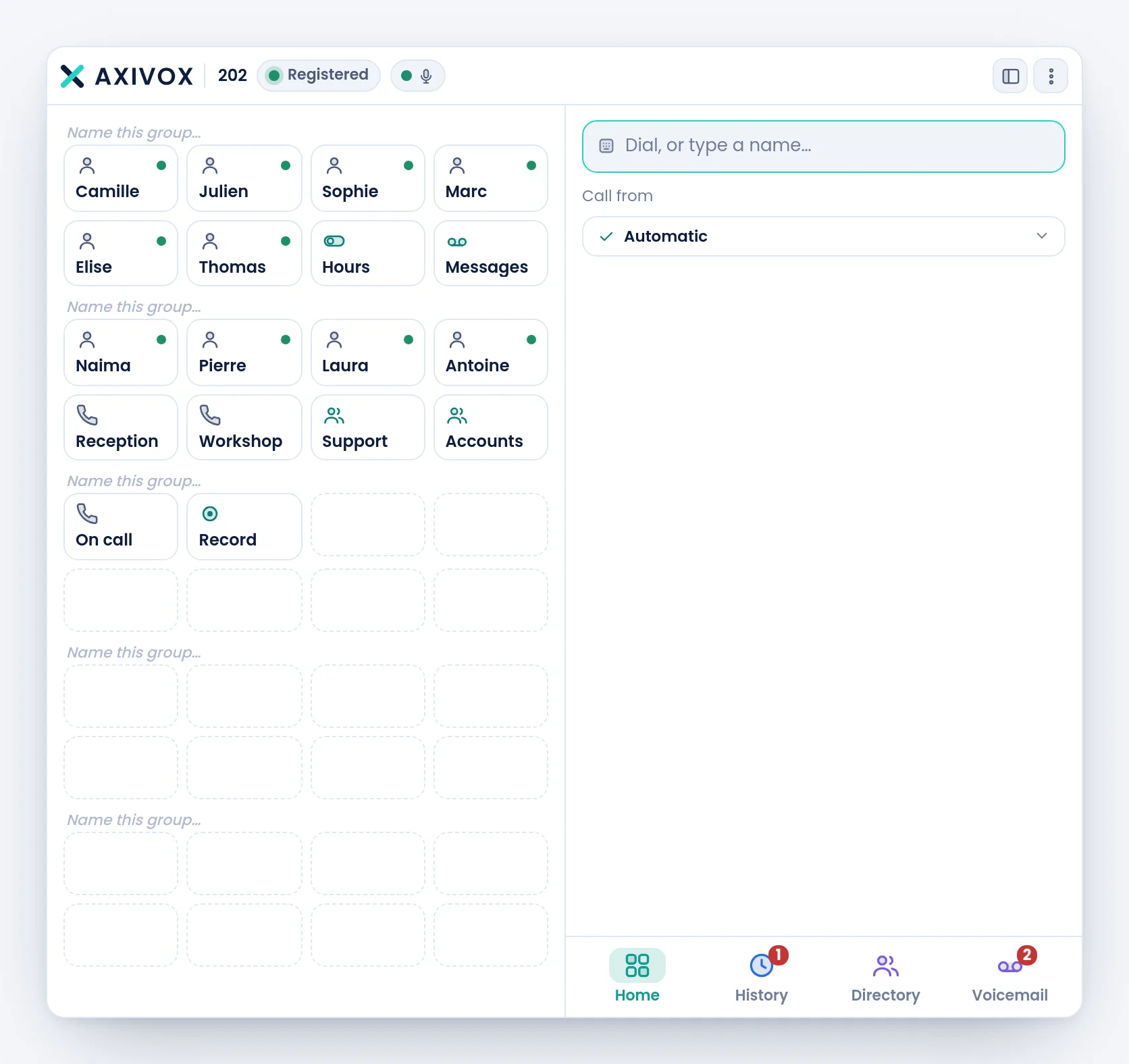
The button to the left of the menu switches between two layouts.
| Display | What it changes |
|---|---|
| Normal | the height follows the content, the keys page through in eights |
| Receptionist | the keys move to a panel on the left, twenty-four at once, and all the remaining width goes to the calls |
Step by step
- Look at the state pill first: nothing else matters until it is green.
- Click in the command bar. It is the single place where you dial a number and search for a name.
- Go through the four tabs at the bottom once, to know what each holds.
- Open the menu and set your microphone and audio output before your first call.
- Try the Receptionist display, then go back to Normal if you prefer.
If it does not work
The window is cut off at the bottom, or part of the content is out of reach. In the browser, enlarge the window or reduce the page zoom. The softphone window has a fixed width and a height that follows its content: it is not resized with the mouse.
The menu closes as soon as I click inside it. A click outside the menu closes it, by design. Entries that open a panel, such as Forwarding and follow me, replace the content of the window: the menu closes normally then, and a Back button brings you back.
The pill shows "Do not disturb" and I do not remember setting it. It is clickable, and one click too many is enough. Click it and choose Available.
I do not see the "My devices" group in the menu. It only appears when a desk phone is registered on your extension. With no physical phone, the group has nothing to show and is not displayed.