Tag
Applies one or more tags to the call as it goes through your plan, before anyone picks up. The call carries on its way in every case.
In brief
| Outputs | just one |
| Fields | a list of tick boxes: the tags you allow the plan to apply |
| What it does | adds the ticked tags to the current call |
| When | when the call goes through the module, so before anyone picks up |
| Where you find them again | in the Call list, and as a criterion on the Call events page |
| If no box is ticked | nothing is applied, and the call carries on to the output |
| If the output is connected to nothing | the call is hung up |
How it works
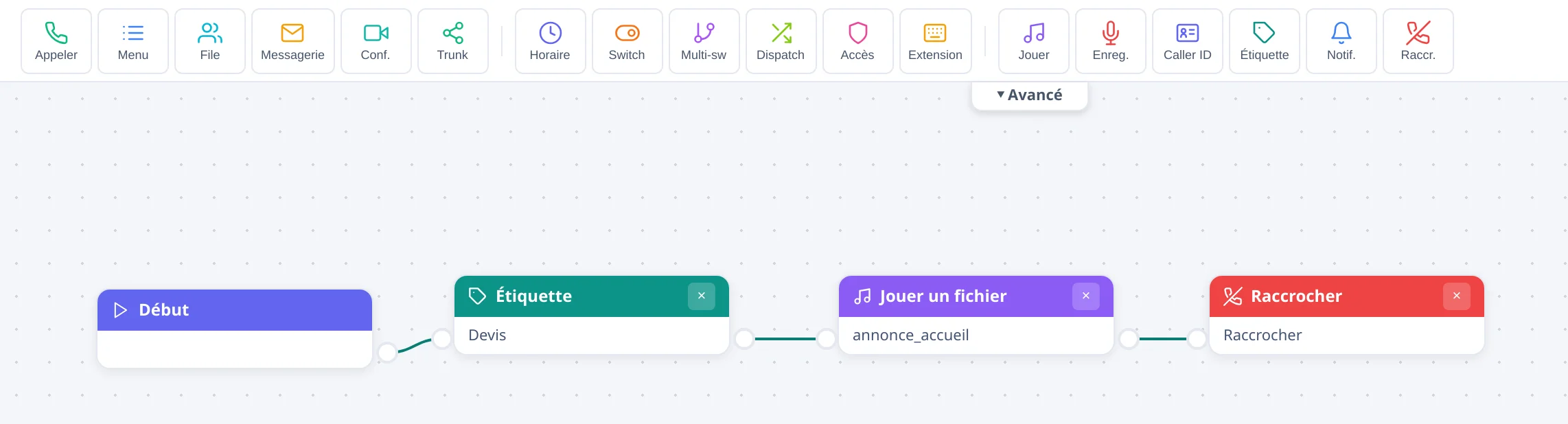
The module decides nothing: it notes a word of your vocabulary on the call, then hands over to the next module. It is useful when the tag can be deduced from the path of the call rather than from what the caller says: the number you publish on a campaign, the option chosen in a menu, the branch that receives calls outside opening hours. Each of them can tag itself, without anyone having to think about it.
The tags are applied to the call and follow it until it is recorded in the Call list. They appear there once the call has ended. A rule on the Call events page can then use them as a criterion.
Only the tags you have allowed for the dial plan are offered: they must be active, with the The call plan box ticked on the Call tags screen. See the page Call tags.
Applying the same tag twice to a call counts it only once. Several Tag modules on the same path add up.
What to fill in
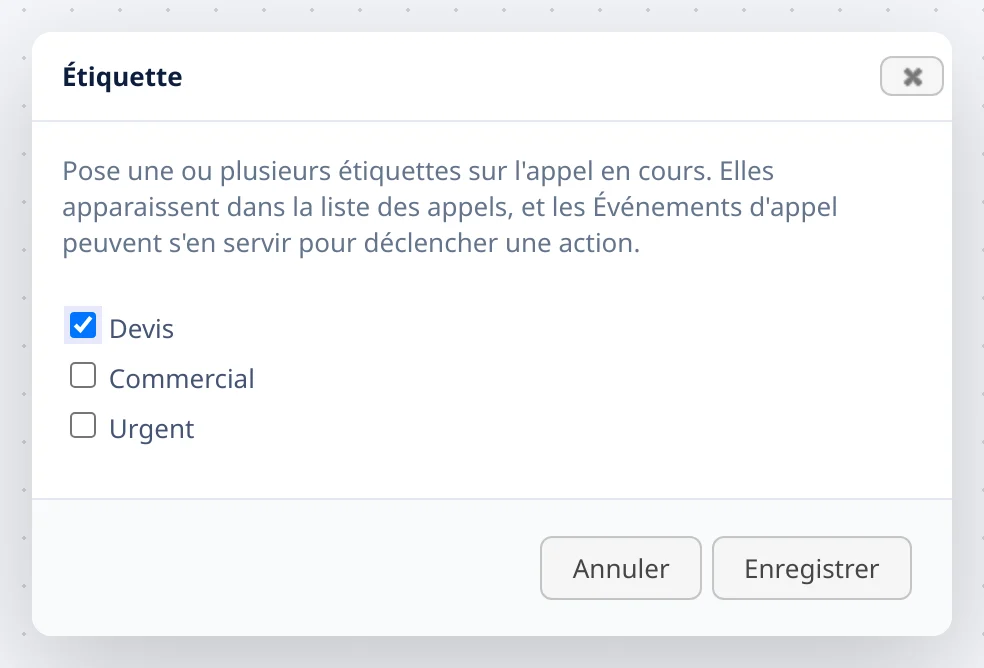
A double click on the module opens its window, titled Tag.
| Field | What is expected | If you leave it empty |
|---|---|---|
| One box per tag | tick the ones the call must carry at this point | no tag is applied, and the call carries on |
On the plan, the module shows the ticked labels. As long as no tag is ticked, it shows Not configured. When no tag is allowed for the plan, the window says: "No tag allows the call plan to apply it. Open the call tags screen to create one or to change that setting."
Steps
- Create the tag in Modules, Call tags, with the The call plan box ticked.
- Open the editor of your dial plan.
- In the palette, click Tag: the module is added to the work area.
- Place it on the branch you are interested in, and connect the previous module to its input.
- Double-click it, tick the tag or tags to apply, then click Save.
- Connect its output to the rest of the path.
- Click Apply changes.
- Call the number concerned, then open the Call list: the call carries the tag.
If it doesn't work
The call carries no tag. Check in order: the plan was applied after the change, the call did go through this module, and at least one box is ticked. Also wait for the end of the call: tags reach the list once the call has ended.
The tag was ticked, but it is not applied. It may have been deactivated, or its The call plan box unticked, since you configured the module. A tag that is no longer allowed for the plan is ignored without a message. Reopen the Call tags screen to restore it.
The module window offers no box. No tag allows the dial plan to apply it. Create one, or tick The call plan on an existing tag.
The call is hung up after the module. The output is connected to nothing. The module never cuts the call for its own reasons: what ends it here is the missing link.
How the call flow is built, explained in pictures
See the Dial plans page