Hold music
Upload the file your callers will hear while they wait. A single piece of music applies to the whole installation, and importing it puts it into service right away.
At a glance
| Where | Modules, Hold music |
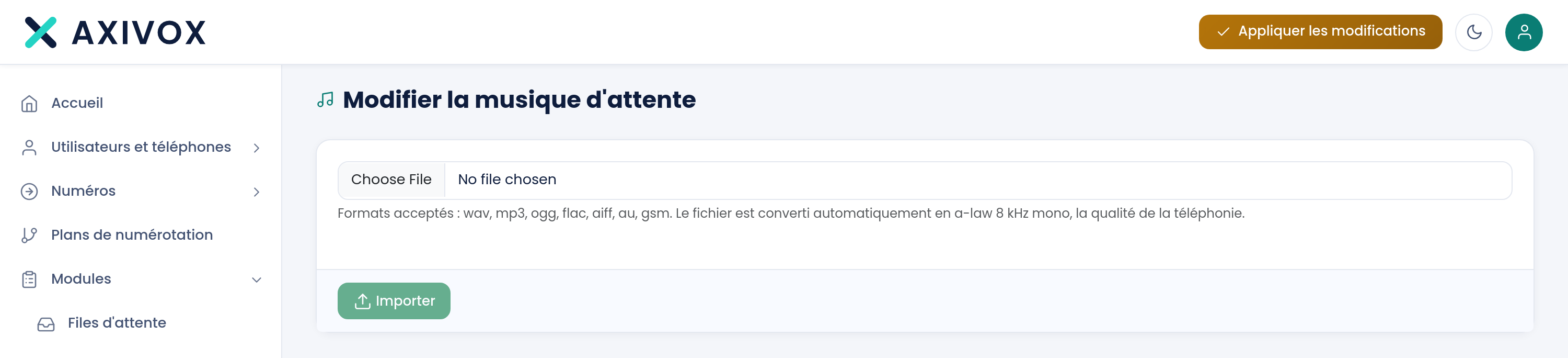
| What the screen contains | a file field, help on the formats, and the Import button |
| Formats accepted | wav, mp3, ogg, flac, aiff, au, gsm |
| Conversion | "The file is automatically converted to a-law 8 kHz mono, telephone quality." |
| Scope | a single piece of music per installation: each import replaces the previous one |
| When it's heard | while waiting in a queue, and when a caller is put on hold |
| Right required | Hold music management |
How it works
The screen is titled Edit the hold music, and that's all it does. You choose a file, click Import, a progress bar follows the upload, and the message "Hold music imported." confirms the installation.
There's only one piece of music for your whole installation. So there's no list, no name, and no playback button on this page: the screen doesn't show what's currently in place, and a new import replaces the previous one. The check is done by ear, by calling in.
As with audio messages, the file is brought down to a-law 8 kHz mono. A high-definition recording won't sound any better on the phone, since the line carries no more than that. What really matters is the material itself: its length, and whether its loop can be heard.
It takes effect immediately. This import doesn't go through Apply changes: the next caller put on hold already hears the new file.
What to fill in
| Field | What's expected | If you leave it blank |
|---|---|---|
| File | a wav, mp3, ogg, flac, aiff, au or gsm file | the Import button stays inactive and nothing is sent |
Steps
- Prepare your file: several minutes of material, royalty-free for playback over the phone.
- Open Modules, then Hold music.
- Click the file field and choose your track.
- Click Import. The progress bar follows the upload.
- Wait for the message "Hold music imported.".
- Check: call a number that enters a queue, or have a colleague put you on hold, and listen. That's the only check possible, the screen doesn't play the file back.
If it doesn't work
The Import button stays inactive. No file is chosen. Click the file field first and select your track.
"The file import failed." The file couldn't be processed. Check its format: wav, mp3, ogg, flac, aiff, au or gsm. A very long file also takes more time to convert: let the progress bar run to the end before concluding.
My callers still hear the old music. The import takes effect for calls that follow, not for a call already in progress. Hang up and call again. If the old music persists on a new call, the import didn't finish: redo it and wait for the confirmation message.
I can't find the music I imported. This screen shows neither the name nor the content of the file in place, and there's only one. Keep your original file on your side: the portal doesn't let you retrieve it.
The music sounds worse than the original. That's the expected behavior. Every file is converted to a-law 8 kHz mono, telephone quality. Choose a track whose appeal doesn't rely on high frequencies or subtlety: they won't make it through the line.