The softphone settings
The microphone, the speaker, the language, the appearance and your greeting. It all fits in the menu, and it is all set once and for all.
At a glance
| Where | window menu, three-dot button at the top right |
| Audio | Microphone, Output and ringtone |
| Display | Appearance: System, Day, Night |
| Language | Français or English |
| Voicemail | Take messages, Greeting, Away message |
| On the desktop application | Start with system, Quit |
| Ending the session | Sign out |
Sound
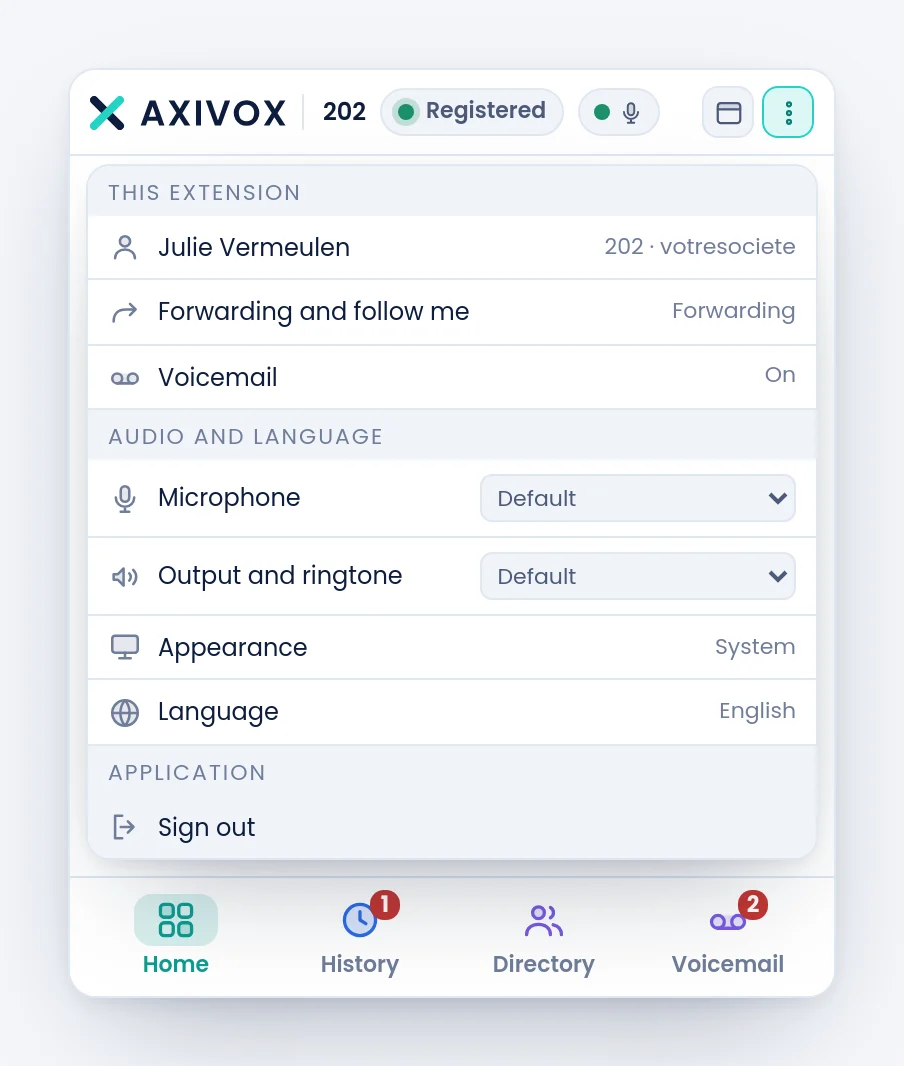
Two lists, to set before your first call.
| Setting | What it picks |
|---|---|
| Microphone | the device that captures you. Default lets the system choose |
| Output and ringtone | the device that plays the voice and the ringtone |
To the right of the state pill, a dot permanently says whether the microphone is giving anything. Green, its tooltip reads Microphone: sound is captured. Red, it reads Microphone: no sound, and that must be fixed before calling.
Appearance and language
Appearance switches between System, Day and Night. The System setting follows what your computer already does, including its automatic switch in the evening.
Language switches between Français and English. The choice is remembered and applies immediately, with no reload.
Your voicemail
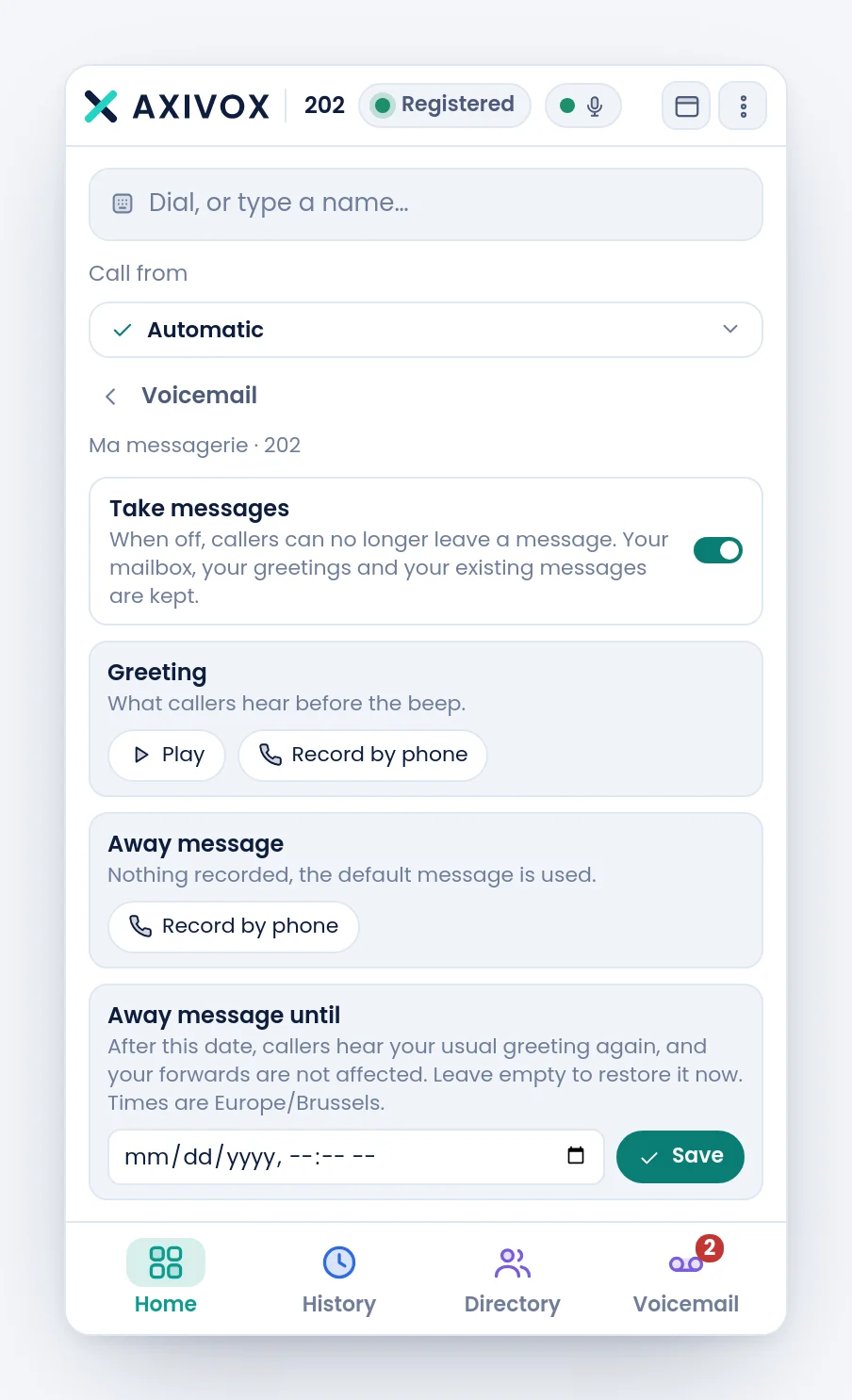
The menu entry Voicemail opens a panel that sets what your callers hear.
| Setting | What it does |
|---|---|
| Take messages | when off, callers can no longer leave a message. Your mailbox, your greetings and your existing messages are kept |
| Greeting | what callers hear before the beep |
| Away message | played instead of the greeting until the date below has passed |
| Away message until | the end date. Leave it empty to restore your usual greeting straight away |
Greetings are not recorded through the computer microphone: the Record by phone button rings your extension, you pick up, and you follow the voice menu. That is the best way to get a greeting that sounds like a telephone rather than like an office recording.
The desktop application
On the Windows or macOS application, the menu carries two extra entries.
| Entry | What it does |
|---|---|
| Start with system | launches the softphone when your session opens |
| Quit | really closes the program |
The cross of the window does not quit: it puts the softphone in the system tray, where it keeps ringing. Its tooltip says so.
Step by step
- Open the menu before your first call.
- Pick your Microphone, then your Output and ringtone. If you have a headset, pick it in both.
- Check the microphone dot next to the pill: it must be green.
- Set the Appearance and the Language to your taste.
- Open Voicemail and record your Greeting by phone.
- Check: call yourself from a mobile, let it ring, and listen to what the caller hears.
If it does not work
My microphone list is empty, or only contains "Default". The browser only gives device names once microphone permission has been granted. Allow it, reload the page, and the list fills up.
I changed headsets and the softphone still speaks into the old one. The lists are read again when the menu opens. Reopen it and pick the new device.
My contact hears their own echo. You are on speakers and your microphone is picking them up. Choose the headset in Output and ringtone, or turn the volume down.
The output choice is not offered. Not every browser allows the speaker to be chosen from the page. In that case, the output follows the default device of your system, to be set in the computer settings.
"This greeting could not be played." It may have been deleted in the meantime. Record it again.
"Could not call your phone." Recording by phone rings your own extension: your line therefore has to be registered. Check the pill.
"Saved, but not active on the call server yet." The setting was taken but the telephony has not picked it up yet. Try again in a moment.
I cannot find "Start with system". That entry only exists in the Windows or macOS application. In a browser, it is your browser that decides what it reopens at startup.