Call events
A rule says when to act, and its actions say what to do: warn someone by email, write to your Odoo, as soon as a call ends or goes unanswered.
At a glance
| Where | Integrations, Call events |
| What it is | a rule: one event, optional criteria, one or more actions |
| Events | Call ended and Missed call |
| Actions | Write to Odoo and Send an email |
| Criteria | call direction, number dialled or called, queue, extension, tags |
| Several rules for one call | yes, every rule that matches applies |
| Who can configure them | the account administrators |
| When it takes effect | as soon as it is saved, for the calls that follow, without Apply changes |
How it works
When a call ends, Axivox goes through your rules. A rule applies if the call matches its event and all of its criteria. All of its actions then run.
Rules have no priority. If two rules match the same call, both apply, and their position in the list makes no difference. A rule without criteria applies to every call of its event, and does not stop the others from applying.
The two events
- Call ended: "As soon as the call hangs up, whether it was answered or not." This covers inbound and outbound calls.
- Missed call: "The incoming call was not answered." An outbound call that nobody answers is not a missed call: it only falls under Call ended.
Calls between your own users trigger no rule: only inbound and outbound calls are examined.
When the actions run
Rules are examined once per call, after it has ended. Actions usually run within a minute. An action that needs the transcription, the summary or the recording waits until they are ready, which can take a few minutes. If the call was not recorded, the action runs anyway, without them.
A rule does not replay past calls: it only applies to calls that end after it was saved.
What the screen shows
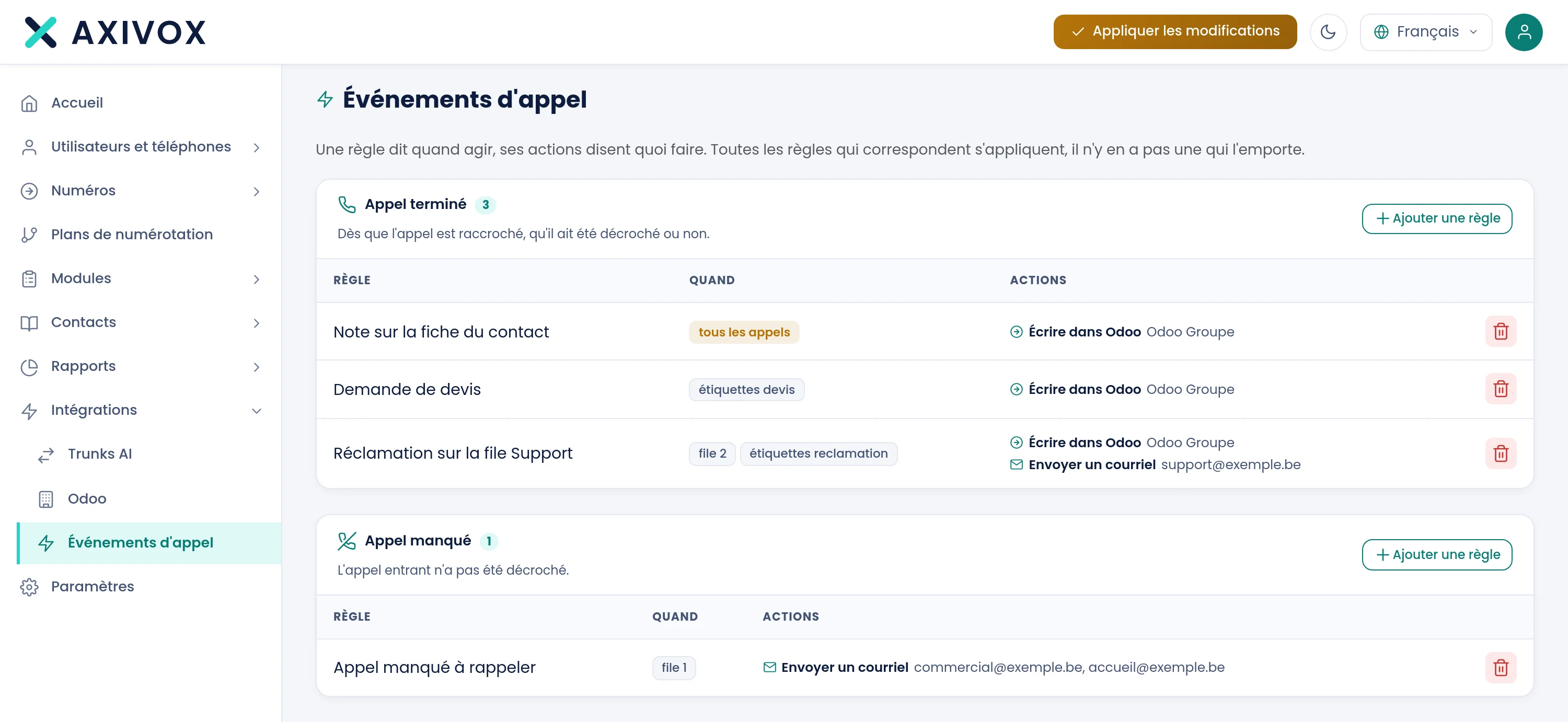
The screen shows one card per event, even when it is empty, because the card header carries the Add a rule button. The number of rules appears next to the card title.
| Column | What it shows |
|---|---|
| Rule | the name you gave the rule |
| When | one pill per criterion, or every call when the rule has none |
| Actions | one line per action: its type and its target. no action appears in orange when the rule does nothing |
Click a row to open the rule. The bin icon deletes it, after confirmation, together with its actions. The Odoo actions it used are not deleted.
The pill of a queue shows the queue's internal number, not its name. Open the rule to see the name.
An empty card shows: "No rule for this event."
Create a rule
- Open Integrations, Call events.
- In the card of the event you are interested in, click Add a rule. The event of the card is used in the form, and you can still change it.
- Give the rule a Name, 80 characters at most. Names do not have to be unique.
- In When, tick the criteria that must be met. Without a criterion, the rule applies to every call of the event.
- Click Save. The screen reopens the saved rule. Until the rule exists, it shows "Save the rule first to add actions to it."
- In Do, choose the Type of the action, fill in its fields and click Add an action. Repeat for each action.
- Go back to the list with Save or Cancel.
An action is saved as soon as you click Add an action, without waiting for Save. That button only concerns the name, the event and the criteria. It stays greyed out while the name is empty or while a ticked criterion has no value: "A criterion is ticked but its value is empty."
The criteria
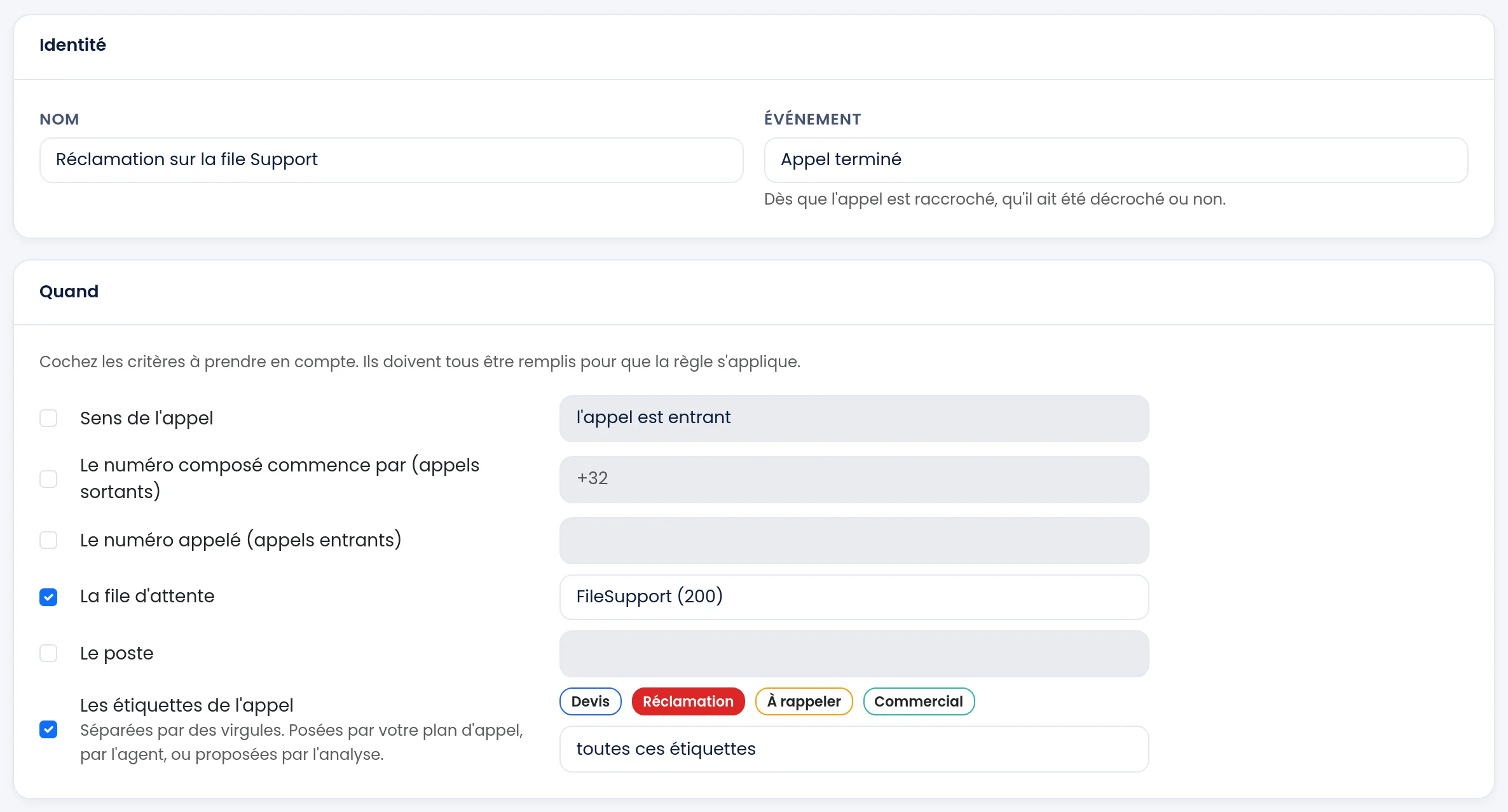
"Tick the criteria to take into account. They must all be met for the rule to apply." A criterion that is not ticked is ignored.
| Criterion | What it tests |
|---|---|
| Call direction | the call is incoming or the call is outgoing |
| The dialled number starts with (outbound calls) | the beginning of the dialled number, for example +32 for all Belgian numbers |
| The number called (inbound calls) | one of your numbers, chosen from the list |
| The queue | the last queue the call joined, chosen from the list |
| The extension | the extension involved in the call, chosen from the list |
| The call tags | the tags carried by the call: all of these tags or at least one of these tags |
A few details that avoid surprises:
- Numbers. The dialled number only applies to outbound calls, and it is written in international format, with the
+. The number called only applies to inbound calls. A rule that asks for both will therefore never match. A service code such as*82is handled by your dial plan before the call leaves: it never appears in the dialled number and cannot be used as a prefix. - The extension. For an answered call, it is the extension that answered. For an outbound call, it is the caller's extension. For a missed call, the extension is only known if a single extension rang, outside a queue and outside a group. As soon as a queue or a group made several ring, no extension matches: use the The queue criterion instead.
- Tags. You create them in Modules, Call tags. They are set during the call, by the Tag module of your dial plan or by the user who is on the line. Only these tags trigger a rule. A tag that the automatic analysis adds after the call never triggers one.
- A deleted tag. If a rule still carries a tag you removed from your list, it stays displayed, struck through. Untick it to remove it from the rule.
The actions
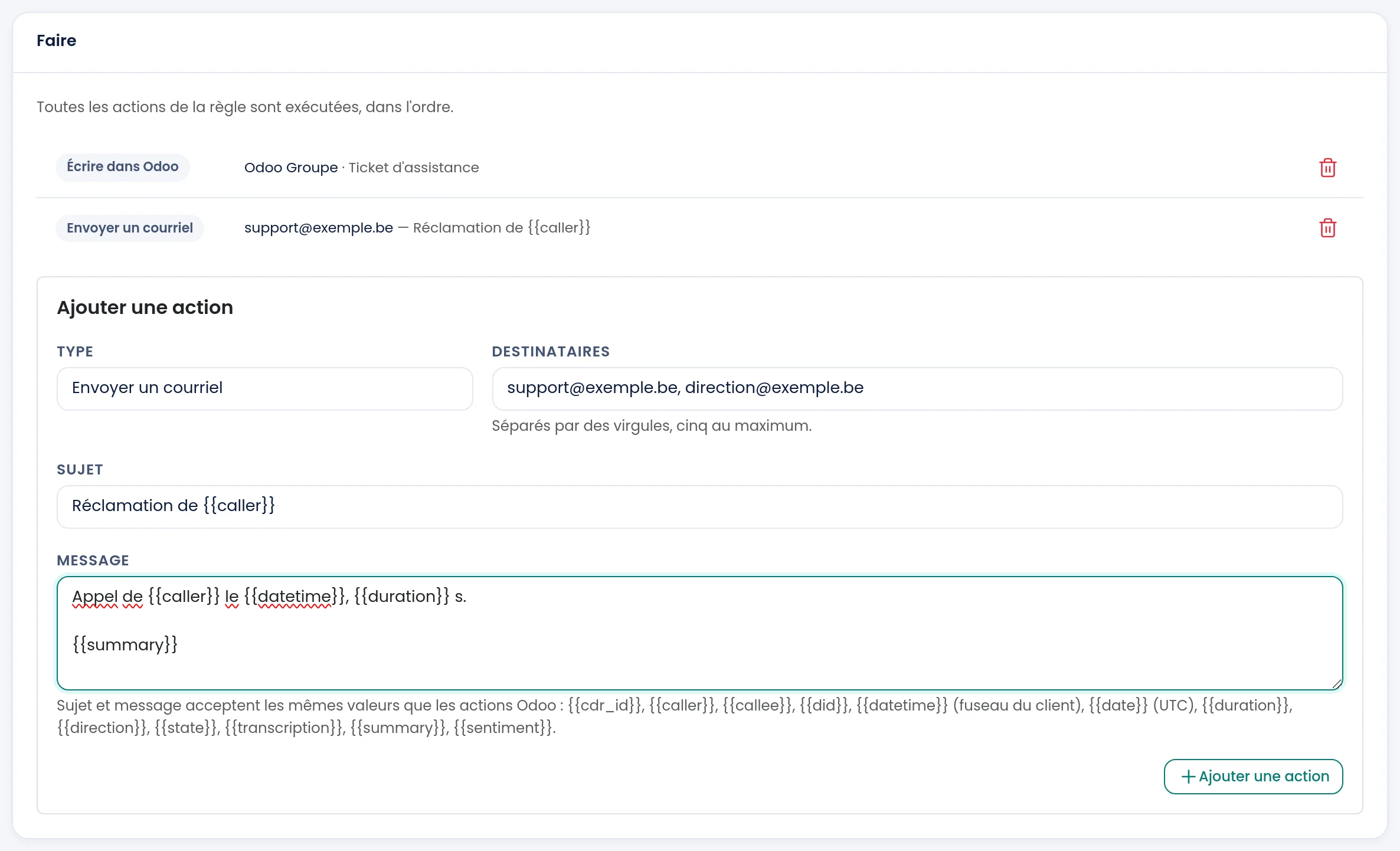
"Every action of the rule runs, in order." The actions are independent of each other. A rule can have as many as you like, of different types. To remove one, click its bin icon and confirm.
Write to Odoo
This action writes the call to your Odoo. It asks for two choices:
| Field | What to choose |
|---|---|
| Instance | the Odoo instance to write to, among those you declared |
| Odoo action | what to write: one of the actions defined for that instance |
What is actually written, and where, is set in the Odoo action, not here. If the instance has no action yet, the screen says: "This instance has no action. Create one from its page." Everything is explained on the page Actions in Odoo. The instance must be active: a deactivated instance runs nothing.
In the list, the action line shows the instance it targets and the number of the chosen action.
Send an email
This action sends a plain text email.
| Field | What is expected |
|---|---|
| Recipients | one or more addresses separated by commas, five at most. A badly written address is flagged before saving: "Invalid address:", followed by the faulty address |
| Subject | optional, 200 characters at most |
| Message | optional, 4,000 characters at most |
The Add an action button stays greyed out until an address is entered.
Without a subject or a message, Axivox composes a short message: the direction of the call, the number, the date, the duration, the state and, if they exist, the summary and the transcription. This default message is written in French, whatever the language of your portal. Write your own to receive it in your language.
The subject and the message accept values that are replaced by those of the call. They are written between double curly braces:
| Value | What it gives |
|---|---|
{{caller}} | the caller's number |
{{callee}} | the number or extension called |
{{did}} | your number: the one that was called for an inbound call, the one that was presented for an outbound call |
{{datetime}} | the date and time of the call, in your account's time |
{{date}} | the same moment in UTC |
{{duration}} | the length of the conversation, in seconds |
{{direction}} | incoming for an inbound call, outgoing for an outbound call |
{{state}} | terminated for an answered call, missed for a missed call, aborted for an outbound call nobody answered |
{{summary}}, {{transcription}}, {{sentiment}} | the summary, the transcription and the sentiment of the call. They only exist if the call is recorded and analysed, otherwise they stay empty |
{{cdr_id}} | the number of the call in Axivox |
The {{datetime}} time follows the time zone chosen in Settings, Time zone. If none is chosen, it is Brussels time.
Good to know:
- The sender is always
no-reply@axivox.com. It cannot be changed, and it is not meant to receive replies. - The portal does not show a history of the emails sent.
- If an email does not arrive, first look in the junk folder, and allow this address on your side.
Three examples
Keep a note of every call in Odoo. Create a Call ended rule without criteria, with the Write to Odoo action and an Odoo action created from the starting point Note on the contact record. If your Odoo instance already existed when call events went live, this rule was normally created for you under the name "Note on the contact record", so that your notes keep arriving as before. Check the list.
Warn the front desk of a missed call on the sales queue. Create a Missed call rule, tick The queue and choose the queue. Add the Send an email action with the subject Missed call from {{caller}} and the message A call from {{caller}} went unanswered on {{datetime}}. Please call back.
Create an opportunity for every quote request. Create a "Quote" tag and set it in your dial plan. Then create a Call ended rule with the The call tags criterion on that tag, and the Write to Odoo action with an Odoo action that creates an opportunity.
If it does not work
The rule does not trigger. Go through these points. Is the event the right one: an answered call never triggers Missed call. Are all the ticked criteria met at the same time: an inbound-call criterion and an outbound-call criterion never are. Was the tag set during the call, and not after. For an Odoo action, is the instance active and the Odoo action enabled. Finally, allow a few minutes if the action waits for the transcription or the recording.
A missed call does not match the "The extension" criterion. The extension is only kept if a single extension rang, outside a queue and outside a group. Use The queue for a queue or a group.
Nothing arrives in Odoo. Open Integrations, Odoo, then the "View integration status" icon on the instance line. The screen lists what keeps the integration from working, and each point disappears by itself once it is fixed.
The email does not arrive. Check the addresses you entered, then the junk folder. The portal keeps no history of what was sent: if the address is correct and nothing arrives after a few minutes, add no-reply@axivox.com to your allowed senders.
I cannot delete an Odoo action. "This action is still used by a call event. Remove it from the event first." Open the rule concerned and remove the action from the Do section.
A rule shows "no action". It does nothing for now. Open it and add an action.