Dial plans
This is where you decide the path each incoming call follows. You place modules, connect them, and the call travels through them in the order you drew. No configuration lines to write, no request to make to us.
Pages in this section
The principle
A dial plan is a diagram. Each box is a module: check the time, play a message, ring a phone, put on hold, query your business software. Each line is the path the call takes after that module.
A call comes in at the top, moves down from module to module, and exits somewhere: on a phone, on a voicemail box, or on a hangup.
Creating and editing a plan
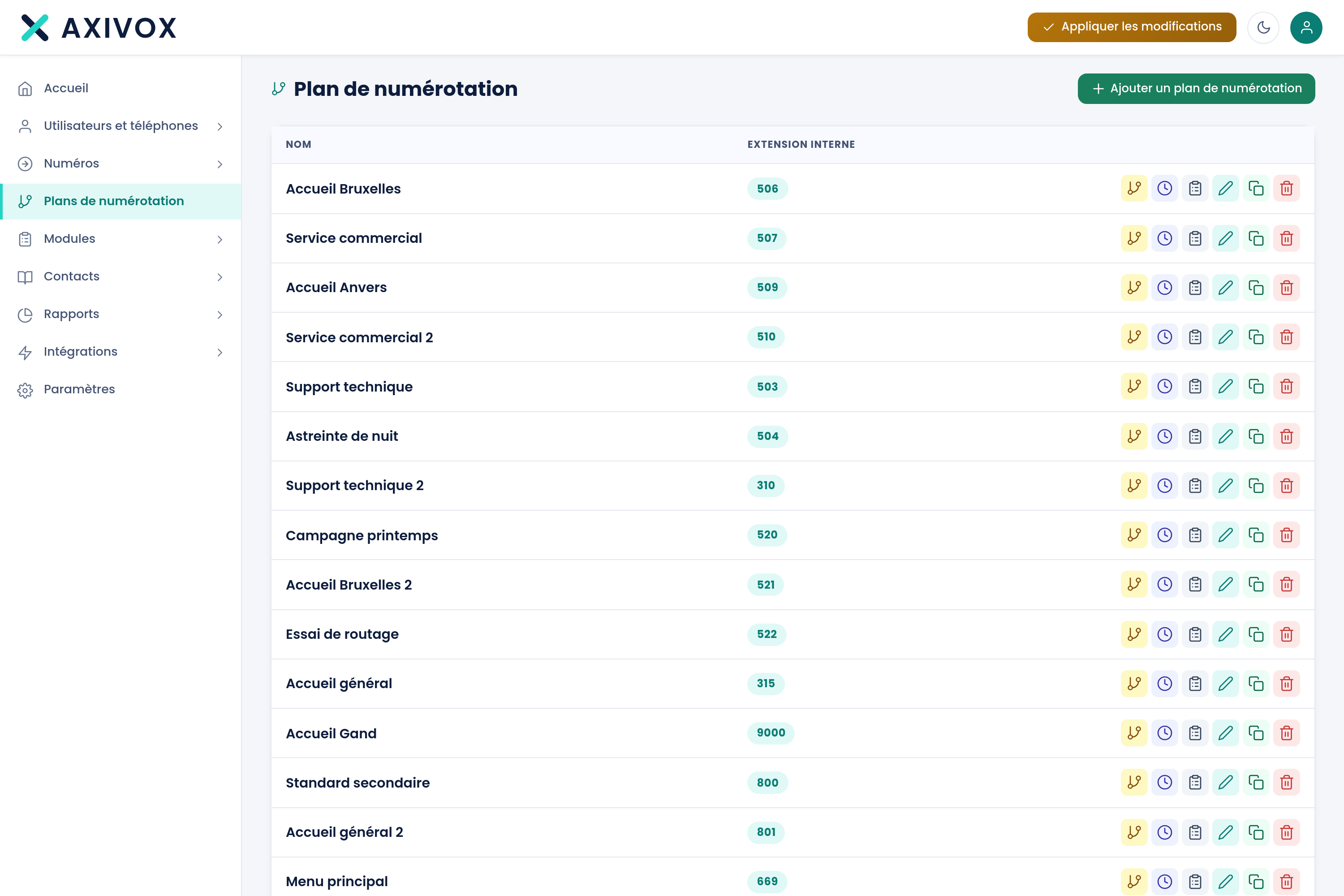
The page lists your existing plans. Clicking one opens the graphical editor.
In the editor, the toolbar at the top holds the palette: each button adds a module to the workspace. You drag boxes with the mouse, and you draw a line from an output point to the next module's input.
The available modules
Twenty-seven modules are at your disposal. Here is how they are organized.
Route the call
| Module | What it does |
|---|---|
| Start | The plan's entry point |
| Call | Rings a phone, a group or an external number |
| Queue | Places the call in a queue with music and announcements |
| Dispatcher | Distributes calls according to a rule you define |
| Conference | Sends the call into a conference room |
| Send to a trunk | Sends the call outward |
| Hang up | Ends the call |
Decide
| Module | What it does |
|---|---|
| Menu | Offers a key-press menu, "press 1 for…" |
| Time condition | Routes based on the day and time |
| Switch | Follows the position of a toggle your teams operate |
| Multi-Switch | Like the switch, with several possible positions |
| Condition (If) | Compares a value and chooses a branch |
| Switch / Case | Routes based on the exact value, or on a pattern |
| Access list | Allows or refuses based on the caller's number |
| Digital receptionist | Waits for the caller to dial something |
| DTMF entry | Retrieves what the caller dialed, for later use |
Speak and listen
| Module | What it does |
|---|---|
| Play a file | Plays an announcement you recorded |
| Voicemail | Drops the caller onto a voicemail box |
| Record | Records the conversation |
| Caller ID | Changes the displayed name or number |
| Tag | Applies a tag to the call, to find it later or trigger an action |
Fetch information
| Module | What it does |
|---|---|
| Odoo, contact resolution | Opens the caller's record in your Odoo |
| Odoo request | Queries your Odoo during the call and retrieves a piece of data |
| API request | Queries other software through its web interface |
| Variable | Stores a value to reuse further on in the plan |
| Notification | Sends an e-mail |
| Debugging | Writes a timestamped trace, to understand what happened |
Reusing a value from one module to another
Some modules produce a piece of information: what the caller dialed, the other party's name, a piece of data read in Odoo, the date and time. You can reuse it further on by writing it between double braces, for example {{caller}}.
An Available variables panel is present in the editor, at the bottom right. It lists what you can use at that point in the plan. Clicking one inserts the variable, which avoids typos.
Understanding a plan that isn't doing what you expect
The Debugging module is made for this. Place it at the point in the plan you doubt, and it will write a timestamped trace on every call that passes through. You'll then see in black and white whether the call goes through there, and with which values.
Putting the plan into service
Then test by calling the number yourself. It's the only check that matters.
A common mistake
A plan with an output not connected to anything leaves the call hanging: the caller hears silence, then the call drops. Before applying, go through every box and check that all its outputs lead somewhere, including exception branches like "no answer" or "outside business hours."
How the dial plan is built, explained in pictures
See the Dial plans page