Placing a call
One field for everything: digits dial, letters search. And a selector that decides which number the person you call will see.
At a glance
| Where | the command bar, at the top of the window, always in the same place |
| Dialling | type the number, then Enter. Or click the green button |
| Searching | type letters, from three characters on |
| What is searched | your keys, your colleagues, your history, and your CRM address book when it is connected |
| Number presented | the Call from selector, under the bar |
| Clearing | the cross in the bar |
How it works
The command bar guesses what you are doing from what you type. Digits: it prepares a call and shows a green button. Letters: it searches, and groups the results by where they come from.
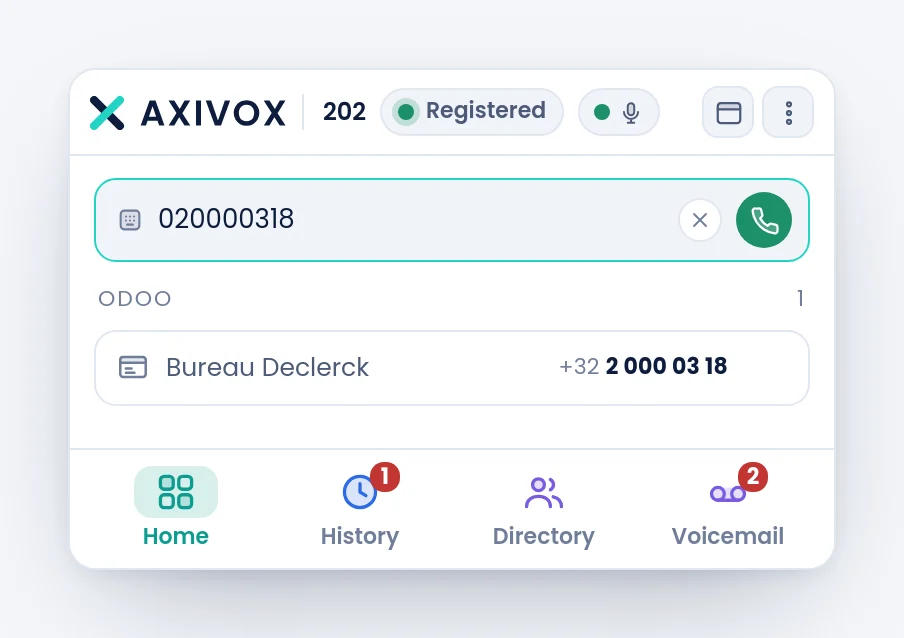
Even while you type digits, the search keeps running in the background: if that number is known to your history or your CRM, the name appears under the bar before you have even called.
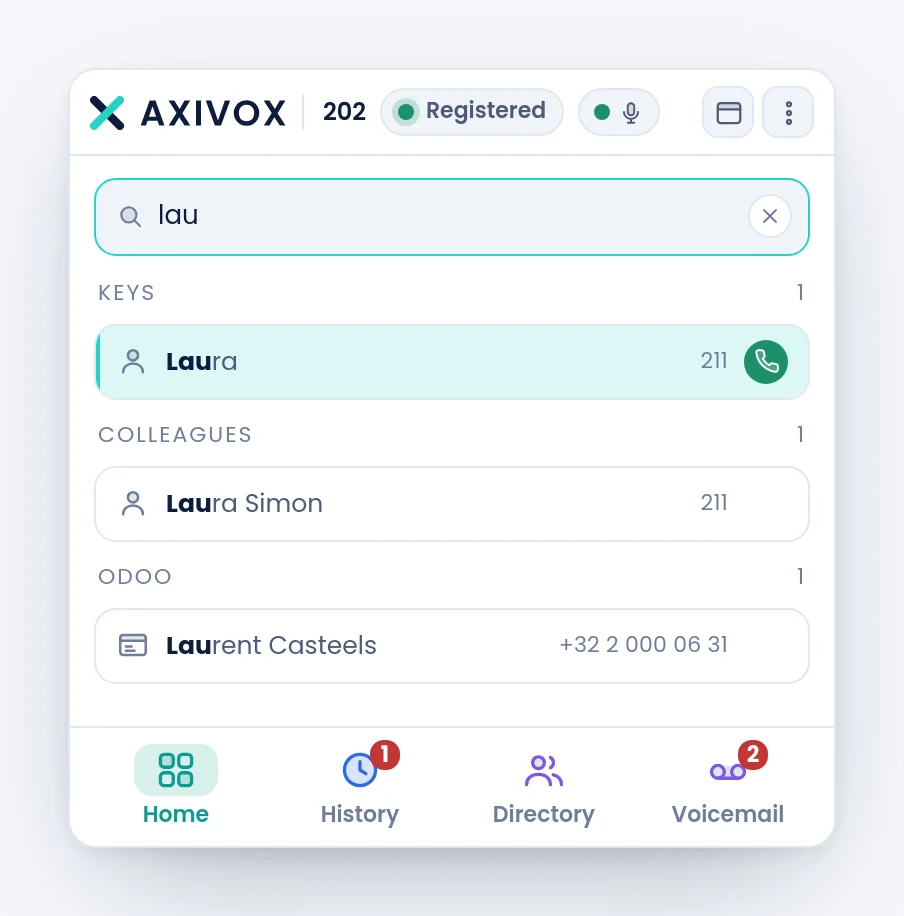
The results are grouped and counted: Keys, Colleagues, History, then the name your company gave its integration. The part you typed is highlighted in every result, including inside a number.
The number the other party will see
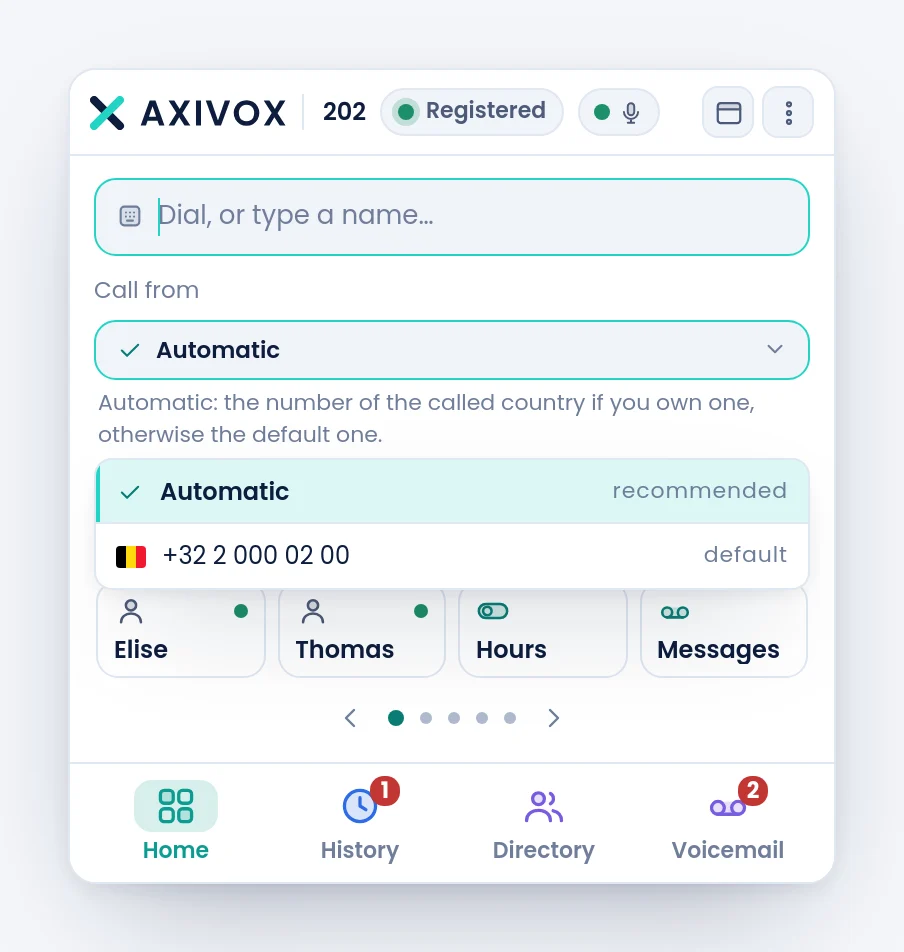
Under the bar, Call from decides which number is displayed on your contact's phone.
| Choice | What it does |
|---|---|
| Automatic | presents the number of the called country if your company owns one, otherwise the default one. This is the recommended choice |
| A number from the list | always presents that one, whatever the country called |
The choice is remembered from one call to the next. The numbers offered are the ones your administrator allowed on your extension.
Step by step
- Click in the command bar, or just type: it takes the keyboard as soon as the window is in front.
- For a number: type it, then Enter. An internal number is an extension number, with no prefix.
- For a name: type at least three letters, then choose from the list. Enter calls the first, highlighted result.
- If the number presented does not suit you, change it in Call from before calling.
- The call card appears under the bar, showing Calling… while it rings.
- To give up before it is answered, click End in the card.
If it does not work
Nothing leaves when I press Enter. The bar may be in search mode because what you typed contains letters. Clear it with the cross and start again, or click the green button.
"This number does not exist". The number dialled leads nowhere. For an internal call, check the extension number in the Directory tab. For an external call, check the dialling code.
"Call not allowed". Your extension is not allowed to call that destination. International destinations and special numbers are set by your administrator.
"Busy", "No answer", "Unavailable". These are answers from the person called, not softphone errors. Unavailable means their extension cannot be reached anywhere, for example because it is registered on no device.
"Network unavailable, try again". The line was lost at the moment of the call. Look at the pill at the top: if it shows Reconnecting…, wait for it to turn green again.
My contact sees the wrong number. Look at Call from. If a fixed number is chosen there, it is presented for all your calls. Set it back to Automatic.
The search does not find my CRM contacts. The group named after your integration only appears when the CRM connection is in place and the search succeeded. The other three groups are always available.