Directories
The directory pushed to your phones: a known contact shows up by name instead of number, and the list imports from a file rather than by hand.
At a glance
| Where | Contacts, Directories |
| What it is | a list of names and numbers, sent to the directory of the phones |
| Who receives it | the extensions you assign it to, on the user's record, General tab, Directory list |
| Default directory | marked (default) in the list: its name can't be changed and it can't be deleted |
| Import and export format | "name";"number";, one entry per line, semicolon as separator |
| Files accepted for import | .csv, .xlsx, .xls |
| Entry type | Default, Blocked, or VIP (rings even if DND) |
| Right required | Directory management |
How it works
A directory is a list you maintain, which the platform copies into the directory of the phones that receive it. Two effects follow, and the second is the most useful day to day: your users can search for a contact from their phone, and above all, when one of these numbers calls, its name shows up instead of the raw number.
Assignment is done extension by extension, on the user's record, General tab, through the Directory list. Each extension can therefore receive a different directory, for instance its department's.
Each entry has a Name, a Number and a type. The three available types are Default, Blocked and VIP (rings even if DND), and they're passed to the phone as-is: it's the device that applies them, a VIP contact ringing even when the extension is in do-not-disturb. Entries created on this screen and those coming in through import are of type Default.
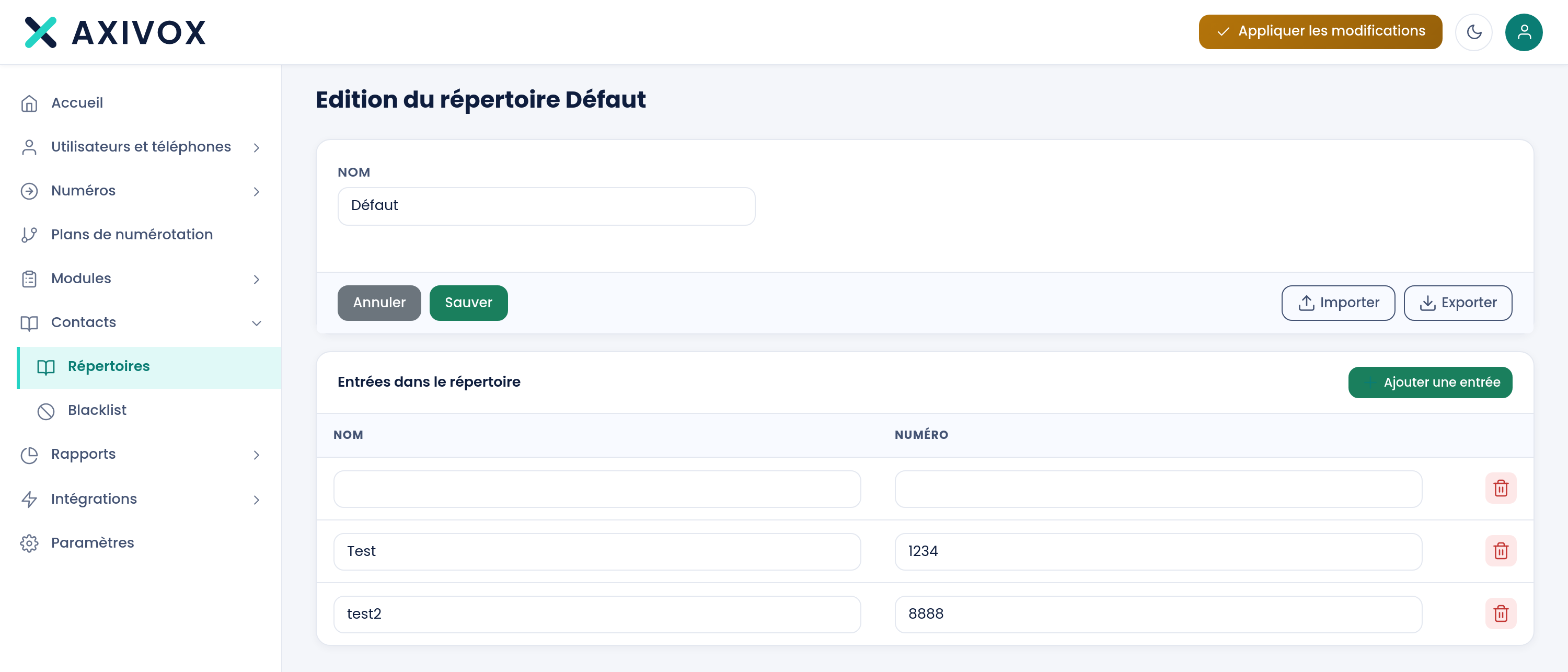
On a directory's record, entries are entered directly in the table, and each field is saved as soon as you leave it. There's no Save to click for an entry: the Save button at the top only applies to the directory's name.
The Import and Export buttons only appear once the directory has been created. Export produces a file named axivox-directory- followed by the date, with one "name";"number"; line per entry. Import reads the same format: the separator is the semicolon, the quotes around the name are stripped, and the number keeps only its digits along with the characters + - * ( ) #, everything else being replaced with a space. A line without two columns is skipped, and an entry identical to an existing one isn't added twice.
What to fill in
| Field | What's expected | If you leave it blank |
|---|---|---|
| Directory Name | the name you'll use to select it on an extension's record | the Save button stays inactive: this field is required |
| Entry Name | the name shown on the phone when the call comes in | the entry stays in the list without showing anything useful |
| Entry Number | the number as your installation sees it arrive | the entry isn't matched to any call |
Steps
- Open Contacts, then Directories.
- Click Add a directory, enter its Name, then click Save.
- Reopen it from the list: the table of entries and the Import and Export buttons are now there.
- To enter by hand, click Add an entry, fill in Name and Number, then click elsewhere: the row is saved when you leave the field.
- To load an existing list, click Import and choose a file in the
"name";"number";format. The count of entries added is shown at the end. - Assign the directory to the relevant extensions: user's record, General tab, Directory list.
- Click Apply changes. This is what regenerates the phones' directory.
- Check: from an extension that receives this directory, have someone call from one of the numbers on the list, and verify the name shows up instead of the number.
If it doesn't work
Import does nothing, no entry appears. The file isn't in the expected format. The picker offers .csv, .xlsx and .xls, but the content must be semicolon-separated text: a spreadsheet saved as-is adds no entries. Open your file in a text editor to check it looks like "Supplier";"022345678";, then try again.
"Invalid file content". The file couldn't be read at all. Check that it isn't empty and that it was indeed saved in CSV format.
Only some of the lines were imported. A line without a semicolon, or with an empty name or number, is skipped without a message. A line identical to an entry already present doesn't create a duplicate: the count shown at the end only tallies the actual additions.
The name doesn't show up on the phone when a call comes in. Three things to check, in this order. Is the directory assigned to the extension, on its record, General tab? Have you clicked Apply changes since? Has the phone re-read its configuration after that apply? Finally, check that the number is written in the directory exactly as your installation sees it arrive: that's what matches them. Watch out for numbers from an import written with dots or slashes: these separators become spaces on import, and the stored number no longer looks like the one arriving.
I can't rename or delete a directory. It's the default directory, marked (default) in the list. Its name is fixed and it has no delete button. You can, however, edit its entries like in any other directory.