Actions in Odoo
An Odoo action describes what your calls write to your Odoo: a note on the contact record, an opportunity, a ticket, a task.
At a glance
| Where | Integrations, Odoo, then the "Actions in Odoo" icon on the instance line |
| What it is | a writing template: which Odoo model to write to, which fields to fill, with which values |
| When it writes | when a rule of the Call events page triggers it. On its own, an action writes nothing |
| Several actions | yes, as many as you like per instance |
| To prepare | a declared Odoo instance whose connection test succeeds |
| Who can configure them | the account administrators |
How it works
Three things are set in three places, which is what lets you combine them freely:
- the instance says where your Odoo is and which account we connect with;
- the action says what to write and in which model;
- the rule on the Call events page says when to write it.
One action can serve several rules, and one rule can trigger several actions, for example a note on the contact and an opportunity for the same call.
The note on the contact record is no longer automatic: it is an action like the others, Note on the contact record, that you link to a rule. If your instance already existed when call events went live, the action and its rule were normally created for you, under the name "Note on the contact record", so that your notes keep arriving as before.
What the screen shows
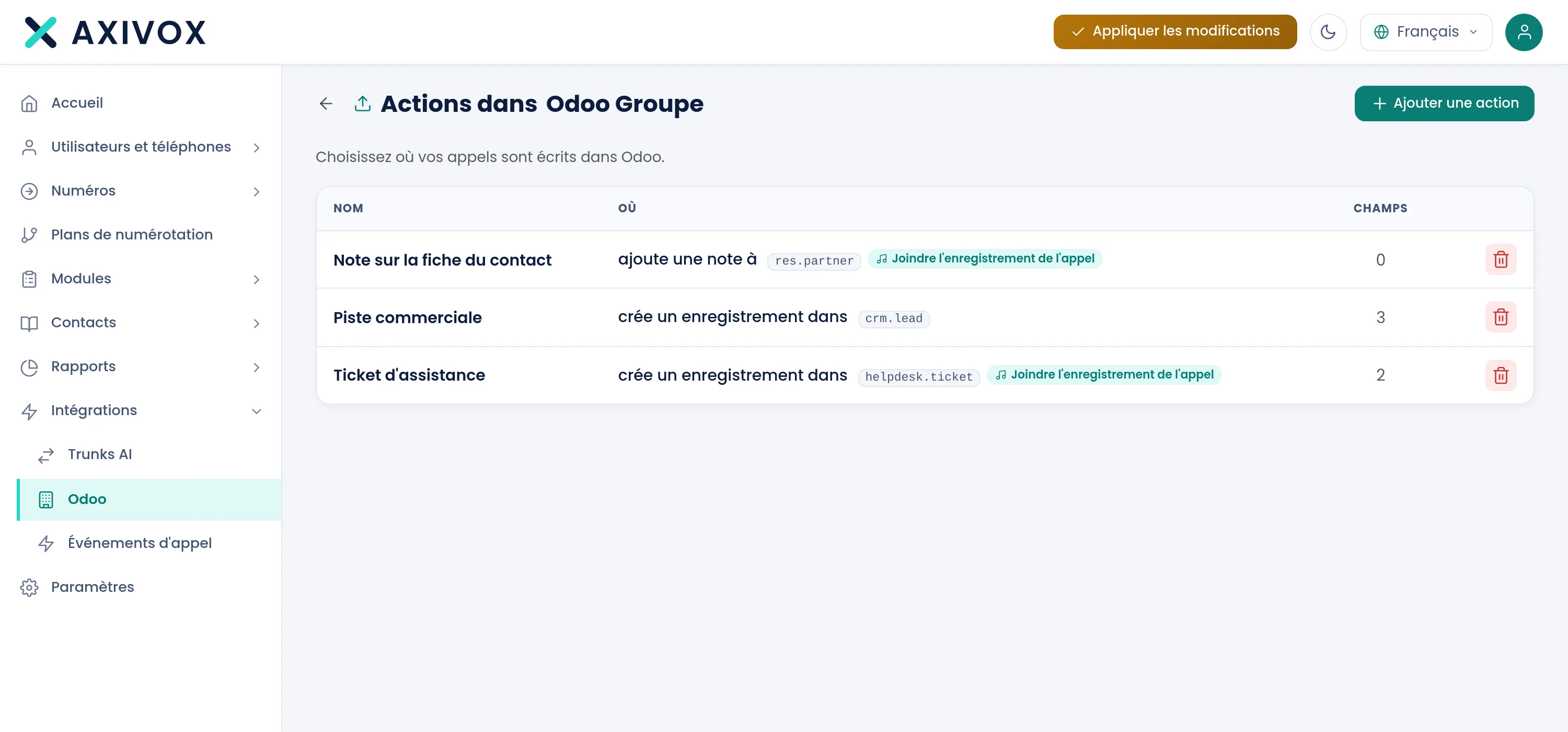
| Column | What it shows |
|---|---|
| Name | the name of the action. A deactivated action carries the label Inactive |
| Where | what the action does (create a record or add a note), the Odoo model it targets, and the Attach the call recording pill if the audio is attached |
| Fields | the number of fields filled in |
Click a row to open the action. The bin icon deletes it, after confirmation. An action that a rule still uses cannot be deleted: the screen answers "This action is still used by a call event. Remove it from the event first."
Create an action
- Open Integrations, Odoo, then click the "Actions in Odoo" icon of your instance.
- Click Add an action.
- Pick a starting point in Start from a template, or enter an Odoo model directly.
- Name the action, and check the model and what is done.
- Fill in the fields in What to put in it.
- In Settings, switch on Enable this action, then click Save.
- Link the action to a rule: see the page Call events.
The three blocks of the editor
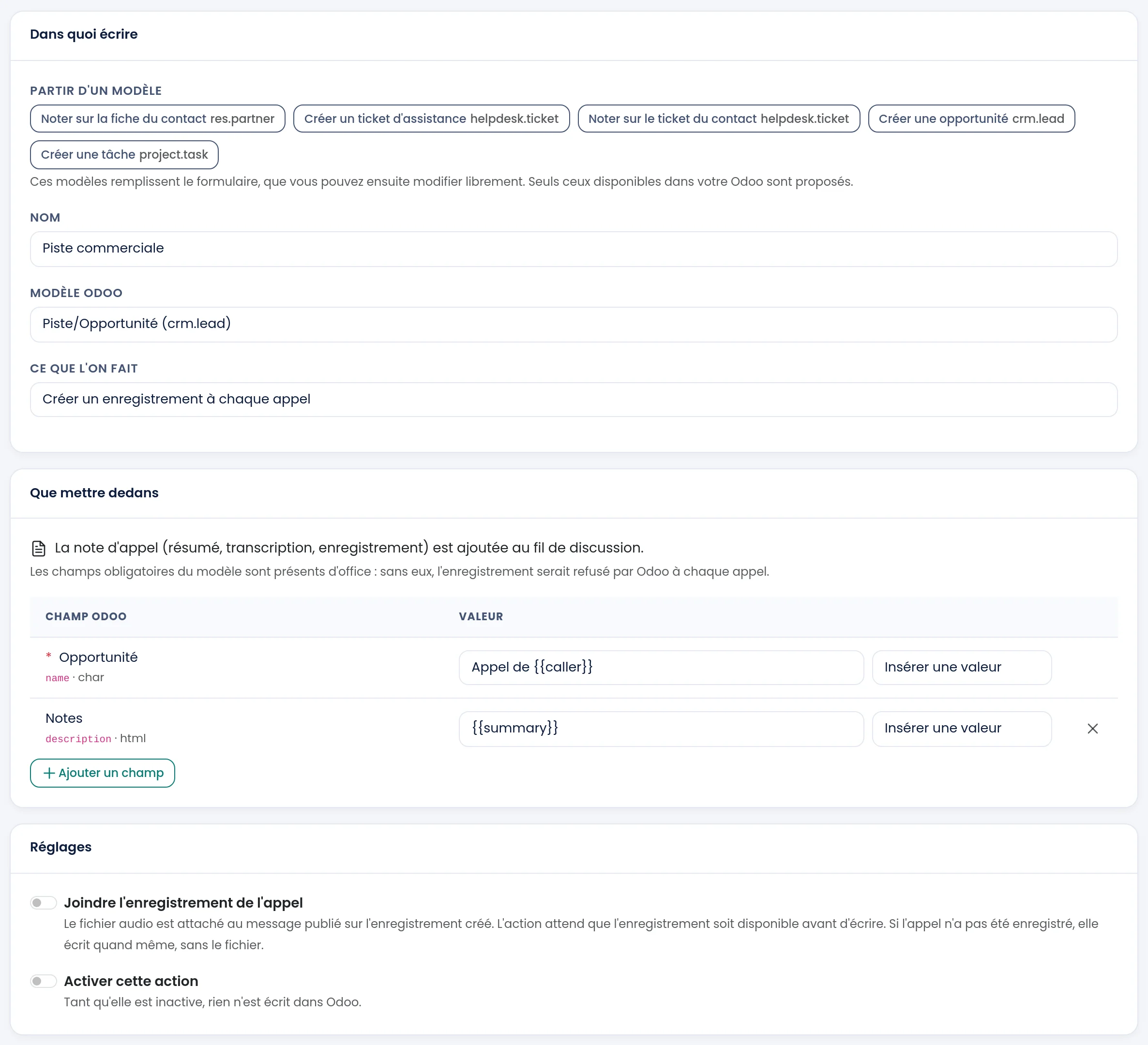
Where to write
Start from a template. Five templates fill in the form for you. You can then change everything.
| Starting point | Odoo model | What it prepares |
|---|---|---|
| Note on the contact record | res.partner | the call note on the record of the identified contact |
| Create a support ticket | helpdesk.ticket | one ticket per call, with the recording attached |
| Note on the contact's ticket | helpdesk.ticket | the call note on the contact's ticket, with the recording attached |
| Create an opportunity | crm.lead | one opportunity per call |
| Create a task | project.task | one task per call |
Only the models that exist in your Odoo can be used. The others are struck through, and hovering over them says why: "This model does not exist on your Odoo instance. The module that provides it is probably not installed." or "This model has no discussion thread: the call note could not be posted on it.". These starting points are only offered for a new action.
Name. The name you will find in the list and in the list of actions of a rule.
Odoo model. A list with search, which includes every model of your Odoo, your own models too.
What to do. Two possibilities:
- Create a record for every call: each call creates an opportunity, a ticket or a task, depending on the model.
- Add a note to an existing record: the call completes a record that already exists. Two questions then come up.
To find the record, Find the record whose accepts one or more criteria, each made of an Odoo field and a value. All of them must match. The value can be a variable from your dial plan, for example the ticket number that the caller keyed in. Without a criterion, the Save button stays greyed out: "Without a criterion, there is no way to know which record to complete." If a variable is empty when the call takes place, the search is abandoned and If no record matches applies.
If no record matches. What to do when nothing is found:
| Choice | Effect |
|---|---|
| Write on the contact record | the note goes on the record of the identified contact |
| Create one | a record is created |
| Write nothing | nothing is written |
What to put in it
"The call note (summary, transcript, recording) is added to the discussion thread." In every mode, the call note is therefore added to the discussion thread of the record. It contains the summary, the transcription and, if you asked for it, the recording.
The Odoo field and Value table lists the fields to fill in:
- the mandatory fields of the model are present from the start, marked with an asterisk. Without them, Odoo would refuse the record on every call;
- Add a field adds others, and the cross removes one;
- the value is free text, which can contain values of the call. The Insert a value list offers them, see below;
- the field on the right follows the type of the Odoo field: a list of choices for a choice field, a list loaded from your Odoo for a field that points to another record;
- a field marked "recalculated" is recalculated by Odoo: the value you put there may be replaced.
In "add a note" mode, filling in fields is optional. They serve to update the record that was found. For the contact record, the screen says: "No field to fill in: only the note is added. This is the expected behaviour."
Settings
- Attach the call recording. The audio file is attached to the message posted on the record. The action waits until the recording is available before writing, which can take a few minutes. If the call was not recorded, it writes anyway, without the file.
- Enable this action. As long as it is inactive, nothing is written to Odoo.
The values you can insert
The Insert a value list sorts the values into groups. Each is written between double curly braces in a field, for example Call from {{caller}}. A field that contains only the value receives the value itself: a number stays a number.
| Group | Values |
|---|---|
| The call | {{cdr_id}}, {{caller}}, {{callee}}, {{did}}, {{duration}}, {{direction}}, {{state}}, {{datetime}}, {{date}}, {{hangup_cause}} |
| The content | {{summary}}, {{transcription}}, {{sentiment}} |
| The contact | {{odoo_partner_id}}, {{odoo_partner_name}}, {{odoo_user_id}}, {{odoo_user_name}} |
| Your variables | the variables you defined in your dial plans |
A few pointers:
{{caller}}is the caller and{{callee}}the number or extension called.{{did}}is your number: the one that was called for an inbound call, the one that was presented for an outbound call.{{duration}}is the length of the conversation, in seconds.{{direction}}isincomingoroutgoing, and{{state}}isterminated,missedoraborted.{{date}}is in UTC, because Odoo converts dates again into the time zone of the person who reads them.{{datetime}}is the same moment in your account's time, for a text that a person reads.{{summary}},{{transcription}}and{{sentiment}}only exist if the call is recorded and analysed. An action that uses them waits until they are ready, then writes anyway without them if the call was not recorded.- The contact values are those of the contact your Odoo identified. They are empty if the caller is not known there.
If it does not work
A starting point is struck through. The model does not exist in your Odoo, usually because the application that provides it is not installed, or it has no discussion thread. Install the application in your Odoo, or choose another model.
The action will not activate. "Your Odoo did not answer, so the action was not enabled. Please try again." means that your Odoo did not answer: try again, and test the instance connection if it persists. "The action was not enabled: required fields are missing." means that a mandatory field of the model is empty: the screen names them in the Settings section.
Nothing is written to Odoo. Go through these points: the action is enabled, a rule of the Call events page triggers it, the instance is active, and for a note on the contact, the caller is identified in your Odoo. The "View integration status" icon in the list of instances also shows what is blocking.
The note goes somewhere unexpected. Look at If no record matches: when no record matches, the action can write on the contact record, create one or do nothing. Also check that the variable of the criterion is not empty for that call.
The audio recording is missing. Attach the call recording must be on for the action, and the call must have been recorded. Without a recording, the note is written without the file.