Calling from an Odoo record
A click on a number in an Odoo record takes the record along with the call. A rule can then write the call note, with the recording and the transcription, on that very record rather than on the contact.
At a glance
| What it is | three variables the call carries when it starts from a click on a number, in an Odoo record |
| Calls concerned | outbound calls started from the softphone built into Odoo |
| To prepare | the axivox_softphone module in version 1.0.18 or later in your Odoo, a declared Odoo instance, an Odoo action and a rule |
| Where | Integrations, Odoo for the action, Integrations, Call events for the rule |
| Who can configure it | the account administrators |
How it works
A salesperson opens an opportunity in Odoo and clicks the phone number, as they already do. The call leaves from the softphone built into Odoo, without leaving the page. When they hang up, a note arrives on the opportunity: who called, when, for how long, the audio file and the transcription of the conversation. Nobody typed or filed anything.
The number alone does not say what the call was about: the same contact can be linked to three opportunities. At the moment of the click, the module therefore reads the address of the page on screen, and nothing else from your Odoo. It draws up to three variables from it, which the call carries to the end:
| Variable | What it holds | Example |
|---|---|---|
odoo_source_path | the word after /odoo/ in the address, from Odoo 18 on | crm for /odoo/crm/5665 |
odoo_source_model | the Odoo model, when the address gives it | crm.lead for /web#id=5665&model=crm.lead (Odoo 17 and earlier) or /odoo/m-crm.lead/5665 |
odoo_source_id | the identifier of the record | 5665 |
Since Odoo 18, the address of a record names the menu it was opened from, such as crm or sales, and not the model. The module never translates that word into a model: to do so it would have to query your Odoo, and it reads none of your data. Your rule makes the link, by testing the word, the model, or both.
A rule on the Call events page recognises these calls with the Call variables criterion. Its Odoo action finds the record by its identifier, {{odoo_source_id}}: it does not look for a record that happens to carry the same phone number, it targets exactly the one the call started from.
Setting it up
1. Check the module
The version of the module is shown on its record, among the apps of your Odoo. It must end with 1.0.18 or higher, for example 19.0.1.0.18. Below that, the call goes out normally but carries no variable, and nothing gets filed. To update it, follow the installation procedure for your Odoo version, on the Procedures page.
2. Create the Odoo action
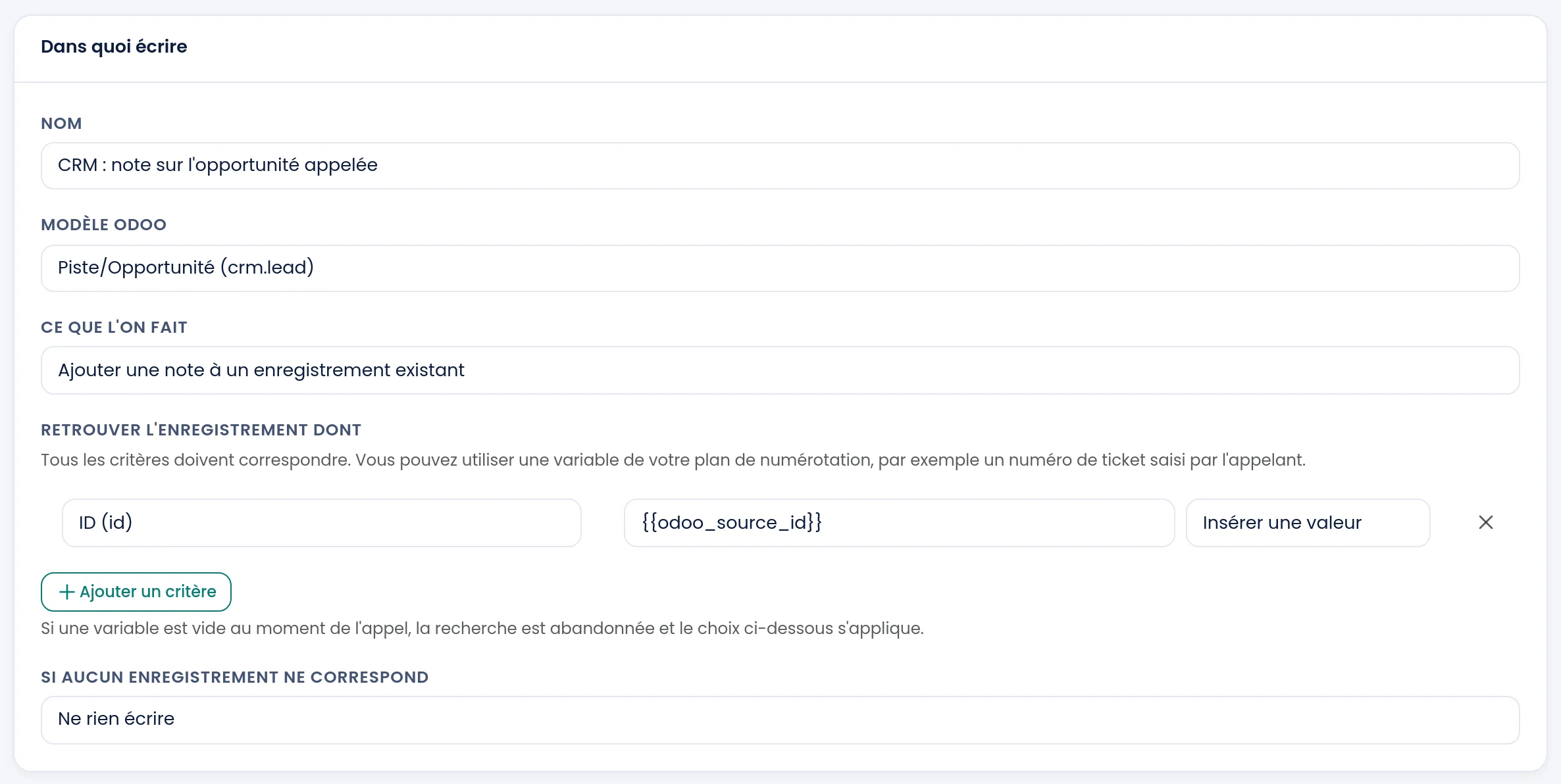
- Open Integrations, Odoo, then click the "Actions in Odoo" icon of your instance.
- Click Add an action and give the action a Name.
- In Odoo model, choose the model of your records, for example
crm.leadfor opportunities. - In What to do, choose Add a note to an existing record.
- In Find the record whose, choose the ID field (
id) and type the value{{odoo_source_id}}. It is not in the list of suggested values: type it by hand, with the double braces. - In If no record matches, choose Write nothing. A call that does not come from a record then creates nothing and clutters nothing.
- In Settings, switch on Attach the call recording and Enable this action, then click Save.
3. Create the rule
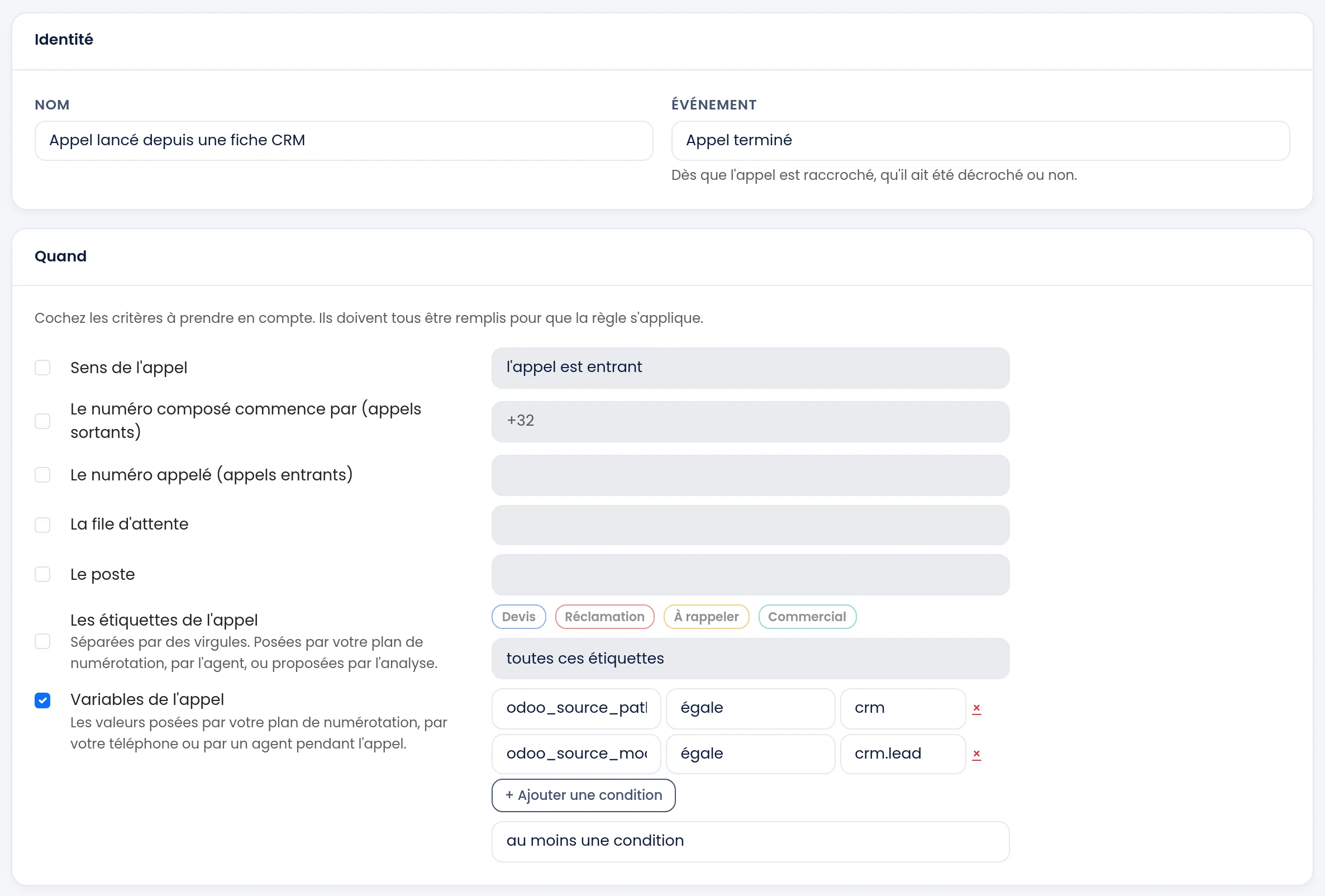
- Open Integrations, Call events, then click Add a rule in the Call ended card.
- Give the rule a Name.
- In When, tick Call variables. Type
odoo_source_path, choose equals and typecrm. - Click Add a condition. Type
odoo_source_model, choose equals and typecrm.lead. - Below the conditions, choose at least one condition, then click Save.
- In Do, choose the type Write to Odoo, your instance and the action created in the previous step, then click Add an action.
The two conditions cover every version of Odoo: the first recognises the address of Odoo 18 and later, the second that of older versions, and at least one condition is enough for one of them to match. The word to test is the one your Odoo's address bar shows when a record is open: check it once, it can differ if your menus have been customised.
For another kind of record, create one more action and one more rule. For quotations, for example: the sale.order model in the action, and in the rule odoo_source_path equals sales or odoo_source_model equals sale.order.
4. Try it
Open an opportunity in Odoo, click its phone number and hang up after a few seconds of conversation. The note usually arrives on the opportunity within the minute, or after a few minutes when the action waits for the recording.
In the Call list, the Call variables column shows how many variables the call carries. A click on that number shows them: odoo_source_path is crm and odoo_source_id is the number of the opportunity. See the Call list page.
Good to know
- Only calls started with a click carry the record. A number dialled on the softphone keypad carries nothing, since no record was involved.
- The record on screen at the moment of the click is the one that counts. If the user moves to another record before calling, the one they were looking at when clicking receives the note.
- Inbound calls have no record of origin. They are handled by the contact lookup, see the Odoo page.
- Nothing is caught up. Only calls made after the setup are filed.
- Recording and transcription must be enabled on your account. Without them, the note still arrives, without the audio file or the text.
- The module reads none of your Odoo data. It adds no field and no table, and only looks at the address of the page.
If it does not work
The note does not arrive on the record. Open the Call list and look at the Call variables column for the call. Empty: the module is older than 1.0.18, or the call did not start from a click in a record. Present: compare odoo_source_path or odoo_source_model with the conditions of the rule, a single different letter is enough to rule it out.
The variables are there, but nothing is written. Check that the action is enabled, that the instance is active, and that the model of the action is indeed that of the record: an opportunity identifier searched among the contacts finds nothing, and Write nothing applies. The "View integration status" icon of the instance list also shows what is blocking.
The note arrives without the recording. Attach the call recording must be switched on in the action, and the call must have been recorded.