Changing your password
Replace the password that opens your portal. Three fields, a strict format rule, and a trap: it's not the same rule elsewhere in the product.
In brief
| Where | user menu, top right, Change my password entry |
| What the screen lets you do | replace your portal login password |
| The rule | "The password must contain at least one digit, one uppercase letter and one lowercase letter, and at least 8 characters." |
| Spaces | to be avoided: the check applies to a string of characters with no spaces |
| Fields | Current password, New password, New password again |
| Button | Save, inactive until all three fields are filled in |
| Confirmation | "Password changed." |
| Who has access | any signed-in account, for their own password |
| Does not change | the SIP password of your phones |
How it works
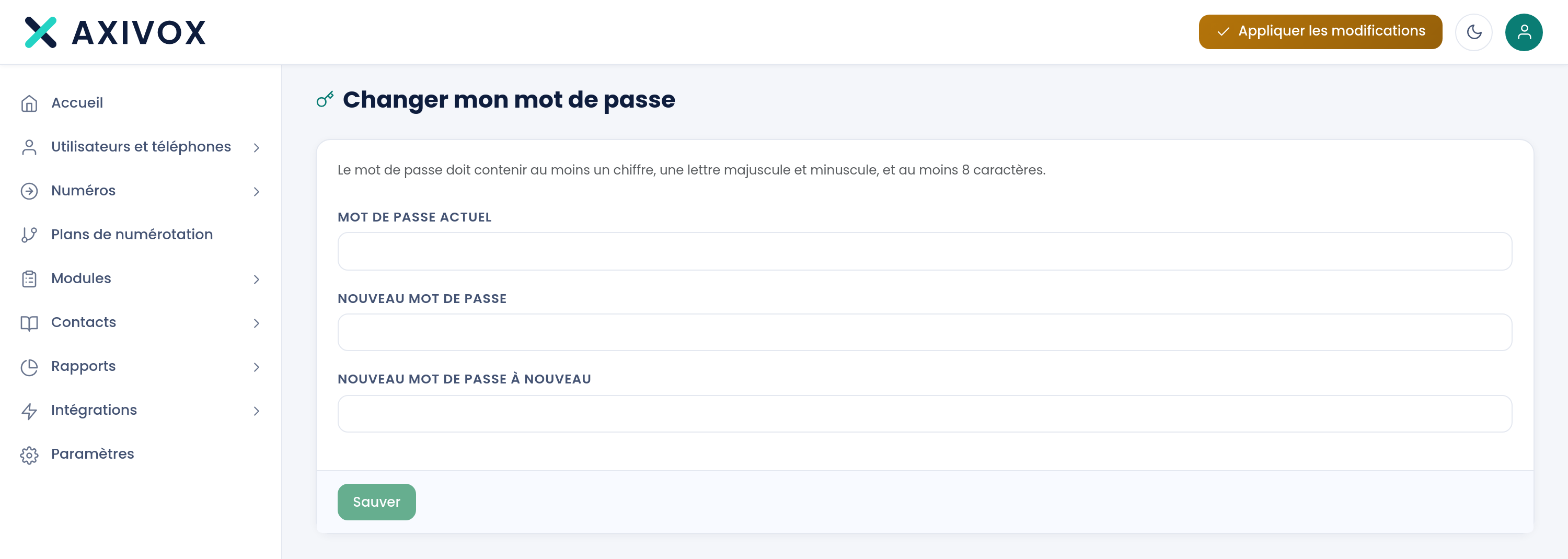
The rule is stated at the top of the page, before the fields. It comes down to four combined conditions: at least 8 characters, at least one digit, at least one uppercase letter, at least one lowercase letter. Eight lowercase letters are not enough, and neither are eight digits.
The portal first checks that the Current password is correct, then that the two entries of the new password match. The change is only saved if both checks pass.
This password opens the portal, and only the portal.
What to enter
| Field | What is expected | If you leave it blank |
|---|---|---|
| Current password | the one you are currently signed in with | the Save button stays inactive |
| New password | at least 8 characters, including a digit, an uppercase letter, and a lowercase letter, with no spaces | the Save button stays inactive |
| New password again | exactly the same, character for character | the Save button stays inactive |
Step by step
- Click the person icon, top right of the screen, then Change my password.
- Compose your new password first, before touching the form, and check that it meets all four conditions.
- Enter your Current password.
- Enter the New password, then copy it into New password again. Type it, don't paste it: a copy-paste is prone to carrying a trailing space.
- Click Save and wait for the green message "Password changed."
- Sign out, then sign back in with the new password, right away, while you still remember it.
- If you had saved it in your browser or in a password manager, update it there too, right away.
If it doesn't work
"The password must contain at least one nombre and a capital letter and must be at least 8 characters" This is the format rejection message, typo included. Review the four conditions: 8 characters, one digit, one uppercase letter, one lowercase letter. It's almost always the uppercase letter or the digit that's missing. Also remove any spaces.
"The new passwords do not match" The two new-password fields differ. Most often, it's an extra trailing space on one of them, picked up by a copy-paste. Clear both fields and retype them by hand.
"Invalid password" It's the Current password that's being rejected, not the new one. Check the Caps Lock key, and your keyboard layout.
The Save button stays grey. All three fields must be filled in for the button to activate. It does not check the format at this stage: the format rejection, itself, comes after the click.
My phone stopped registering after I changed my password. The change has nothing to do with it: this screen does not touch the SIP password. Look elsewhere, and check the Connected devices screen first, which shows the extensions currently reachable.