Audio messages
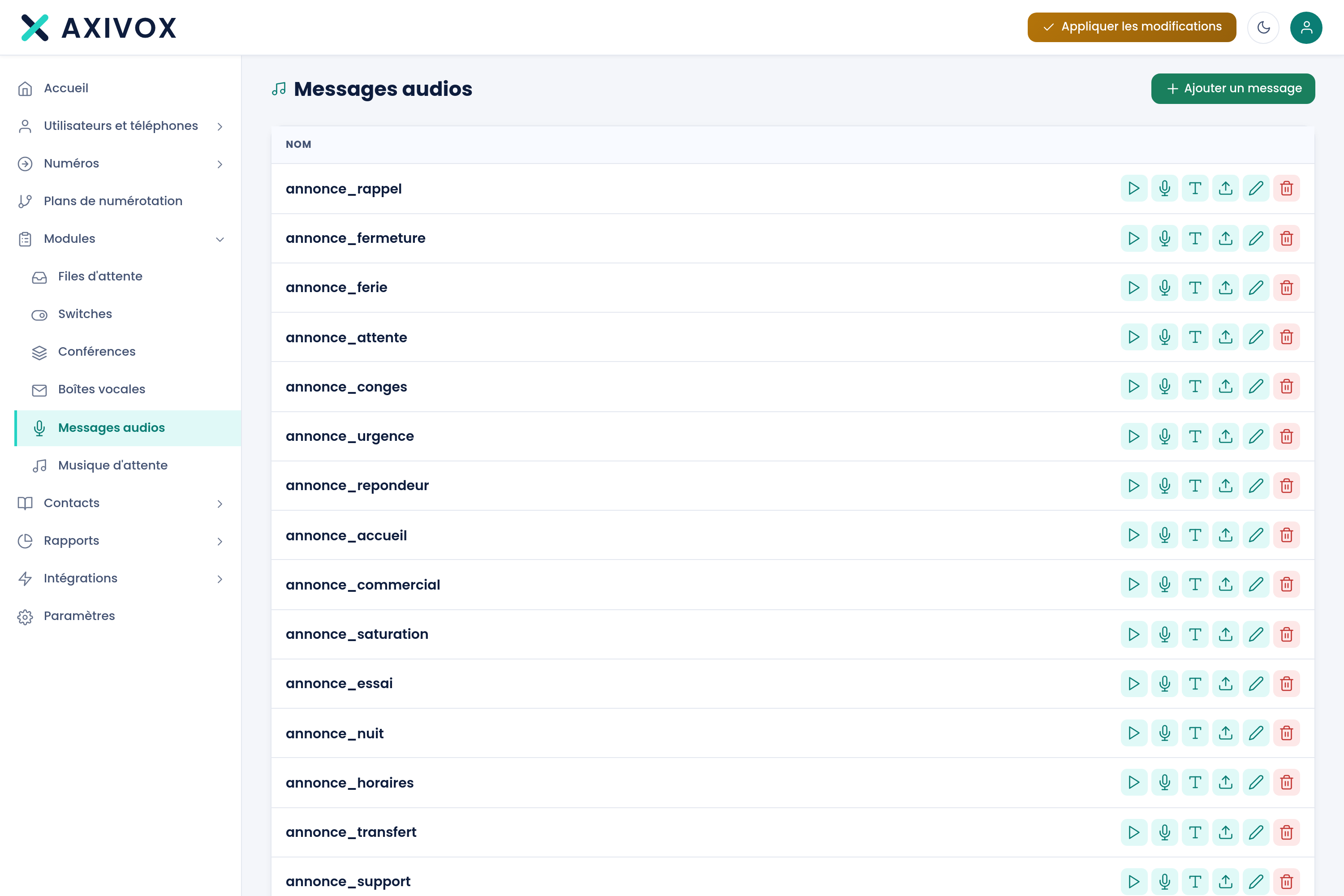
Your library of announcements: the greeting, the hours, the menus. Each message can be filled three ways: with a file, by phone, or with a synthetic voice.
At a glance
| Where | Modules, Audio messages |
| What it is | a record with a Name, which you then fill with a sound |
| Three ways to fill it | import a file, dictate over the phone, have a synthetic voice read a text |
| Formats accepted on import | wav, mp3, ogg, flac, aiff, au, gsm |
| Conversion | "The file is automatically converted to a-law 8 kHz mono, telephone quality." |
| Where it's used | the Play a file and Menu modules of a plan, the Blacklist, the recording announcement message |
| Right required | Audio message management |
How it works
An audio message starts as an empty record with a name. The sound comes afterward, and the three ways to add it produce exactly the same object.
Import a file. The row's import button opens the file picker. The accepted formats are wav, mp3, ogg, flac, aiff, au and gsm; any other format returns "File type not supported".
Dictate over the phone. The Record / Listen button asks for the "Extension to use for managing the message:". The chosen extension rings, the call is presented under the name Axivox messages, and the platform guides you to record and then replay your announcement in your installation's language. This is the direct path when the announcement needs a human voice.
Have a text read aloud. The Text message button opens the Convert a text to a message window, where you choose a voice and type your text. The "Convert a text to an audio message" page describes this screen in detail.
Whichever path you take, the installed sound is converted to a-law 8 kHz mono, the format of telephone voice. That's why a high-definition file won't sound any better than another: everything is brought down to the same quality, the one the line can carry. This isn't a loss to fix, it's the limit of the telephone.
The row's playback button plays the file actually installed, converted for your browser. It's the only check that proves a message has really been set.
What to fill in
| Field | What's expected | If you leave it blank |
|---|---|---|
| Name | a name that says what the content is, for example "General greeting" | the save is refused, with "'Name' cannot be empty" |
| File to import | a wav, mp3, ogg, flac, aiff, au or gsm file | the record exists and holds no sound |
| Extension to use for managing the message: | the extension you want to dictate the announcement from | the OK button stays inactive, no call goes out |
Steps
- Open Modules, then Audio messages.
- Click Add a message, give it a clear Name, then click Save.
- On the message's row, choose your path: the import button to send a file, Record / Listen to dictate from an extension, Text message for a synthetic voice.
- For an import, choose the file. A progress bar appears and ends with "Imported".
- For a dictation, choose the extension, click OK, answer when it rings, and follow the voice guide.
- Check: click the row's playback button. The player appears under the message's name and plays the file actually installed.
- Assign this message where it should be played, for example in a Play a file or Menu module of your dial plan.
- Click Apply changes, then call your number to hear the announcement in context.
If it doesn't work
"File type not supported". Import only accepts wav, mp3, ogg, flac, aiff, au and gsm. Convert your file to one of these formats before sending it again.
My high-definition file sounds just like the others. That's the expected behavior. Everything installed is converted to a-law 8 kHz mono, telephone quality. A higher-definition file adds nothing to the final result: focus instead on the sound capture, the quiet of the room and the diction.
The extension doesn't ring when I request a phone recording. The chosen extension must belong to your installation and be reachable at the time of the request. Check that it's registered, then try again from the Record / Listen button.
"Unable to play this message." when clicking the playback button. No sound is installed on this record, or it couldn't be retrieved. Re-import the file, or redo the recording, then try playback again.
Deletion is refused: "This message is used as the blacklist's message". This sound is the one the Blacklist plays to unwanted callers. Open Contacts, Blacklist, choose another message or "--- None ---", save, then come back and delete.
Announcements, text-to-speech and hold music
See the features