Switches
Create two-position switches, and let your teams flip a dial plan from a phone key or from this list, without opening the editor.
At a glance
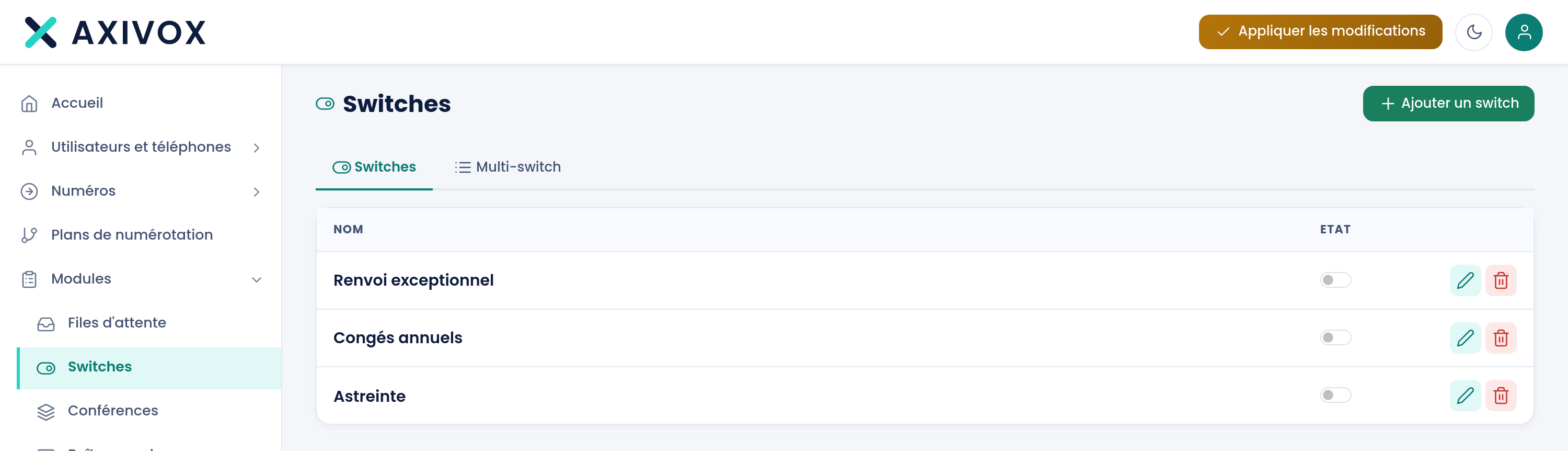
| Where | Modules, Switches, Switches tab |
| What it is | a named switch, with two positions, read by dial plans |
| Field on the record | the Name, and nothing else |
| Where you change the position | the toggle in the State column, on the switch's row |
| Where it's used | the Switch module in the plan editor, two outputs, inactive and active |
| The other tab | Multi-switch, for three positions or more, described in "Create a multi-switch" |
| Right required | Switch management |
How it works
A switch holds nothing but a name. It doesn't decide anything on its own: it's the dial plans that give it meaning, by reading its position through the Switch module. One position takes the active output, the other the inactive output. It's up to you to say, in the plan, what each one means.
The position isn't part of the phone configuration: it's held by the platform and read again on every call. A change of position therefore applies to the calls that follow, without going through Apply changes. Creating a switch and wiring it into a plan, on the other hand, do require applying.
Two actions change the position: the toggle in the State column on this page, and a phone key set to type Switch in the Keys tab of an extension's record. The key shows the current position through its LED, and the phone gives a confirmation beep on every flip.
The State column shows Unknown when the platform couldn't answer: that's a connection issue, not a position.
What to fill in
| Field | What's expected | If you leave it blank |
|---|---|---|
| Name | a name that says what the switch decides, for example "Evening on-call" | the save is refused, with "'Name' cannot be empty" |
| State | the current position, flipped directly from the list | the position was never set, and the module reads it as inactive |
Steps
- Open Modules, Switches, Switches tab.
- Click Add a switch.
- Enter the Name, then click Save. You return to the list.
- Open your dial plan editor, place a Switch module, and select this switch in its Switch field.
- Connect its two outputs,
activeandinactive. An output left connected to nothing hangs up the call. - Click Apply changes.
- Hand control to your teams: set a key of type Switch on the relevant phones, or let them flip it from this list.
- Check: call the number involved, flip the toggle in the State column, call again, and verify the path has changed.
If it doesn't work
The State column shows Unknown. The platform didn't return the position. Reload the page. If the state stays unknown on all your switches, it's the link with your installation that's at fault, not your settings.
I flip the toggle and nothing changes on calls. The position is read again on every call, it needs no applying. Check instead that your plan really points to this switch: two similar names are easily confused. Then check that the change to the plan itself was applied.
The call hangs up without a word at the Switch module. The chosen output isn't connected to anything. Connect both active and inactive, including the one you think will never be used, then apply.
The phone key doesn't switch anything. The key must be of type Switch in the Keys tab of the extension's record, and the phone must have re-read its configuration after an apply. Flip it from the State column to find out: if that works, the switch is fine and the key is at fault.
The add and delete buttons don't appear. The page stays viewable without write access to Switch management, but nothing can be created or deleted there. Flipping the toggle is refused for the same reason, even though it's still shown.