User groups
Bring several extensions together under a single name, then ring a whole department by naming that group, without listing its members in every plan.
At a glance
| Where | Users and phones, User groups |
| What it is | a named list of extensions, usable as a single destination |
| Where it is used | the Call module of a dial plan, as well as an extension's deviations and follow-me |
| Members | extensions from your setup, added one by one |
| Finding a member | from two characters, eight suggestions maximum |
| Permission required | User group management |
How it works
A group is just a named list of extensions. It does not decide anything by itself: it is wherever you designate it that decides.
In the plan editor, the Call module offers your groups in the same list as your extensions, tagged Group. Chosen as a destination, it rings all its members together. The same group can also be chosen in a busy deviation, a no-answer deviation, and an extension's follow-me.
The value lies in the direction you read it: your plans name a group, never a list of numbers. When the department's makeup changes, you edit the group and everything that references it follows.
A group referenced somewhere can no longer be deleted. The refusal names what is using it, whether a dial plan or an extension. Conversely, an extension that is a member of a group cannot be deleted while it belongs to it.
What to fill in
| Field | What is expected | If you leave it empty |
|---|---|---|
| Name | the name you will use to recognize the group in the plan editor and on an extension's record | saving is refused, with "'Name' cannot be empty" |
| Members | the extensions that should ring, searched by number or by name | the group exists and rings no one |
Step by step
- Open Users and phones, then User groups.
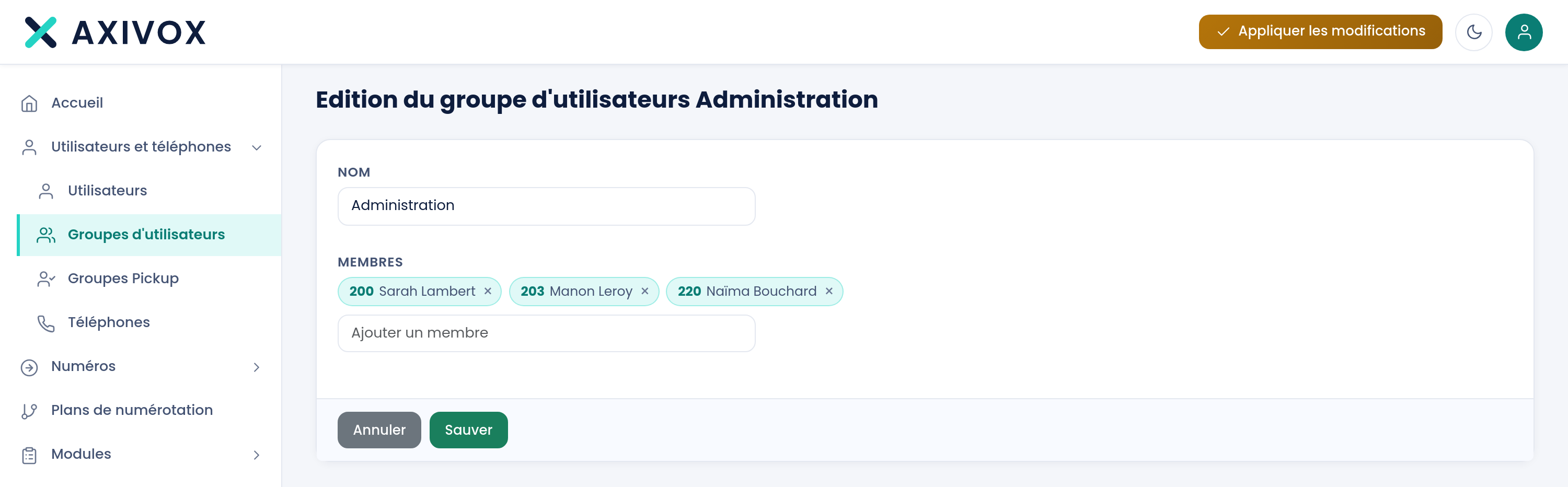
- Click Add a group.
- Enter the Name, for example "Accounting".
- In Add a member, type at least two characters of an extension's number or name, then pick it from the drop-down list. It is added as a tag, which the cross removes.
- Repeat for each member, then click Save. You return to the list, which shows the group and the numbers it contains.
- Open your dial plan editor, place a Call module, and choose the group as the Destination:. It appears in the list tagged Group.
- Click Apply changes.
- Check: call the number that enters this plan and verify that every extension in the group rings at the same time.
If it does not work
The search does not suggest any extension. It takes at least two characters for the list to open, and it only shows eight suggestions at a time: narrow your search. An extension that is already a member is no longer suggested.
The group has the right extensions but nothing rings. A group's membership only comes into service once applied. Click Apply changes, then call again.
I cannot delete the group. It is referenced somewhere, and the message names where: "This user group is currently used in the following dial plan," "in a busy deviation for user," "in a no-answer deviation for user," or "in a follow-me for user." Remove that reference first.
I cannot delete an extension: "This user is currently used in the user group." The message names the group. Open it, remove the extension from its members, save, then delete the extension.