Call tags
Your own words for sorting your calls: a quote, a complaint, a callback to make. A tag is placed on a call, then found again in the call list or used to trigger an action.
At a glance
| Where | Modules, Call tags |
| What it is | a list of tags that you define: a label, a description, a colour |
| Who can apply them | the dial plan, the user during the call, or both, tag by tag |
| Where you find them again | in the Call list, as pills and as a filter, and in the criteria of a rule on the Call events page |
| When it takes effect | immediately, without Apply changes |
| Right required | Call tags to view. Creating, editing and deleting are reserved for administrators |
How it works
A tag belongs to you: its name, its colour and who is allowed to apply it. You decide on a small vocabulary that describes your business, for example "Quote", "Complaint" or "To call back", then have it applied to calls.
Three places use it:
- the Tag module of the dial plan applies a tag as soon as the call goes through it, before anyone picks up. See the page Tag;
- the softphone offers the tags under the controls of the current call, and the user touches one while talking. See the page Tagging a call;
- the Call list shows them as coloured pills and lets you filter on them. See the page Call list.
A tag also serves as a criterion for a rule on the Call events page, to send an email or write to Odoo when the call carries one. See the page Call events.
Renaming a tag that is already in use breaks nothing: the calls that carry it show the new label.
What the screen shows
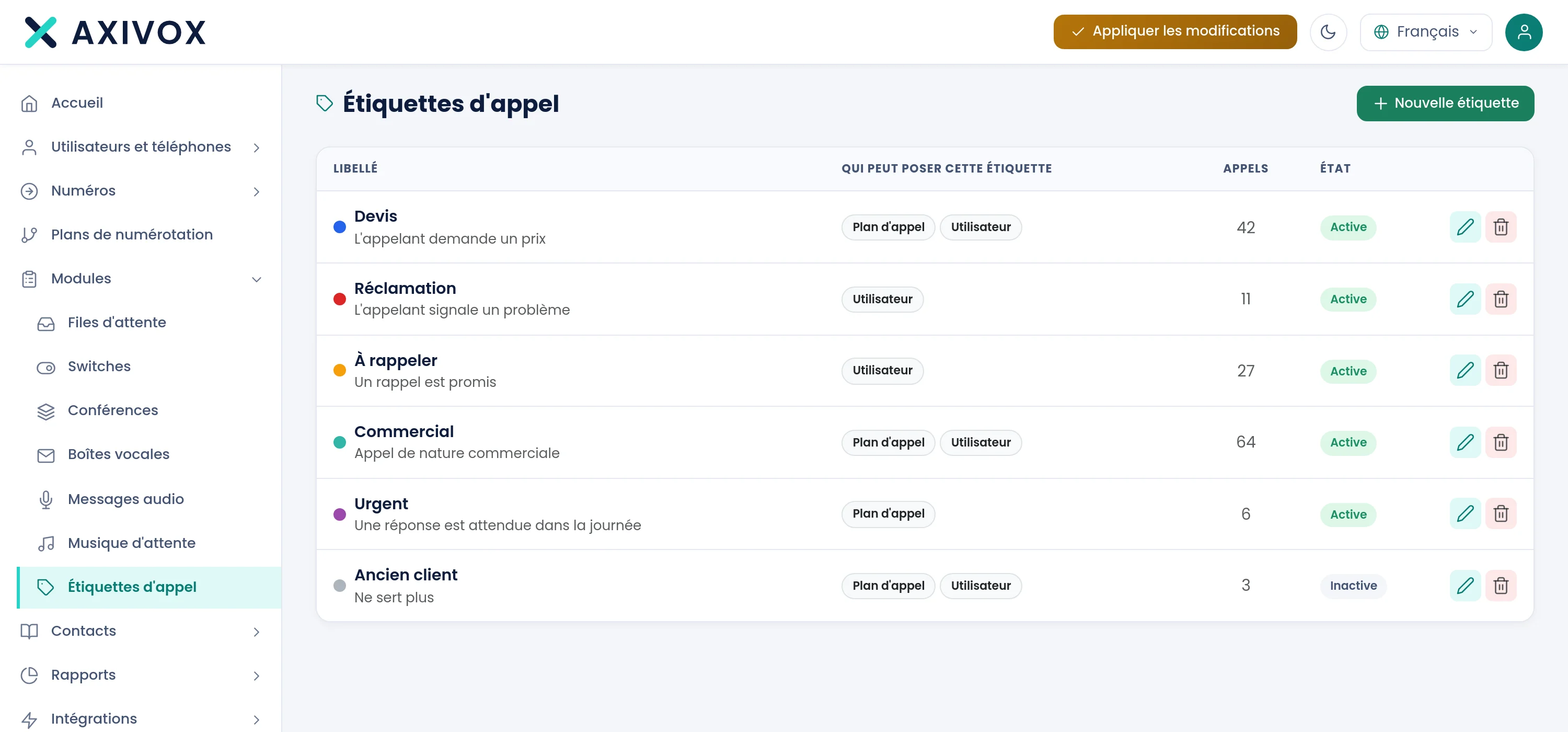
The list shows one row per tag.
| Column | What it shows |
|---|---|
| Label | a pill in the chosen colour, the label and, below it, the description |
| Who can apply this tag | who can apply it: Call plan, User |
| Calls | the number of calls that carry the tag |
| Status | Active or Inactive |
For an administrator, the New tag button appears at the top right, and each row carries a pencil to edit it and a bin to delete it. When the list is empty, the screen shows: "No tag yet"
Creating a tag
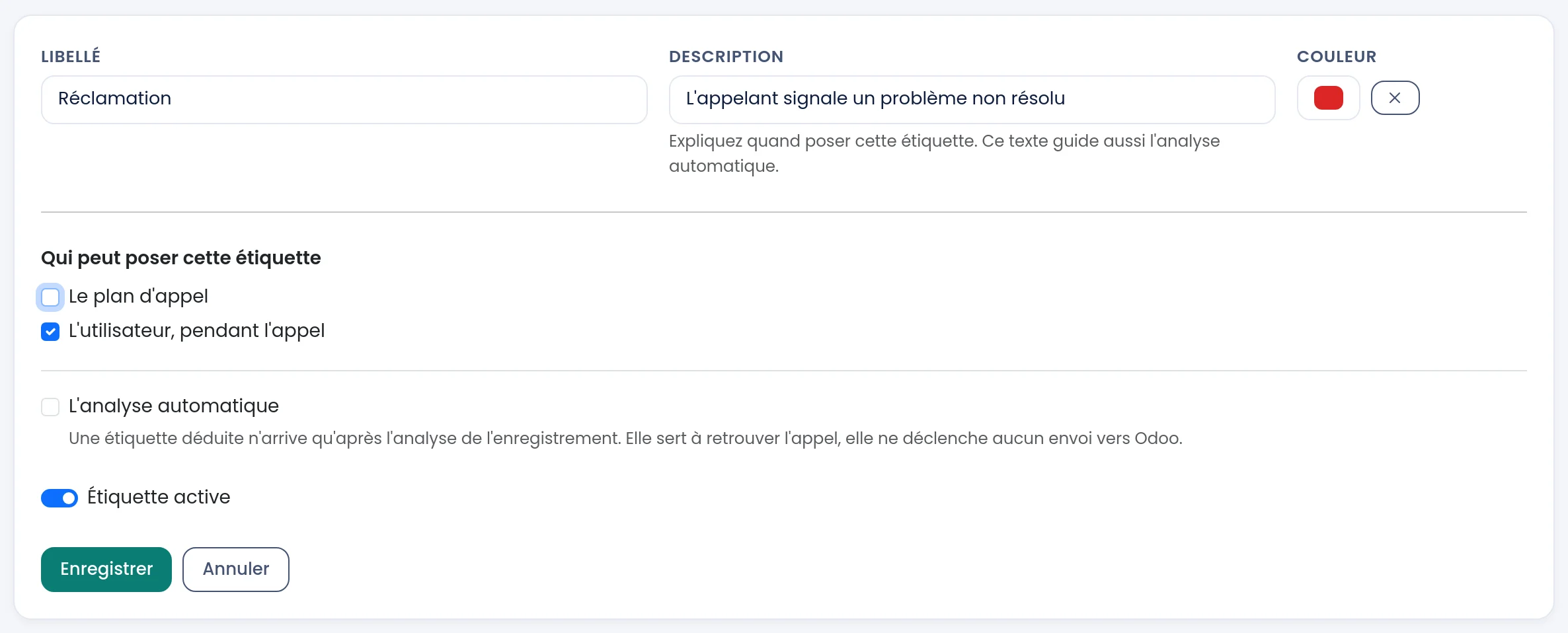
The New tag button opens the form in place of the list.
| Field | What is expected |
|---|---|
| Label | what your teams will read, 80 characters at most. Mandatory: "The label is required." |
| Description | optional, 255 characters at most. "Explain when this tag should be used. This text also guides the automatic analysis." |
| Colour | the colour of the pill. The cross next to it removes the colour: the tag is then shown in grey |
| Who can apply this tag | The call plan, The user, during the call and Automatic analysis. The first two are ticked for a new tag |
| Tag active | on by default. When it is off, the tag disappears from the lists of choices |
Click Save to save, or Cancel to go back to the list.
Who can apply the tag
Each tag says for itself who is allowed to apply it. This is what keeps a tag reserved for the dial plan from showing up in the softphone, or the other way round.
- The call plan: the tag is offered in the Tag module.
- The user, during the call: the tag is offered in the softphone, under the controls of the current call.
- Automatic analysis: a source planned for tags deduced from the recording. The automatic analysis does not apply any for now, and a deduced tag never triggers a rule on the Call events page anyway.
Editing, deactivating, deleting
The pencil reopens the form. You can change the label, the description, the colour and the sources at any time.
The bin first asks for confirmation. A tag that calls carry cannot be deleted: the bin appears dimmed, its tooltip says "Calls carry this tag. Deactivate it rather than delete it, so the history stays readable." and the screen answers "This tag cannot be deleted, calls carry it. Deactivate it so that it disappears from the selection lists." Deactivate it instead: it disappears from the lists of choices, but it stays readable on past calls and can still be used as a filter in the call list.
Steps
- Open Modules, Call tags.
- Click New tag.
- Enter the Label, for example "Quote", then a Description that says when to apply it.
- Choose a Colour.
- Tick who can apply it: the plan, the user, or both.
- Click Save.
- Apply the tag: in a dial plan with the Tag module, or from the softphone during a call.
If it does not work
I do not see this screen. It requires the Call tags right, set to Yes in the user's record, Permissions tab. This right opens the screen for viewing: only an administrator can create, edit or delete a tag.
The tag does not appear in the dial plan module. It must be active, and the The call plan box must be ticked. Otherwise the module window says "No tag allows the call plan to apply it. Open the call tags screen to create one or to change that setting."
The tag does not appear in the softphone. It must be active, the The user, during the call box must be ticked, and the user must have the Call tags or Call list right. The softphone reads the list when it connects: a softphone that is already open reads it again when it is reloaded.
I cannot delete the tag. Calls carry it. Deactivate it instead: the history stays readable.
The automatic analysis applies no tag. That is the case today: this source is planned, but no tag is deduced from recordings yet. Use the dial plan or the softphone.