AI trunks
An AI trunk connects your telephony to a voice agent platform, which can then take your calls. Two platforms are supported.
At a glance
| Where | Integrations, AI trunks |
| Platforms | ElevenLabs and Retell AI, each with its own setup guide linked on the screen |
| What it is | a connection with its own username and password, to be entered on the platform's side |
| When the credentials appear | after the first save only |
| Then | the trunk becomes a destination in your dial plans |
How it works
A voice agent lives with a provider, not with us. For it to be able to answer your calls, it needs a connection into your telephony: that's what you create here.
The portal generates the connection's username and password. You enter them into the platform's console, which uses them to authenticate. Both fields are read-only on the record: they aren't typed in, they're copied over.
Once the trunk is registered and the changes applied, it appears as a destination in your dial plans. It's typically placed on a queue's timeout exit, so an agent takes the call rather than losing it, or on night-time answering.
What the screen shows
The list has three columns, plus the actions:
| Column | What it shows |
|---|---|
| Name | the name you gave the trunk |
| Provider | the platform chosen |
| Username | the connection's login, generated by the portal |
When no trunk is registered: "No AI trunk registered."
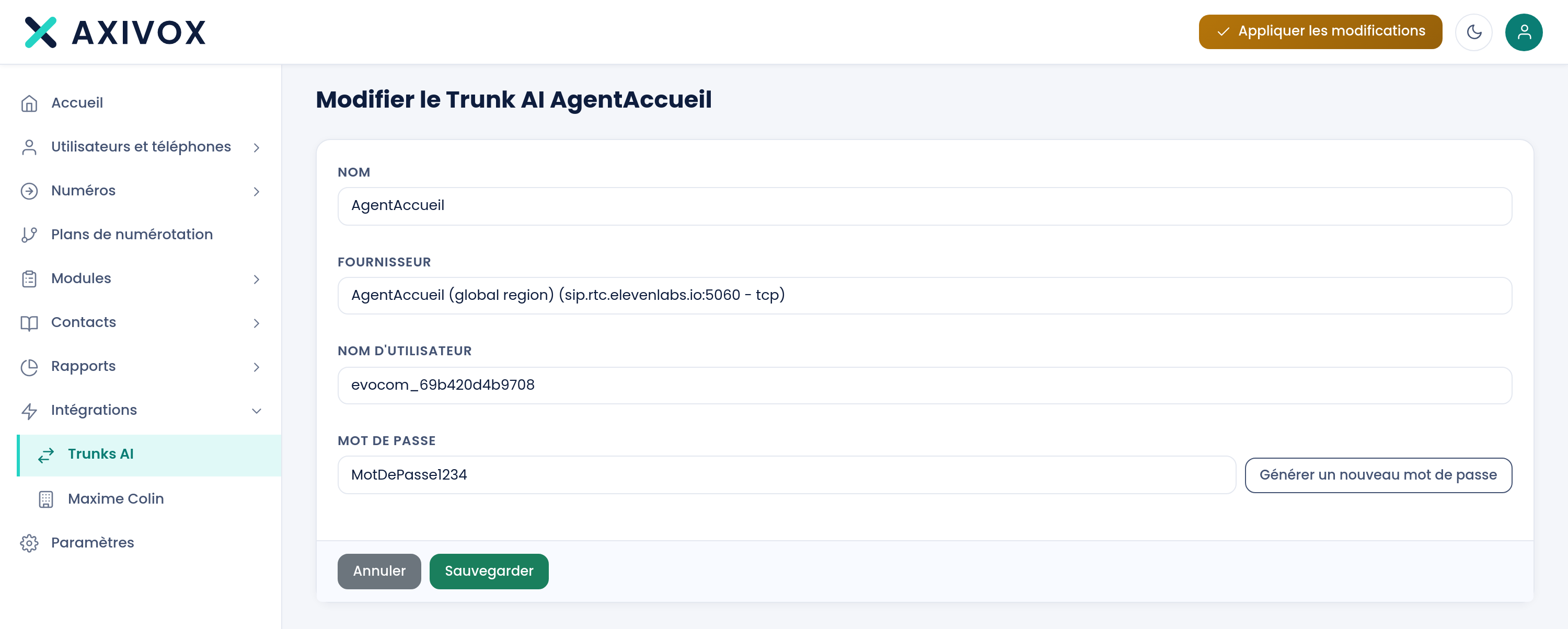
The record:
| Field | What's expected |
|---|---|
| Name | required. This is the name you'll find again in your dial plans |
| Provider | required, chosen from the list. It opens on "Select a provider" |
| Username | read-only, generated by the portal. Visible only after the first save |
| Password | read-only, with a Generate new password button. Same rule: it only appears once editing |
The Save button stays inactive until the name and provider are filled in.
Steps to follow
- Open Integrations, AI trunks, then Add an AI trunk.
- Give the trunk a name and choose the provider.
- Click Save. The record closes back onto the list.
- Reopen the record you just created: the Username and Password are now there.
- Enter these two values into your platform's console, following the setup guide linked on the trunks screen.
- Click Apply changes in the top banner.
- Open the relevant dial plan and place the trunk as a destination, for example on a queue's
timeoutexit. - Call your number and check that the agent answers.
If it doesn't work
I see neither a username nor a password. You're still on creation. Both fields only exist once editing: save the trunk, then reopen its record.
The Save button stays inactive. The name or the provider is missing. Both are required, and the provider list opens on an empty choice that needs replacing.
I regenerated the password and the agent no longer answers. The screen told you: "The password has changed, don't forget to apply the changes." Two actions are needed, not one: click Apply changes here, and enter the new value into the platform's console. The old one stops working.
My platform isn't in the list. Two platforms are supported today, ElevenLabs and Retell AI. The screen says so itself: "If you'd like us to support another platform, feel free to contact us."
The trunk exists but doesn't appear in my dial plans. The changes haven't been applied. Click Apply changes, then reopen the dial plan editor.
What a voice agent can do, and what it cannot
See the Voice agent page