Sessions
Two lists on a single screen: the devices that stay signed in to your portal, and the phones currently reachable. Revoke the ones you don't want, restart the others.
In brief
| Where | user menu, top right, Connected devices entry |
| What the screen lets you do | revoke a session, view registered extensions, ask them to restart |
| The two lists | Open sessions and Registered extensions (or Your registered extensions, depending on your permissions) |
| Session columns | Client, Device, IP address, Last used, Expires on |
| Extension columns | Extension, Device, Transport, IP address, Registered until |
| Client types | Web portal and Softphone |
| Your own session | marked This device, with no revoke button: "Use Sign out" |
| Restarting extensions | a global button, present only for an account that sees every extension in the installation |
| Who has access | any signed-in account; the scope of the second list depends on your permissions |
How it works
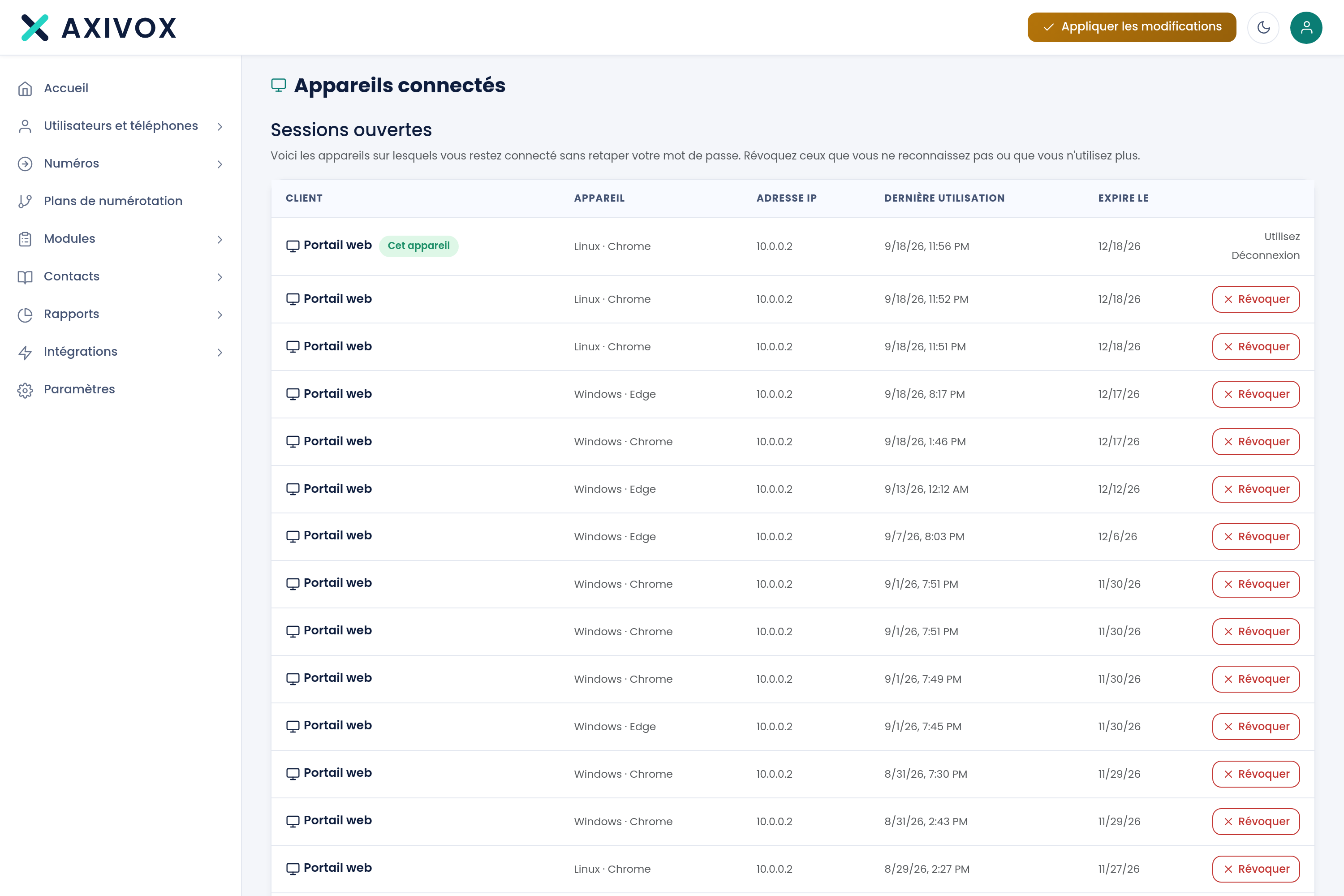
The two lists are not about the same thing, and the screen takes care to say so.
The first, Open sessions, lists "the devices on which you stay signed in without retyping your password. Revoke any you don't recognize or no longer use." Each row carries a Revoke button, except the row for the device you are reading the page from: it is labeled This device and points you to Sign out. Revoking asks for confirmation: "Revoke this device? It will need to sign in again with its password."
The second, Registered extensions, shows "what is reachable for a call right now. An extension can be registered without an open session, and the other way around." An extension appears there because a phone or piece of software has registered with the server, independently of any connection to the portal. The Restart button on a row, when offered, asks the device to reload its configuration. The Restart extensions button, at the top right of this section, does the same for all of them: "Restart all of the customer's extensions?"
What the screen shows
| Column | List | What it contains |
|---|---|---|
| Client | Open sessions | Web portal or Softphone |
| Device | both | the operating system and software reported by the device |
| IP address | both | the address the device connected from |
| Last used | Open sessions | the last time the session was used |
| Expires on | Open sessions | the date after which the password will need to be entered again |
| Extension | Registered extensions | the internal extension number |
| Transport | Registered extensions | the phone's connection method to the server |
| Registered until | Registered extensions | the expiry of the last registration, continuously renewed by the device |
Step by step
- Click the person icon, top right of the screen, then Connected devices.
- Go through Open sessions row by row. Identify each device by the Device column and the IP address column.
- On a row you no longer want, click Revoke and confirm.
- Leave the row marked This device alone: it's yours, and it closes through Sign out.
- Scroll down to Registered extensions to see what is actually reachable. An extension missing from this list will not ring.
- After a configuration change on a phone, click its Restart button, or Restart extensions for the whole installation.
- Reload the page a moment later: the extension should have reappeared in the list.
If it doesn't work
A row has no Revoke button. That's the session you're viewing the page from. It carries the label This device and the note "Use Sign out." Close it through Sign out, in the same menu.
"This device no longer exists" The session had already expired, or it had just been closed elsewhere. There's nothing to do: reload the page, and the row will be gone.
"Extensions temporarily unavailable" The extension list is read live from the telephony server, and that read failed. The sessions are still displayed. Reload the page in a moment. If the message persists, report it to us: it's a symptom, not something to retry yourself.
An extension is missing from the list even though the phone is powered on. It has not registered, and it will not ring. Check its network connection, then its SIP credentials on the extension's record. A device that fails to register is absent from this list, with no error message.
The Restart extensions button doesn't appear. It's only offered to accounts that see every extension in the installation, and only when at least one extension is registered. With limited permissions, the section is titled Your registered extensions and shows only your own.