Taking a call and running it
A call is a card, not a screen. It is added under the bar, you keep your keys in sight, and it carries every control of the conversation.
At a glance
| A ringing call | a green card that pulses, with Decline and Answer |
| A conversation | an aqua card, with Mute, Hold, Keypad, Transfer and End |
| A call put on hold | a folded strip, clickable to resume |
| Already on a call when it rings | an End and answer button is added to the green card |
| Recording | the round button in the header of the card, when your company allows it |
| Sending digits | Keypad, for a voice menu or a code |
A ringing call
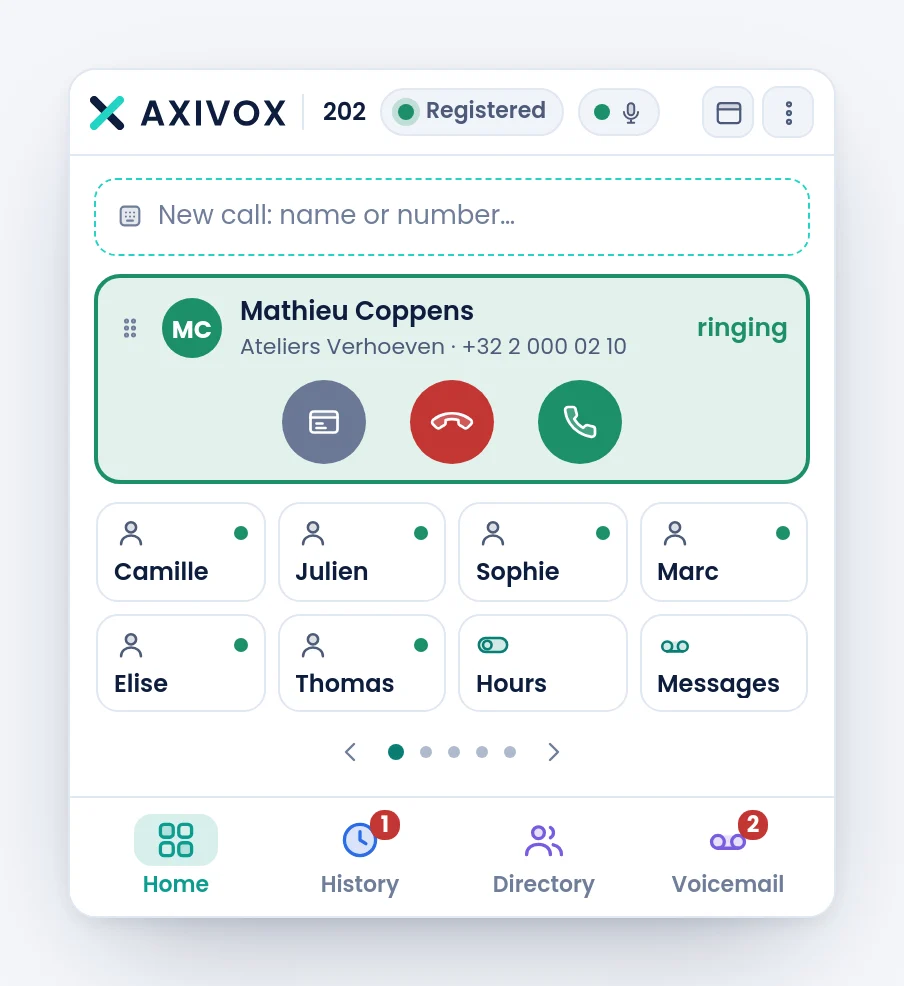
The card gives the name when it is known, the number otherwise, and the initials in a badge. The name comes from the signalling or from your address book: the softphone shows what it was told, it does not go looking for a name while the phone rings.
Two round buttons: the red one declines, the green one answers. If you are already on a call, a third button appears under them, End and answer, which hangs up the current call and takes the new one in a single move.
During the conversation
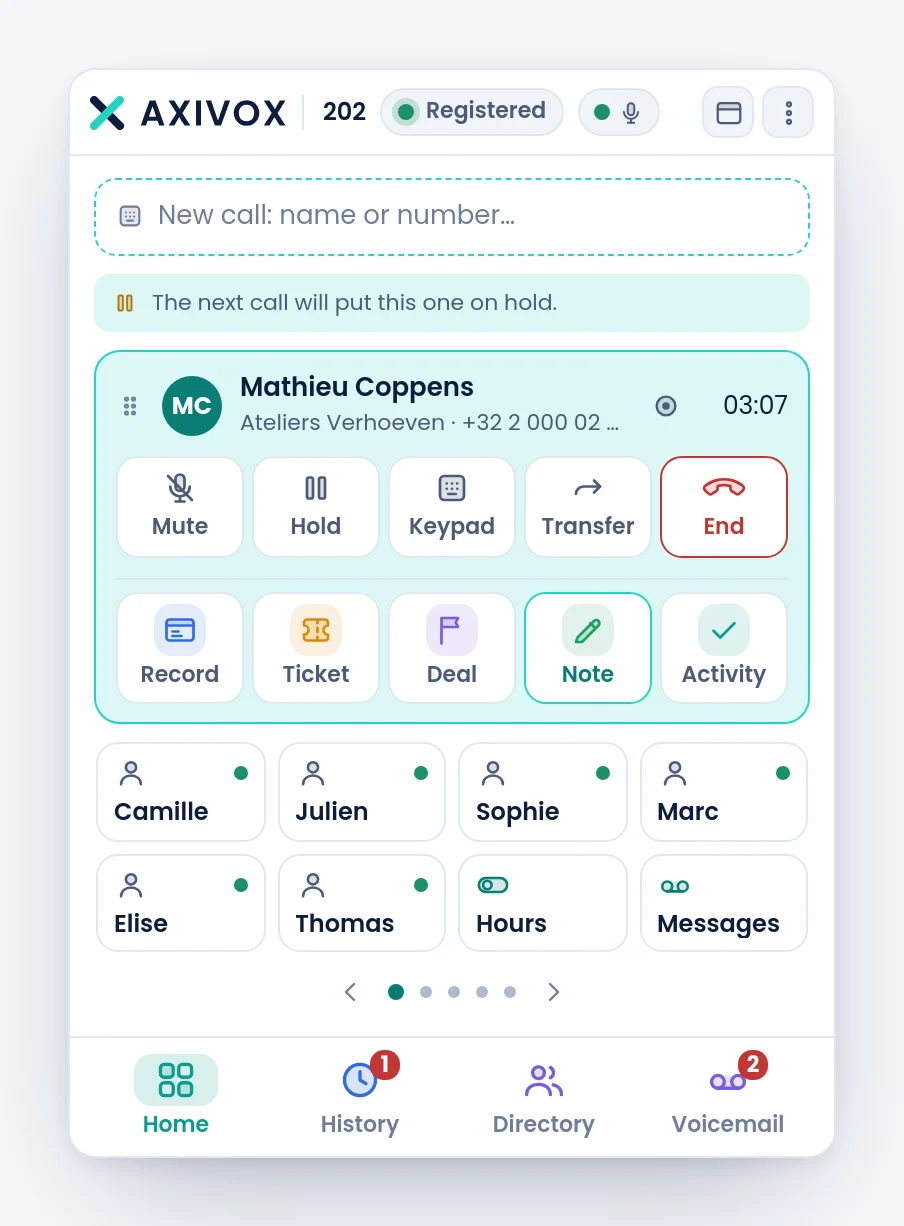
The card shows your contact, their company when it is known, and the running duration.
| Button | What it does |
|---|---|
| Mute | cuts your microphone. Your contact stays audible |
| Hold | puts the call on hold. They hear nothing and neither do you |
| Keypad | opens the pad, to send digits into the conversation |
| Transfer | passes the call to someone else. See the next page |
| End | hangs up |
In the header of the card, two round buttons appear according to what your extension allows: recording the conversation, and moving the call to your mobile.
When your company has connected its CRM, a row of gestures is added under the controls: open the contact's Record, create a Ticket, an Opportunity, a Note or an Activity, without leaving the call.
Sending digits
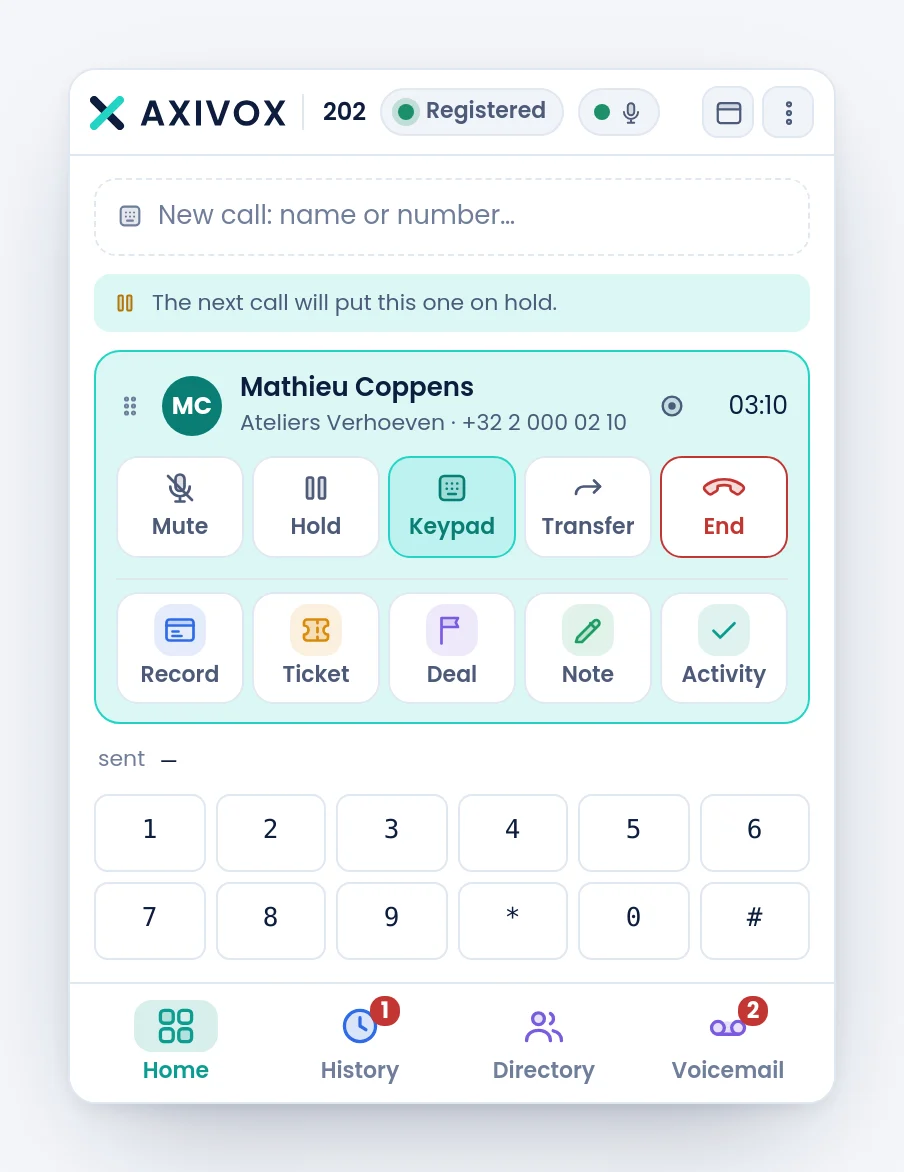
Keypad opens a twelve-key pad. What you type there goes into the conversation in progress: that is what a voice menu, a conference code or a remote mailbox expects. The same button closes it.
Recording the conversation
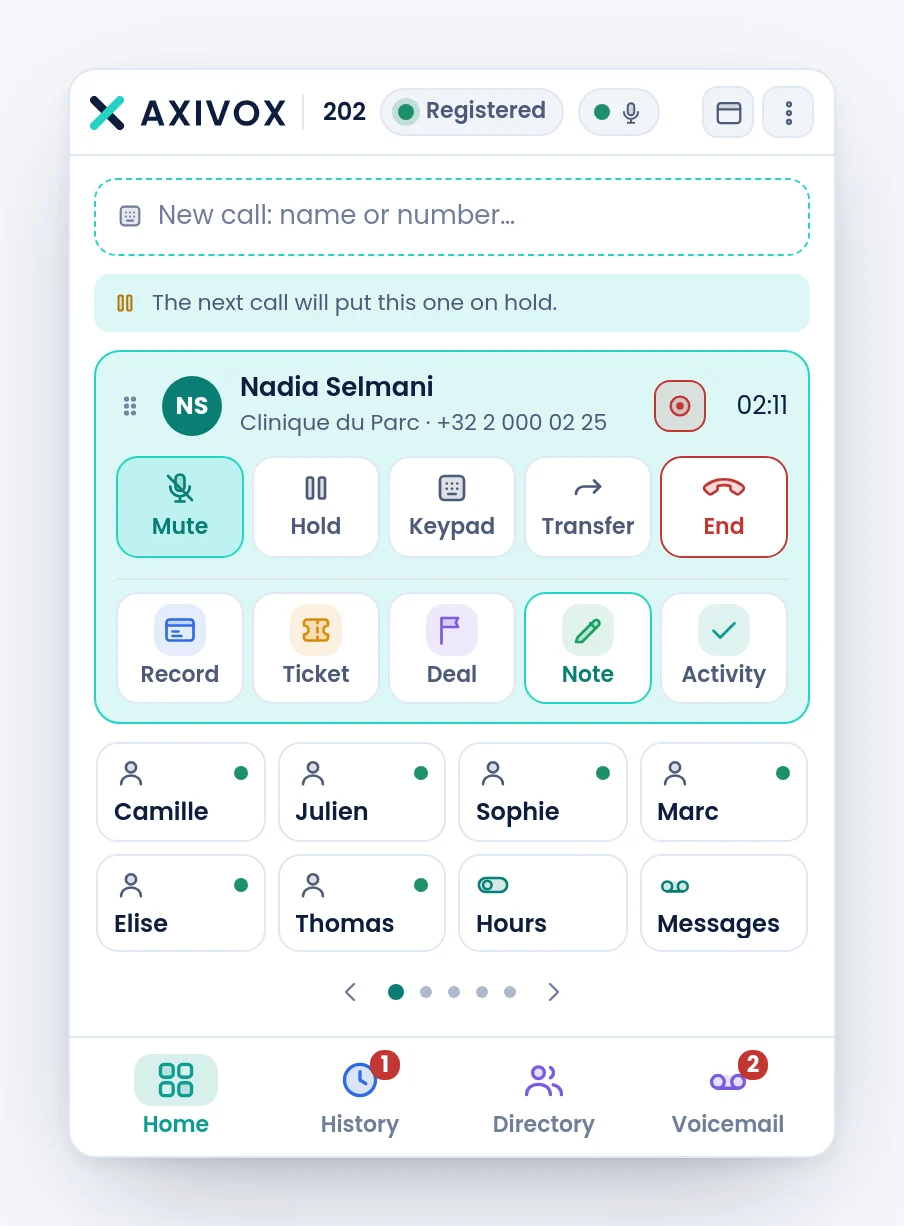
The round recording button lights up while recording runs. It only exists when your company has enabled recording and your extension is allowed it: without that right, the button is not shown rather than failing on click.
Several calls at once
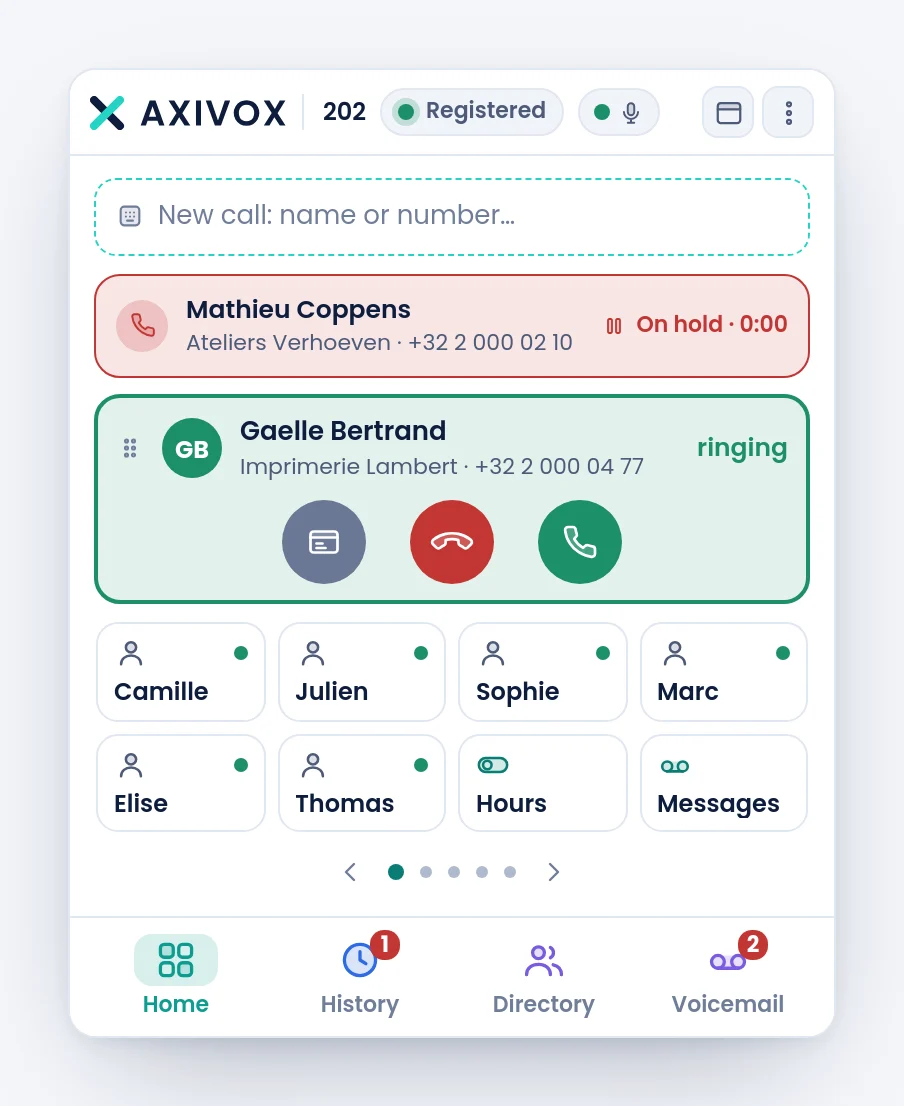
Calls stack up, the most recent on top. A call on hold folds down to a strip: its name, how long it has been waiting, and two small round buttons when you are talking to somebody else.
| Round button | What it does |
|---|---|
| Join | brings the waiting call into the current conversation. Everyone hears everyone |
| Receive | passes the current conversation to the waiting call, and you hang up |
A banner The next call will put this one on hold warns you when a second call is possible.
Step by step
- When the green card appears, read who is calling before you pick up.
- Click the green circle to answer, the red one to decline.
- During the conversation, use the five controls of the card. They act on that call, not on the others.
- To talk to a colleague without your contact hearing, put the call on Hold first.
- To make a conference: put the first call on hold, call the second, then click Join on the first one's strip.
- Hang up with End. A card disappears on its own when the other side hangs up.
If it does not work
The softphone does not ring, but the card appears. It is the sound, not the call. Check the device chosen in the menu, entry Output and ringtone, and your computer volume.
My contact cannot hear me any more after a hold. Check that you really resumed the call: a folded strip means it is still on hold. A click on it resumes.
"Nothing leaves this phone". The softphone says so in the card when your microphone gives nothing. The line is kept alive with silence so the conversation is not cut. On a remote desktop, it is almost always the microphone redirection that is missing.
The recording button does not exist. Recording is not enabled for your company, or not for your extension. That is set in the portal, not here.
The mobile button does not appear. It requires a GSM number on your record, and a call that is not on hold. The page Taking a call to your mobile, later in this chapter, covers it.
The CRM row does not appear during the call. It only exists when your company has connected its CRM, and only once the call is established, not while it rings.