Odoo
The connection to your Odoo: the contact name shown when the phone rings, a call record in Odoo, and the destination for the actions of your call events.
At a glance
| Where | Integrations, Odoo |
| What it does | identifies the caller in your Odoo, logs calls, and receives what your call event rules write there (a note on the contact, an opportunity, a ticket) |
| What your calls write there | is set in Actions in Odoo and Call events, not on the instance record |
| Editions | Enterprise and Community. Tested on Odoo 17, 18 and 19 |
| To prepare | the instance URL, the database's technical name, an Odoo login, an API key |
| Several instances | yes, as many as you want. Only one is the default instance |
| Direction of the connection | we're the ones calling your Odoo, using its web address and API key |
How it works
You register an Odoo account and its API key. From there, the connection does two things, which you enable individually on the instance record: it looks up the contact matching the number, and it writes a call record in Odoo. Everything else, such as a note on the contact with the transcription and the recording, an opportunity or a ticket, is decided elsewhere: you define what to write in Actions in Odoo, then when to write it in Call events.
The call log is written to the voip.call model, the one used by Odoo's Phone app. This app only exists in the Enterprise edition. In Community, it's the Axivox module that provides the log, under its own model but with the same field names, so nothing changes in your habits the day you move to Enterprise. The probe described below tells you which of the two your instance uses.
Probing the instance
The Test connection button doesn't just check your credentials. It queries your instance and shows you what it can actually do, rather than guessing from its version number. A version number is a clue, never a proof: two instances of the same series don't necessarily accept the same fields, and an Enterprise instance may well not have the app installed.
The probe shows:
- the Edition, Enterprise or Community, and the series;
- the Call log, meaning the model that will carry it;
- one tag per field, green or orange.
A green tag means "Pushed to Odoo's call log." An orange tag means "Not available here: pushed to the contact's feed." The screen explains it below the tags: "Orange fields don't exist on this version of Odoo. They continue to be written to the contact's message feed." Nothing is therefore lost: the information just changes location.
The ten fields probed are phone_number, direction, state, start_date, end_date, partner_id, user_id, summary, transcript and transcription_status. Five more, which we add and Odoo doesn't have, only appear where they exist: did, talk_duration_s, sentiment, escalation and themes.
When a call log isn't possible
Two cases, two different answers.
If the Phone app exists but isn't installed, the screen shows: "Odoo's Phone app isn't installed on this instance. Without it, no call log is possible." It's installed from your Odoo's Apps menu, with this warning, shown as is: "On Odoo Online, installing an app can change your subscription. This installation is yours to make, we won't do it for you."
If the instance is on Community, the app doesn't exist and nothing you do in Odoo will install it. The screen then shows: "This instance is on Community: Odoo's Phone app doesn't exist there. The Axivox module will provide the call log." And it offers the steps to follow, in three stages, with the download button for your series:
- "Download the module for your Odoo version."
- "Drop the folder into your Odoo server's modules directory, then restart Odoo. A module that adds code is only picked up on startup."
- "In Odoo, from the Apps menu, update the app list, look for Axivox and install it. Then come back here and test the connection."
What to enter
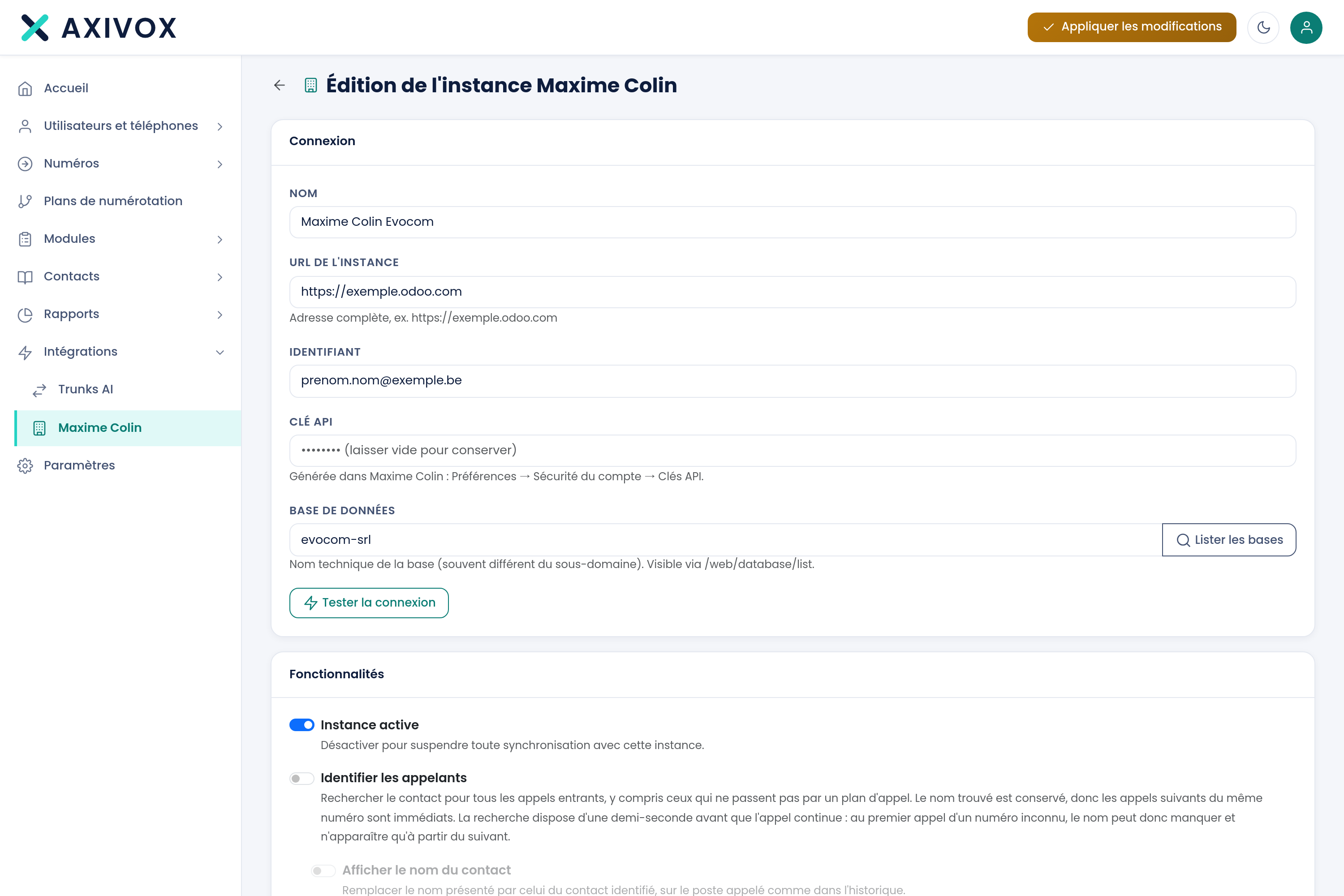
The Connection block:
| Field | What's expected | Where to find it |
|---|---|---|
| Name | a name for this instance, useful if you register several | up to you. The screen suggests "E.g.: Odoo Production" |
| Instance URL | "Full address, e.g. https://mycompany.odoo.com" | your Odoo's address bar |
| Login | the Odoo account we'll write under | your Odoo |
| API key | "Generated in Odoo: Preferences → Account Security → API Keys." | to generate in Odoo, never the account's password |
| Database | "Technical name of the database (often different from the subdomain). Visible via /web/database/list." | the List databases button, or the address shown alongside |
The List databases button queries the server from the URL entered, before any authentication. Three possible answers: a list to choose from, "No database returned by the server (listing may be disabled)," or "Unable to list databases (server unreachable or listing disabled). Enter the name manually." In the last two cases, the name is typed by hand: listing is often turned off on a production instance, it isn't a fault.
When editing, the API key field shows "•••••••• (leave blank to keep the current one)." Left blank, it doesn't touch the key already saved.
The Features block contains five toggles, in this order. The text in the right-hand column is what the screen shows below each one.
| Toggle | What it does |
|---|---|
| Active instance | "Disable to suspend all synchronisation with this instance." |
| Identify callers | "Look up the contact for every inbound call, including calls that do not go through a dial plan. The name found is kept, so later calls from the same number are instant. The lookup gets half a second before the call carries on: on a first call from an unknown number the name may therefore be missing, and only show from the next one." |
| Show the contact name | "Replace the presented name with the identified contact name, on the ringing extension and in the call history." This toggle depends on the previous one and stays greyed out while it's off |
| Log calls | "Create a voip.call entry in Odoo for every call." |
| Publish the transcript on the call record | "The transcript, summary and analysis are written to the fields of the call record created in Odoo. What goes on the contact depends on the actions, not on this setting." This toggle depends on the previous one and stays greyed out while it's off |
The instance list, meanwhile, shows the Name, the URL, the Status (Active or Inactive) and a Default instance column, which is a radio button: only one instance at a time. The Remove default instance link, below the table, cancels this choice.
Click a row to open the instance. The actions column offers the "View integration status" icon, the "Actions in Odoo" icon and the bin. When the integration runs into problems, an orange pill showing their number appears next to the status and opens the Integration status screen.
Steps to follow
- In Odoo, generate an API key: Preferences, Account Security, API Keys.
- Open Integrations, Odoo, then Add an instance.
- Name the instance, enter its full URL and the account login, then paste the API key.
- Click List databases and choose yours. If listing is disabled, type the database's technical name.
- Click Test connection. Read the probe that appears: the edition, the series, the call log and the colour of the tags.
- If the probe reports that no call log is possible, fix that in your Odoo first, then test again.
- Enable the toggles you need, starting with Active instance.
- Save.
- Back on the list, check Default instance on the one your dial plans should query by default.
- To write anything other than the call record to Odoo, create the actions you need (see Actions in Odoo), then the rule that triggers them (see Call events).
- Call one of your numbers from a phone whose number exists in Odoo, and check the name shown.
If it doesn't work
"Connection failed" after the test. Four values can be at fault, in this order of frequency: the database name, which isn't the subdomain; the API key, which must be a key and not a password; the login; the URL, which must be complete, protocol included. Fix one value at a time and retest: the test is free and immediate.
Some tags are orange after the test. Nothing is lost. "Orange fields don't exist on this version of Odoo. They continue to be written to the contact's message feed." You'll find them on the contact's record, in their message feed, instead of the call record.
The contact's name doesn't show on the first call from an unknown number. That's the behaviour stated under the Identify callers toggle: the lookup has half a second before the call carries on. Past that delay, the call goes through without waiting, so as never to delay a ring. The name found is then kept: from the second call from the same number, it shows immediately.
Nothing is published on the contact. The note on the contact is no longer an instance setting: it depends on a rule of the Call events page. Check that a rule of the Call ended event has the Write to Odoo action, that the chosen Odoo action is enabled, that the instance is active and that the caller is identified in your Odoo. The audio is only sent if Attach the call recording is on for the Odoo action and the call was recorded. See the page Actions in Odoo.
No call record appears in Odoo. Test the connection and read the probe's Call log line. If it's empty, the instance doesn't yet have a model to receive the log: follow the steps the screen shows, the Phone app ones on Enterprise, the Axivox module ones on Community.
What the Odoo integration brings to everyday work
See the Odoo page